RF Scanning

Scan Gun Fundamentals

  • Scan Gun Fundamentals Key Information

    Scan Gun Fundamentals - Key Information

    Scan gun fundamentals define the core processes and system requirements that enable Zebra RF devices to operate effectively within Inspired ERP environments. At Inspired, Zebra scan guns are provisioned, configured, and deployed with required software and settings before being handed off to customers, ensuring seamless integration with warehouse workflows and ERP transactions. Understanding scan gun fundamentals helps ensure reliable device performance, accurate data capture, and consistent user experience across warehouse operations.

    Device Provisioning at Inspired
    Before deployment, Zebra scan guns are prepared by Inspired I.T. to ensure compatibility with Inspired ERP and customer environments. Key provisioning steps include:

    • Installation of required operating system versions approved for Inspired
    • Deployment of Inspired-supported software, including:
    - Zebra Enterprise Home Screen (EHS)
    - Velocity
    - DataWedge configuration profiles
    • Application of customer-specific configurations and security settings.
    • Validation of device functionality and RF connectivity.

    This provisioning process ensures devices are operational and aligned with Inspired workflows prior to customer handoff.

    Core Scan Gun Components

    Scan gun functionality within Inspired relies on several core components:

    • Zebra handheld RF devices
    • Integrated barcode scanners and physical triggers.
    • Wireless connectivity for real-time ERP communication.

    Operating System and Firmware
    • Android OS versions supported by Inspired ERP
    • Zebra firmware and security updates.
    • Device-level configurations that impact performance and compatibility.

    Software & Applications
    • Terminal emulation software for accessing Inspired RF menus.
    • Zebra EHS for device lockdown and controlled user access.
    • Inspired ERP RF menu access and authentication.

    Integration with Inspired Workflows
    Scan guns interact directly with Inspired through RF-driven workflows. Common workflows include:
    • Receiving and putaways
    • Picking and order fulfillment
    • Slot verifiation and inventory validation
    • Cycle counting and inventory adjustments
    • Label scanning and pallet identification
    • Shipping and manifesting processes

    Each workflow depends on accurate scanning of barcodes such as item numbers, pallet IDs, locations, and quantities.

    Barcode Scanning Fundamentals
    Accurate barcode scanning is foundational to scan gun operation in Inspired. Proper barcode configuration ensures consistent data capture across all warehouse processes. Key concepts include:
    • Barcode symbologies supported by Zebra devices (e.g., Code 128, UPC, QR).
    • Validation of scanned data against Inspired records.
    • Real-time feedback through prompts and system messages.
    • Error handling when invalid or unexpected barcodes are scanned.

    Customer Handoff & Deployment

    Once provisioning is complete, scan guns are delivered to customers for operational use. During handoff:
    • Devices are tested to confirm connectivity to Inspired environments.
    • Customer-specific settings are validated.
    • Documentation or guidance may be provided for end users and IT teams.
    • Devices are ready for immediate use within warehouse operations.

    This approach minimizes deployment time and ensures a consistent user experience across customer sites.

    Operational Impact
    Proper implementation of scan gun fundamentals delivers measurable operational benefits:
    • Improved accuracy in inventory and order processing.
    • Faster transaction execution compared to manual entry.
    • Reduced training time for warehouse users.
    • Consistent device behavior across multiple locations and users.
    • Enhanced system reliability and supportability.
  • Fundamentals

    Scan Gun Fundamentals

    Scan gun fundamentals describe the core concepts required to use RF devices effectively within Inspired. These fundamentals apply across all RF-driven workflows and focus on understanding how barcode scanning interacts with system validations and real-time inventory updates. This article covers conceptual knowledge, not device setup or workflow steps.

    Scan guns serve as the primary method for capturing warehouse activity within Inspired. Every scan performed on a device is validated by the system to ensure accuracy, consistency, and data integrity across inventory and order processing.


    Barcode Scanning Concepts
    Scan guns capture barcode data to identify items, warehouse locations, pallets, and quantities during RF-driven transactions. Each barcode scanned is checked against Inspired to confirm that the data matches what the system expects at that point in the workflow. Before a transaction can proceed, Inspired validates each scan to ensure:

    • The correct item is being processed
    • The scanned location or pallet is valid
    • The scan aligns with the current warehouse activity

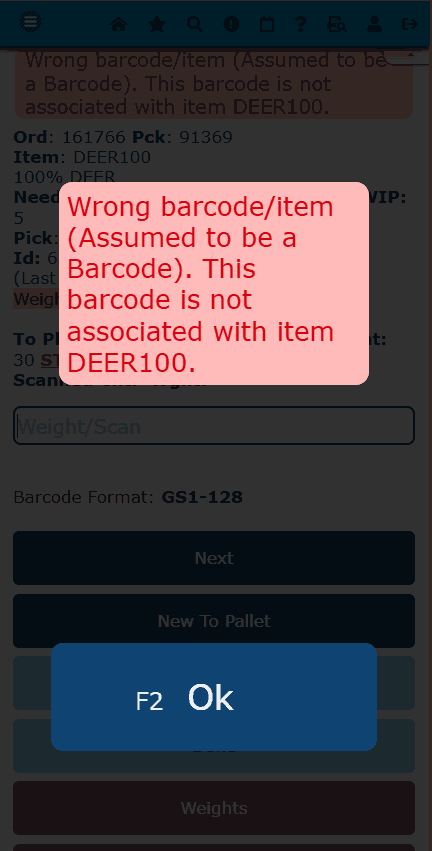
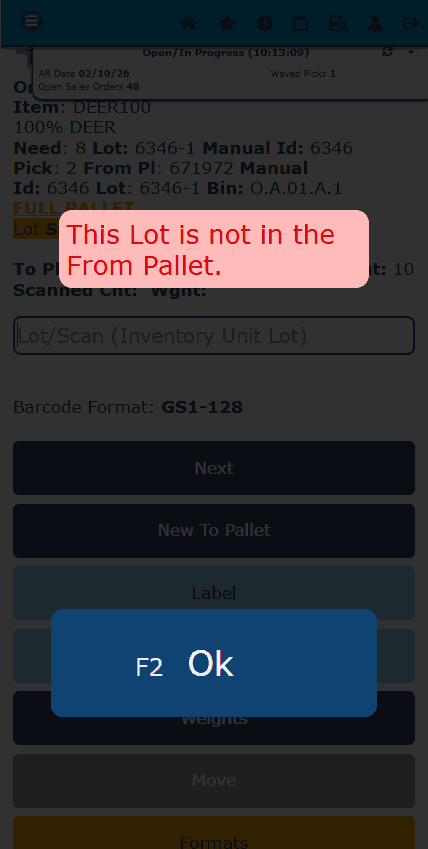
    If an incorrect barcode is scanned, the system displays a warning or error message, preventing the transaction from continuing until the issue is resolved. This ensures that only accurate and approved data is recorded.


    Real-Time System Updates
    All RF scans update Inspired ERP in real time. As soon as a scan is successfully completed, the system immediately reflects the change across inventory balances, order status, and warehouse activity records.

    Real-time updates help eliminate delays caused by manual data entry and reduce the risk of inventory discrepancies. Warehouse users can rely on scan guns to ensure that system data accurately represents what is physically happening on the warehouse floor.


    Accuracy & Error Prevention
    Scan gun usage significantly reduces common warehouse errors such as mispicks, incorrect putaways, and inventory mismatches. Inspired enforces built-in validations at each step of an RF workflow to protect data accuracy. These validations include:

    • Confirming the correct item is scanned
    • Verifying valid warehouse locations and slots
    • Requiring quantity confirmation before completing a transaction

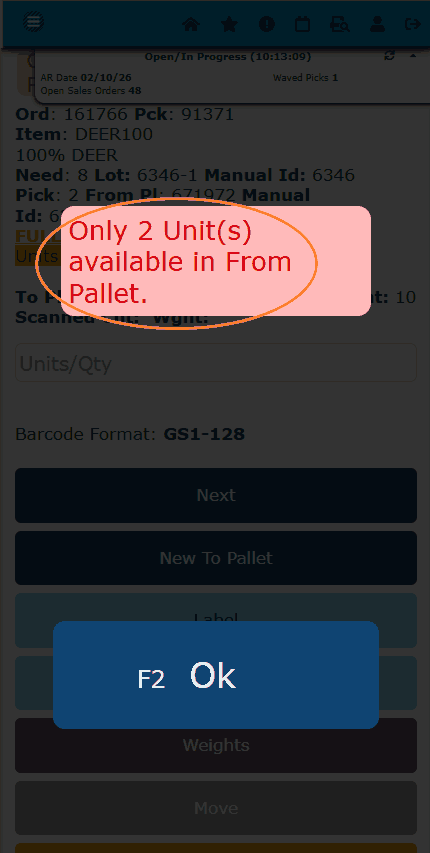
    If any validation fails, the system prevents the transaction from being completed until the issue is corrected, ensuring that inaccurate data is not saved. For example, here is a screenshot of what happens when accidentally putting in the wrong quantity when picking an item:


    User Responsibility
    While Inspired ERP enforces system validations, users remain responsible for scanning the correct barcodes and following on-screen prompts throughout each RF workflow. Ignoring scan prompts or attempting to bypass required scans can result in failed transactions or system errors.

    Proper scan gun usage is essential to maintaining accurate inventory, reliable order processing, and consistent warehouse data. Users should always review prompts carefully and confirm quantities when requested by the system.

RF Scanning

  • Bin Activation

    What is Bin Activation?

    Bin Activation refers to the process of enabling and configuring bin management within a warehouse to track inventory at the specific storage-location level. When bins are activated, inventory can be organized and monitored by exact locations—such as aisles, rows, or depth—rather than just by warehouse.

    This setup allows items to be stored in multiple bins, ensures more accurate stock visibility, improves picking and put-away efficiency, and provides better overall control of warehouse space and inventory movement. When a new bin is created in the system, it must be activated before it can be used for inventory storage or transactions.

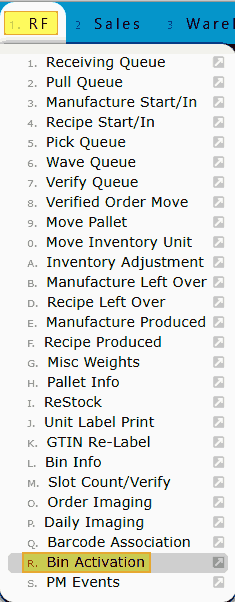
    1. Navigate to the Bin Activation screen. From the main menu, go to RF → Bin Activation to begin the activation process.


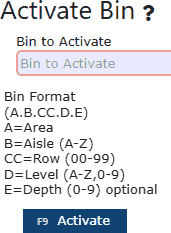
    2. Review the Activate Bin page layout. The Activate Bin page includes a text field labeled “Bin to Activate,” along with bin format details displayed on the right-hand side. At the bottom of the screen, you’ll find a large dark blue Activate button to finalize the process.


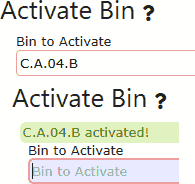
    3. Enter the bin number to activate. Whether the bin was newly created or has been awaiting use, type the bin number into the provided field and select Activate to enable it for use.


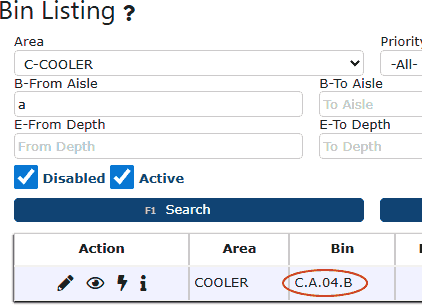
    4. Confirm successful activation.  Once activated, a green confirmation message will appear. You can verify the bin’s status by navigating to Warehouse → Bins and searching for the bin number—its status will now display as Active.

  • Bin Info
    Bin Info:
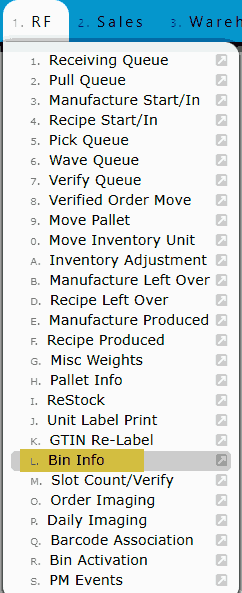
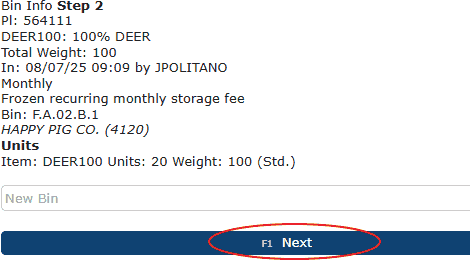
    The Bin Info page is a straightforward but highly useful tool. It provides complete visibility into a specific bin, including the pallet numbers stored inside it, how often the storage fee is, the unit quantities on each pallet, and the lot numbers associated with those pallets. To access it, navigate to RF → Bin Info.


    When you open the Bin Info screen, you’ll see a simple layout labeled “Bin Step 1” with a text field beneath it for entering a bin number.


    Simply enter your bin number of choice & click the Next button. The system will then display all available details for that bin. If you need to look up another bin, scroll to the bottom of the page where the text field now shows “New Bin”, enter the next bin number, and proceed the same way.


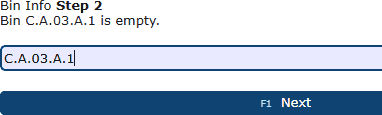
    The system will also tell you if the bin in question is empty when looking up an empty bin:

  • Pallet Info
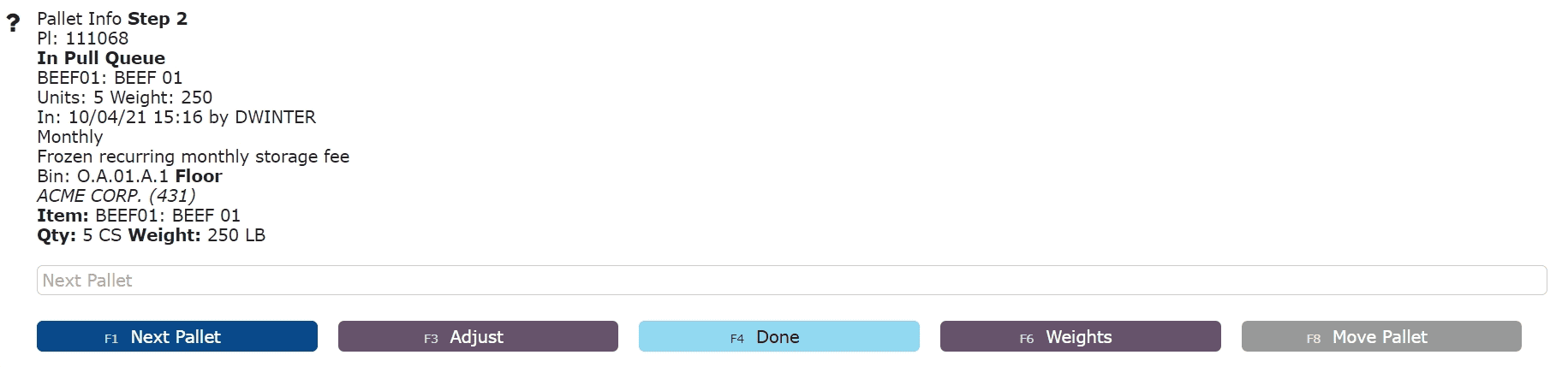
    View and maintain a pallet's information.  


    Pallet Contents: 

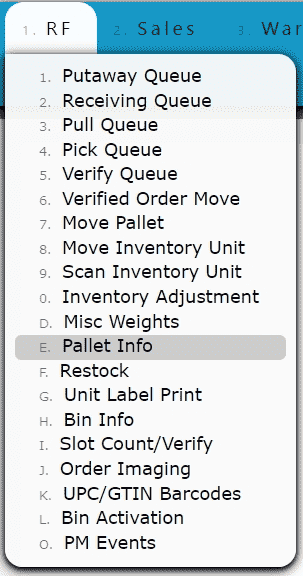
    1. Go to RF Menu and click on the Pallet Info Sub-Menu 


    2. Enter or scan the pallet id and click the Next Pallet Button 


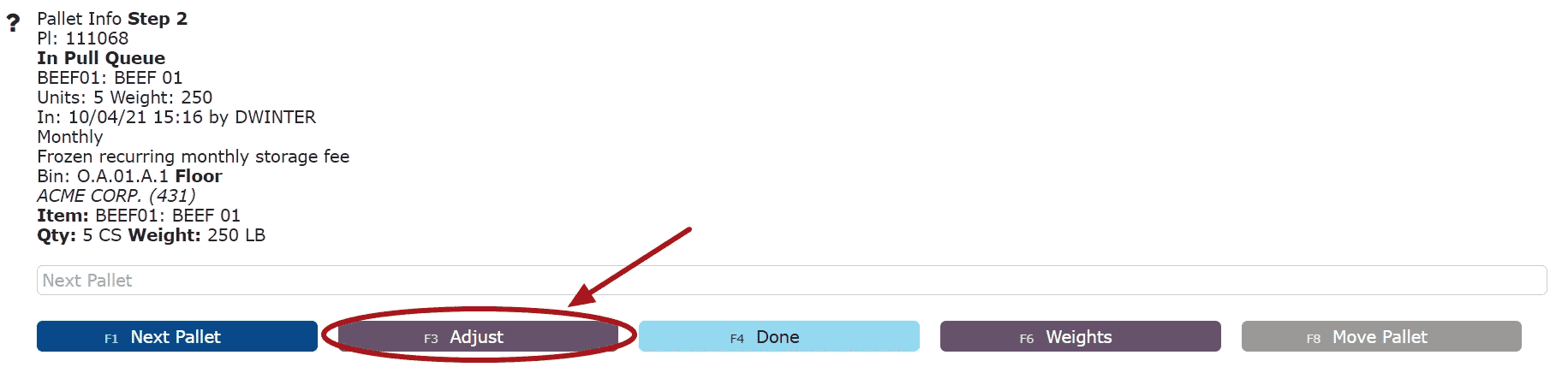
    Pallet Adjustments: Adjust the unit count on a pallet 


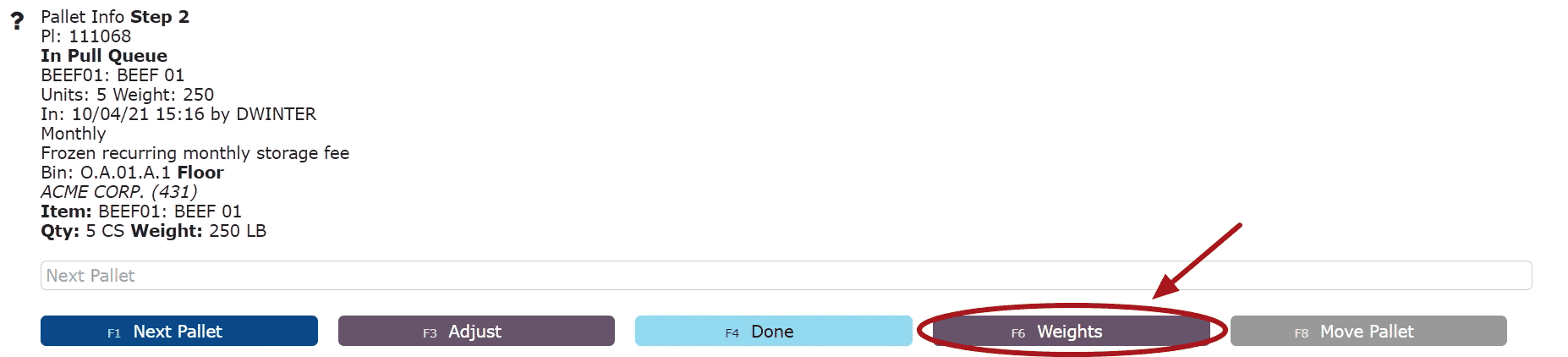
    Weights: Maintain the catch weights assigned to a pallet 


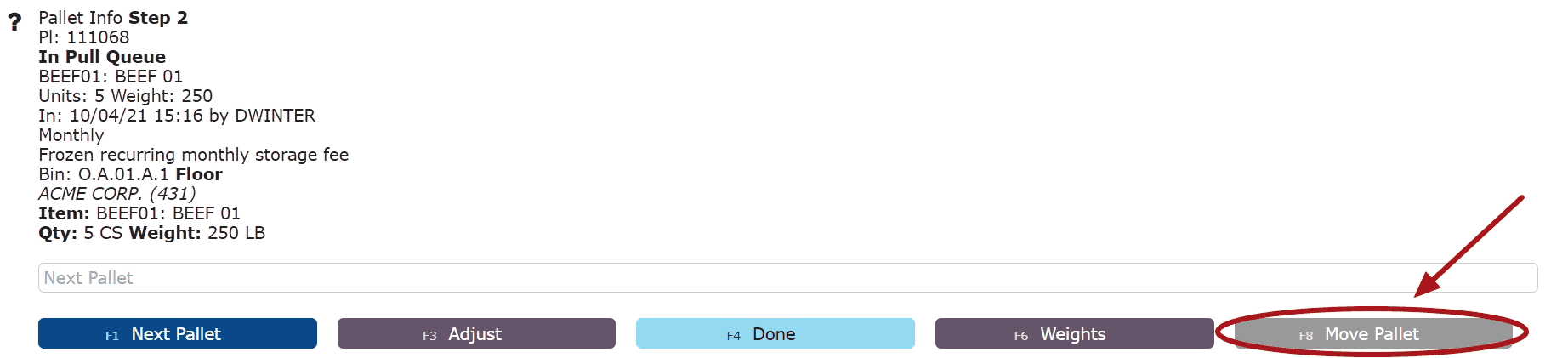
    Move Pallet: Move the pallet into a different bin/location 

  • RF UPC/GTIN Code Associations

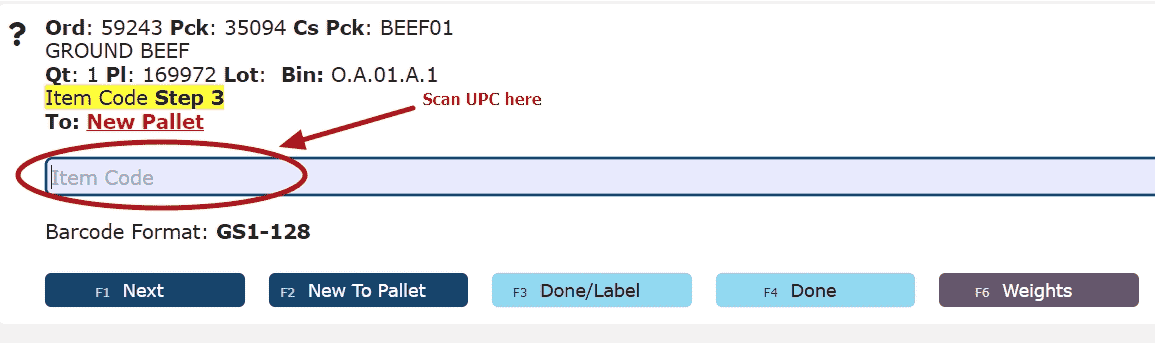
    UPC Codes:

    UPC barcodes can be scanned throughout the system in any RF item input field prompt, in lieu of manually typing in the item number.  UPC codes must be associated first, with their respective item number in order to use the UPC barcodes for scanning. 

    Ex: Picking


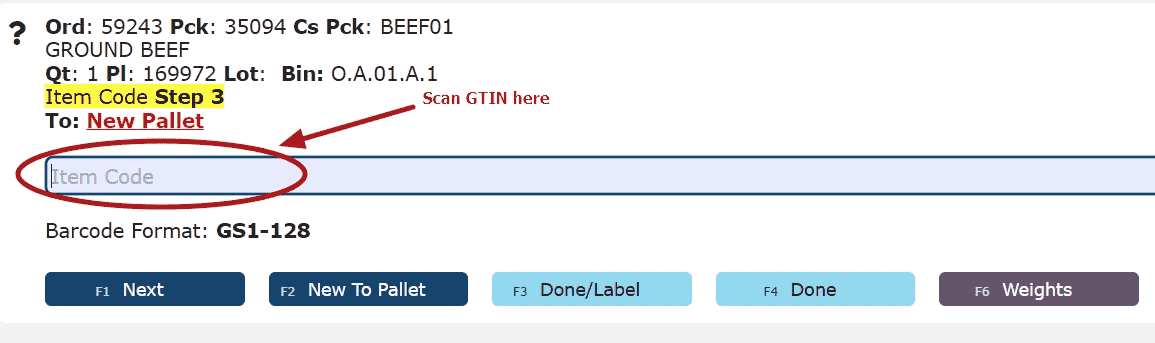
    GTIN Codes:

    GTIN barcodes can be scanned throughout the system in any RF item input field prompt, in lieu of manually typing in the item number and subsequent information. 

    Any information contained within the barcode including the item number, lot etc. will preload accordingly as well.  GTIN codes must be associated first, with their respective item number in order to use the GTIN barcodes for scanning this information.  

    Ex: Picking


    GTIN barcodes can also be scanned to take catch weights.  While associating the GTIN with the item code is not necessary in this instance, it is recommended.  

    Note: If an item has gtin/upc codes associated, the system will automatically prevent scanning gtin/upc etc. codes that differ from what is currently associated.  If an additional gtin/upc etc. code is valid and is to be scanned, then it must be associated to the item before proceeding to scan.  


    Associating UPC/GTIN Codes:

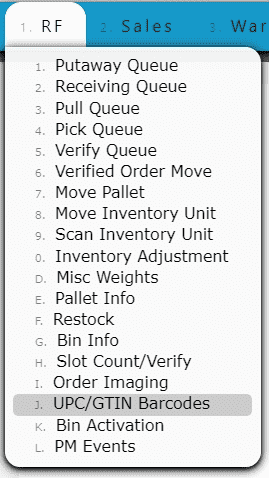
    1. Go to the RF Menu and click on the Barcode Association Sub-Menu 


    2. Enter the item number 


    3. Scan the UPC or GTIN barcode and click the Next Step Button to save the entry

  • Barcode Formats

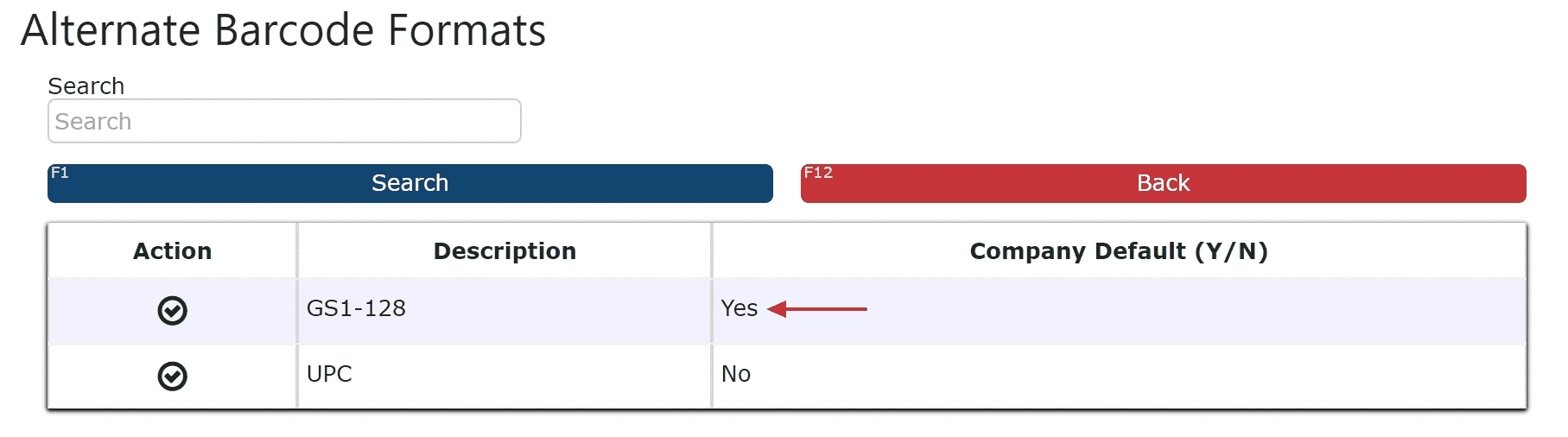
    Both GS1-128(GTIN) and UPC barcode formats are supported for scanning, and can be associated and scanned for items in inventory. 

    Custom barcode format support is also available upon request.


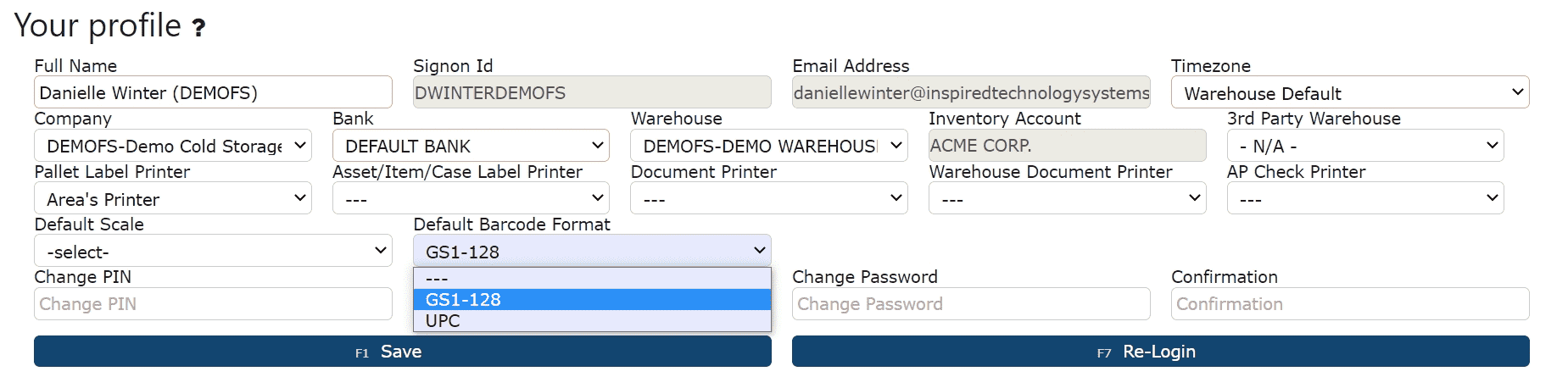
    User Profile Default Barcode Format: Select a specific barcode format to be the default for each user.    

    Note: As barcode formats are switched, the current format will override user level defaults for future scanning processes unless manually changed. 


    Company Default Barcode Format: If a user does not have a default barcode selected, the company default will take effect.  

    *Contact I.T for any changes.  


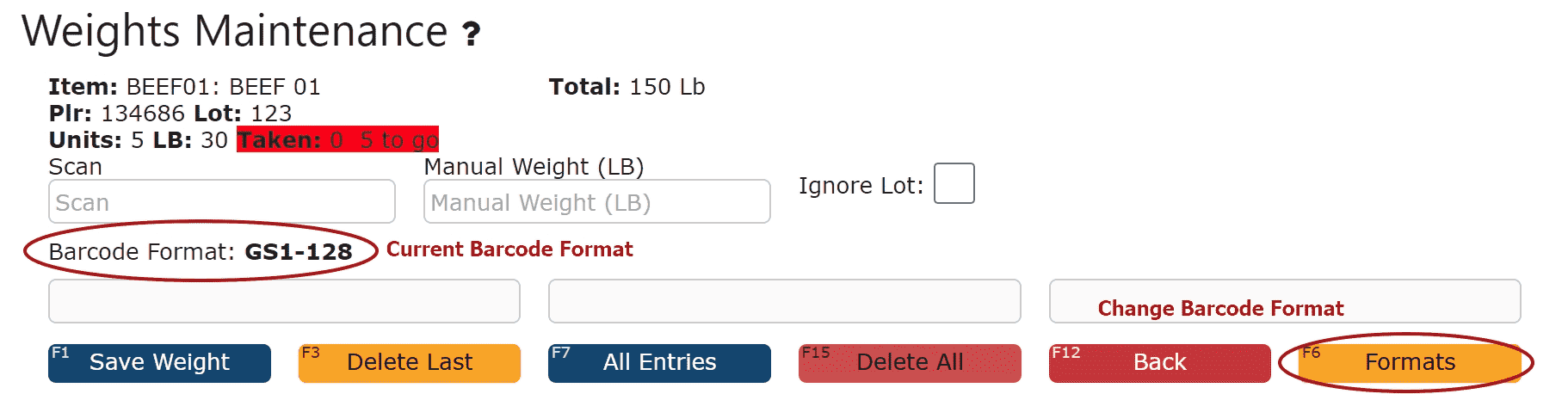
    Switching Barcode Formats During Scanning: When scanning, easily switch between barcode formats.   

    Note:
    As barcode formats are switched, the current format will remain and override any company/user level defaults for future scanning processes unless manually changed.  

    1. Use the Formats button located on any scanning supported RF screen to switch the current barcode format


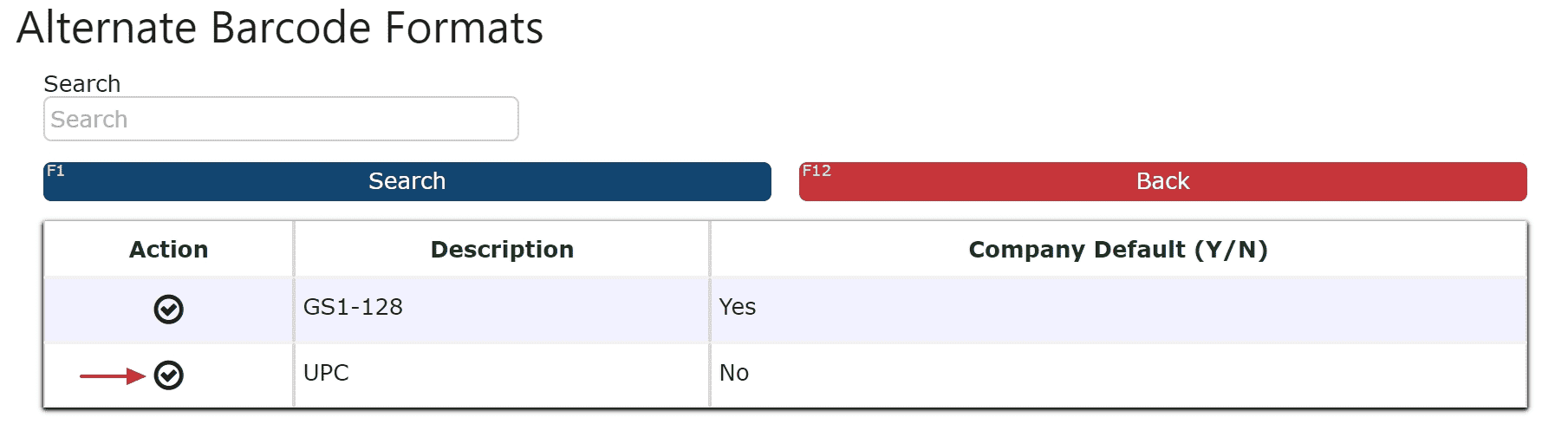
    2. Click the Check Icon to select a different format 


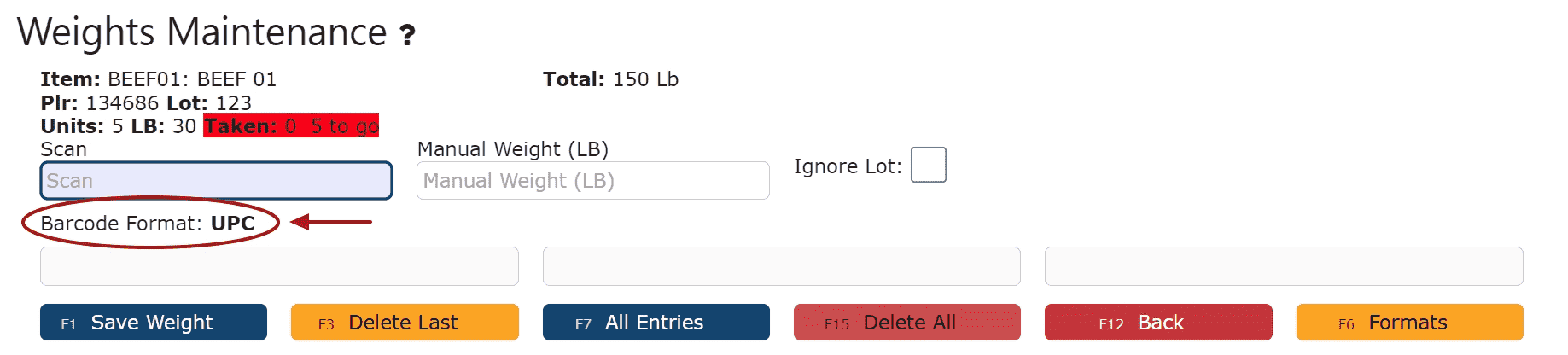
    3. You are now ready to scan UPC Codes 


    *Please contact I.T. if you'd like to have additional barcode formats supported for your organization.  

  • Mobile Only Mode
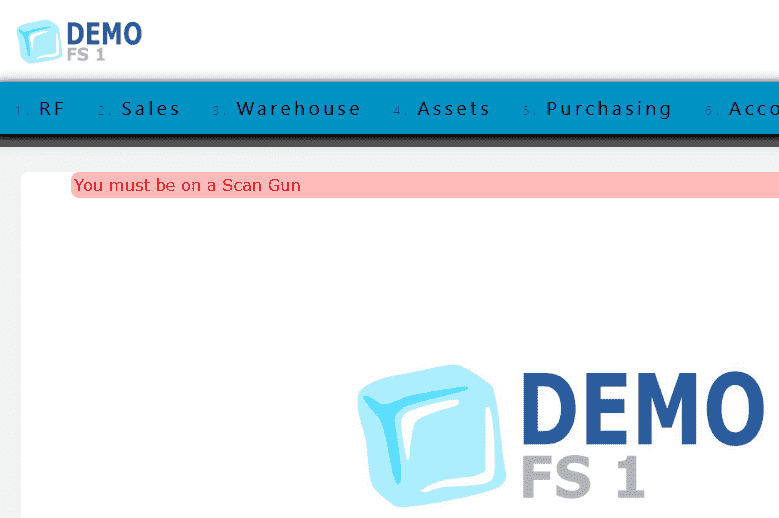
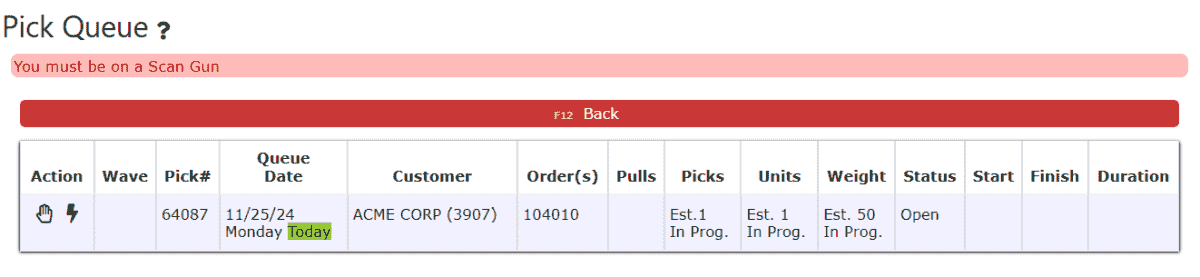
    Our system offers the ability to restrict certain users from performing inventory related RF functions on a computer, forcing them to use a scan gun device instead.

    Inventory related RF functions include, but not limited to:
    - Picking
    - Verifying
    - Manifesting
    - Inventory Adjustments
    - Inventory Move (Inventory Units)

    Users with permission to use a PC may perform all RF functions on either a PC or a scan gun.

    However, users without permission to use a PC will encounter a red error message and be prevented from moving forward with the action.

    Example 1: Attempting to perform Inventory Adjustment


    Example 2: Attempting to pick order

  • Scanning Features
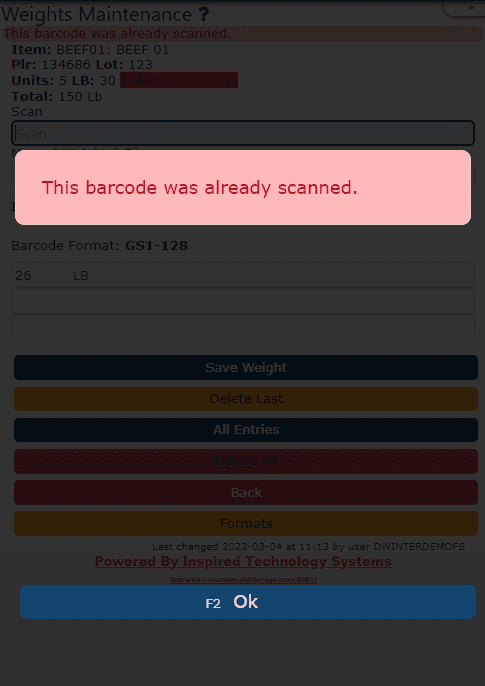
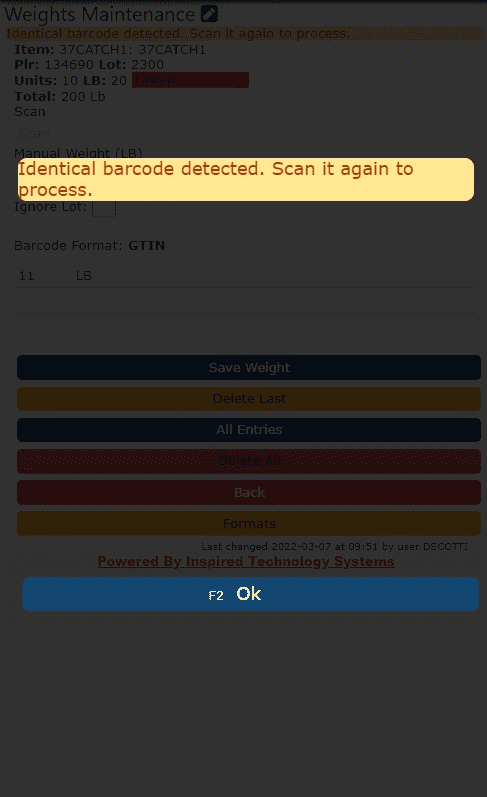
    Warning Messages: Avoid scanning mistakes with our pop-up warning messages that detect duplicate scans, mismatched item codes and weights outside of a certain margin of error.    

    Note: A serial # or other unique identifier must be present within the barcode to prevent duplicate scans. Otherwise, a warning will be issued if identical weights are detected, and the barcode must be re-scanned to confirm.  


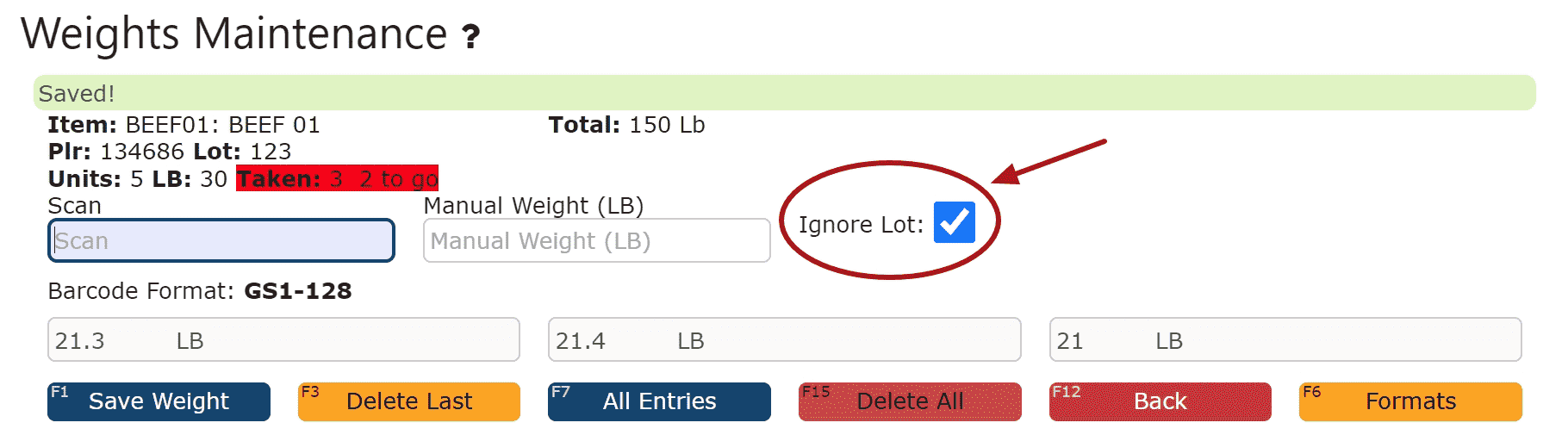
    Ignore Lot: Check this checkbox to ignore vendor lot numbers as you scan weights onto pallets, and maintain your own internal lot numbers instead.  

    Note: Contact I.T. to check this by default 


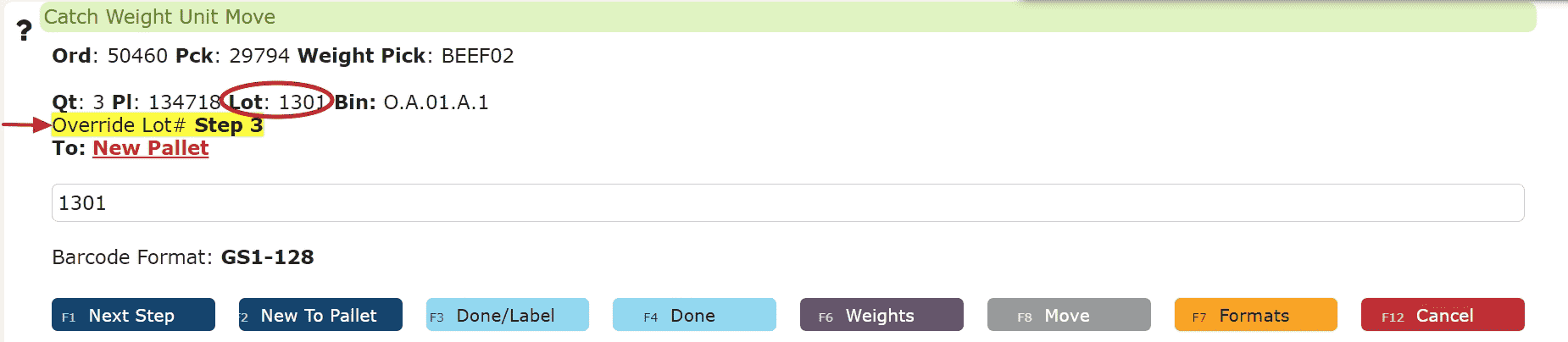
    Override Lot#: Enter your own internal lot numbers when moving or picking cases to bypass vendor lot numbers when scanning 

  • Order Imaging
    Take photos of both inbound and outbound loads using any camera enabled mobile device to easily record damaged pallets, products, and cases.


    Add Images to the Order
     

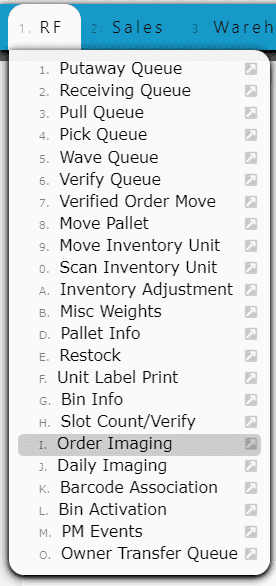
    1. Go to the RF Menu and click on the Order Imaging Sub-Menu 


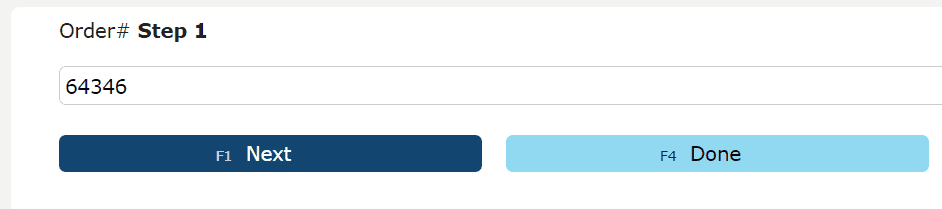
    2. Enter the Order #, then click on the Next button 


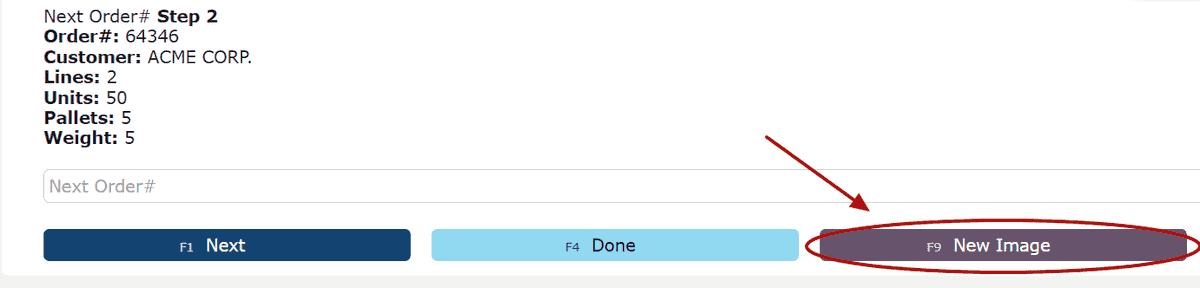
    3. Click on the New Image button 


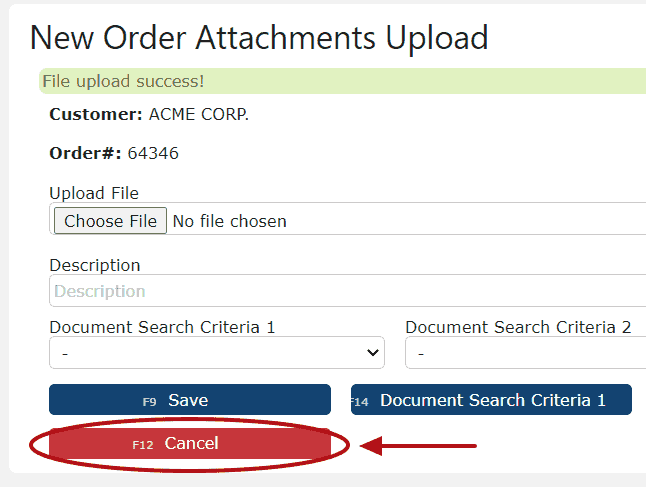
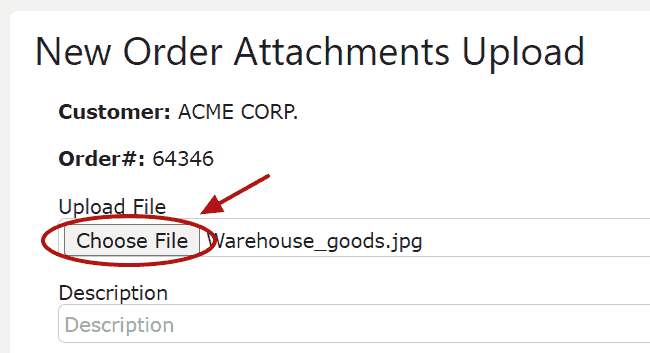
    4. Click on the Choose File button, either select or take a photo, then click Save.  Repeat until all photos are uploaded.   


    5. Click on the Cancel button to view your images using the Images button 


    View Images on the Order 

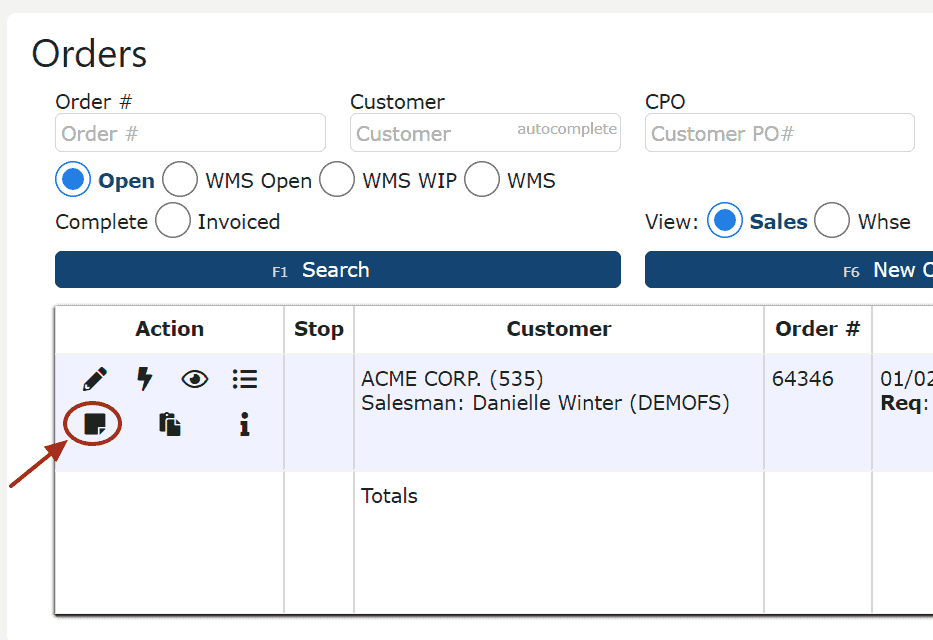
    1. Click on the View Attachments icon

  • Daily Images

    Frozen Storage - Daily Imaging

    The Frozen Storage Daily Imaging module allows users to capture and document photos of product conditions, inbound/outbound activities, and storage areas directly within the Inspired ERP system. These images are stored in the Daily Images Repository, creating a complete, date-based record of daily warehouse operations for temperature-controlled environments. This is especially useful for quality assurance, customer reporting, regulatory audits, and damage documentation within frozen storage workflows.

    Key Information
    • Used to document daily warehouse activities and quality checks specific to frozen or temperature-controlled storage areas.

    • Entries can be linked to a specific customer, order, or QA inspection.

    • All photos are securely stored and timestamped for traceability and compliance.

    • Supports photo capture directly from the RF scan gun or upload from a desktop workstation.

    • To-Do fields can serve as daily QA checklists or visual audit tasks (e.g., door seals, pallet cleanliness, frost build-up, etc.).

    • Commonly used during inbound receiving, outbound loading, and storage condition verification.

    Create a Daily Image Entry

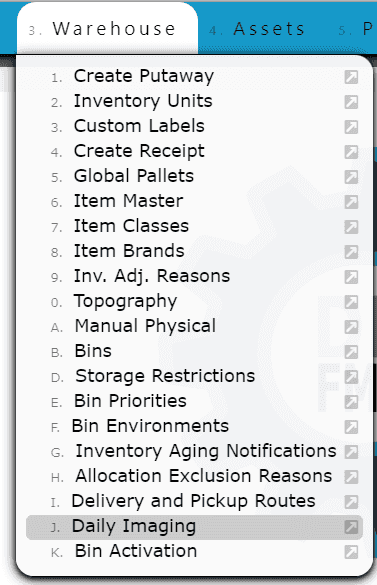
    1. Navigate to Warehouse → Daily Imaging.


    2. Click the Add New button to create a new record.


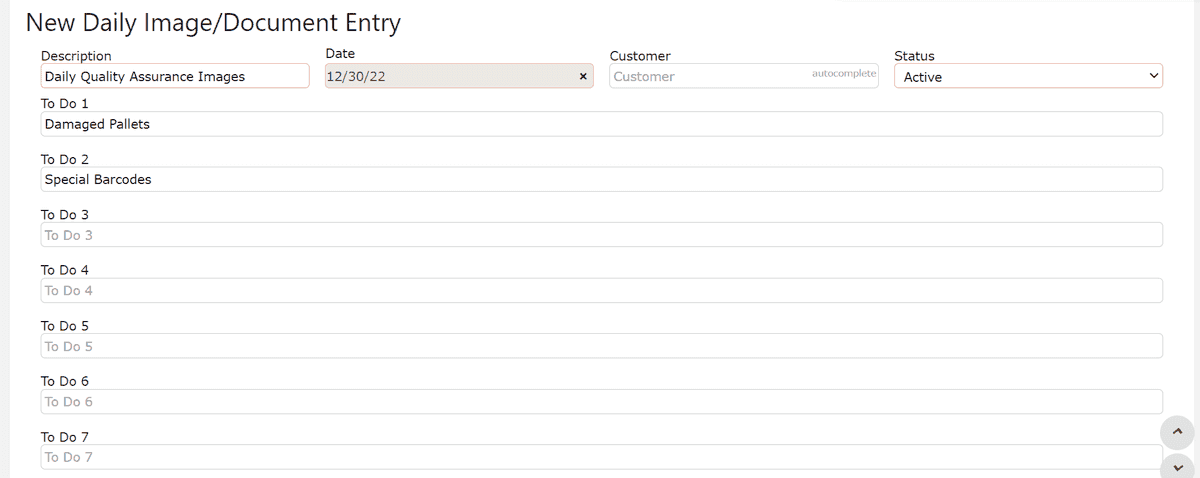
    3. Enter a Description summarizing the imaging purpose (e.g., “Frozen Inbound QA 11/13,” “Freezer Door Seal Audit,” or “Customer Outbound Photos”).


    4. Select the Date of the imaging session.

    5. Assign a Customer if the images relate to a specific account.

    6. Use the To Do fields to outline QA tasks or reminders (e.g., “Verify lot labels,” “Check pallet wrap integrity,” “Take photos of any ice buildup”).

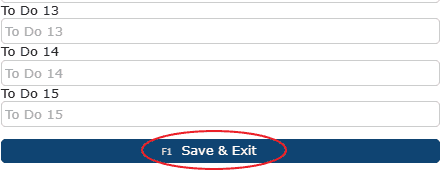
    7. Ensure Status = Active, then click Save & Exit near the bottom of the page to create the entry.


    Print To Do PDF

    If you have entered multiple “To Do” tasks, you can print a checklist for the warehouse floor or QA inspector:

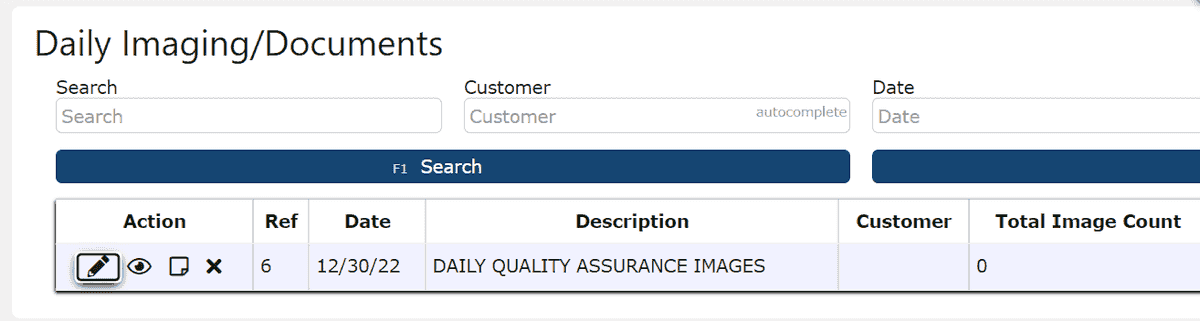
    1. From the Daily Imaging/Documents screen, locate your frozen storage entry. Then, click the Pencil (Edit) icon next to it.


    2. You will now be on the Edit Daily Image/Document Entry page. At the bottom of the page, select the Create PDF option. The system will generate a printable checklist for your team to use while capturing photos or conducting QA tasks.


    Add Images to the Repository

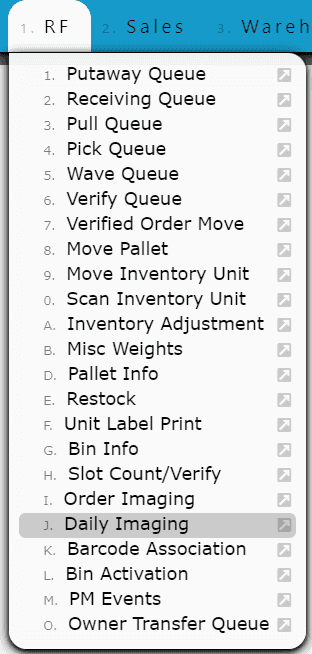
    1. On your desktop, open the RF → Daily Imaging menu.


    2. Enter or scan the Daily Image Entry Reference # from your created entry, then click Next to open the imaging session.


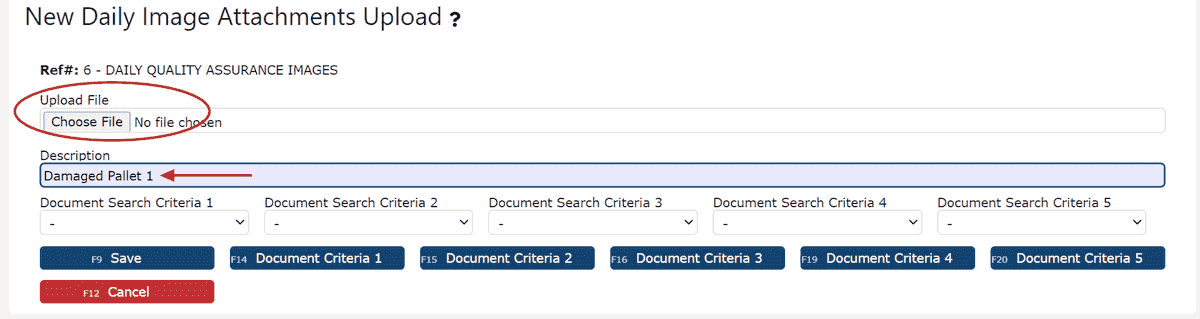
    3. Tap New Image to begin uploading photos.


    4. Choose one of the following options:

    Take Photo: Use the device’s camera to capture real-time photos.

    Choose File: Select a previously taken image from your device.

    • Optionally, add a Description (e.g., “Damaged pallet wrap,” “Product stacked unevenly,” “Door frost buildup”).

    • Click Save to upload the image to the repository.


    5. Repeat as needed for all required images.

    6. When finished, click Cancel to return to the main screen, then tap the Images button to review all photos attached to that entry.


    7. When back on the main screen, view your daily imaging entries in its entirety.

    Best Practices
    • Capture photos before and after pallet movement or order processing.

    • Always include lots, pallet IDs, and customer labels in each image.

    • Use the To Do list as a standardized QA checklist for daily cold storage inspections.

    • Store entries by date and customer for easy retrieval during audits.

    • Delete or archive inactive entries periodically to maintain a clean repository.
  • Slot Count/Verify

    What is Slot Count / Verify?

    The Slot Count/Verify feature allows warehouse users to confirm the physical quantity of units within a specific bin or pallet location. This ensures on-hand inventory remains accurate and up to date within the system. Slot Count/Verify is typically used during routine cycle counts or when a discrepancy is suspected between the system’s recorded inventory and the physical stock on the floor.
    Access Path: RF → Slot Count/Verify

    Used For: Confirming inventory quantity in bins or pallets

    Restriction: Cannot be performed on mixed pallets

    Related Functions: Move Pallet, Inventory Adjustment

    How it Works
    You can begin a slot count by scanning or typing in either the Bin or Pallet number first. Once both are entered, the system will prompt you to enter the unit count for verification.

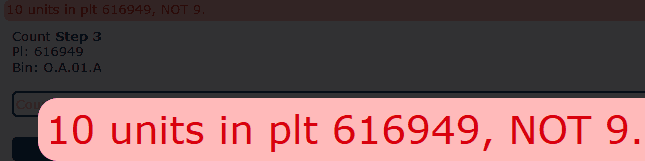
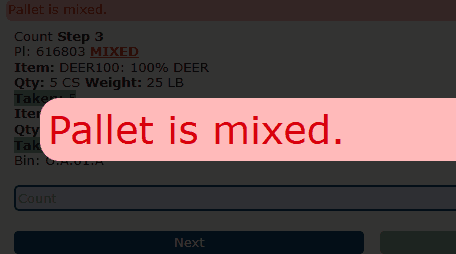
    If the count entered does not match what is recorded in the system, a red alert will appear at the top of the screen, such as: "10 units in plt 616949, NOT 9." This message indicates a variance between the physical quantity and the system’s recorded amount.


    If the pallet contains more than one item, the system will display: "Pallet is mixed."


    When a mixed pallet includes catch weight items, the screen will display each item on the pallet, showing its quantity, total weight, and whether its weights have been taken (e.g., Taken: 5). This helps you confirm which items have recorded weights and which have not. However, because the pallet is mixed, the system will not allow a full count verification until the items are separated correctly.

    Available Actions
    From the Slot Count/Verify screen, you can also perform additional warehouse management actions:

    Floor: Moves the selected pallet to a designated floor location.

    Move: Redirects to RF → Move Pallet to relocate the pallet to a different bin.

    Adjust: Redirects to RF → Inventory Adjustment to increase or decrease inventory units as needed.

    Cancel: Exits the current slot count without applying changes.

    Helpful Tips
    • Only verify pallets containing a single item type.

    • When working with catch weight items, ensure all weights are properly taken before verification.

    • If discrepancies are found, use the Adjust or Move options immediately to correct them in real time.

    • Always confirm both the bin and pallet numbers are scanned accurately before proceeding.
  • Miscellaneous Weights
    Scan or gather weights for a particular item/sku, order or for any other miscellaneous purpose into a stand-alone misc. weights batch. 

    Creating a Misc. Weights Batch


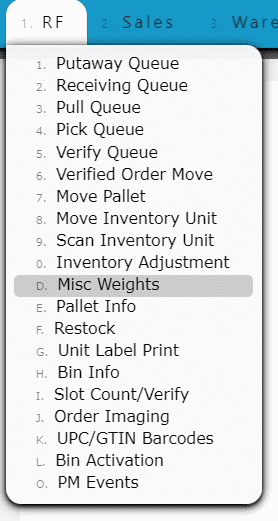
    1. Go to the RF Menu and click on the Misc. Weights Sub-Menu 


    2. Click on the New Batch Button 


    3. Fill in the item number and description, then click on the Save & Details Button 

    Note: A "start/end" weight option can be specified to denote the "start" or "end" result of a process.


    4. Either enter the weight manually within the Weight Field, or scan a barcode containting the weight within the Scan Field 

    *Repeat until all weights have been added to the batch 


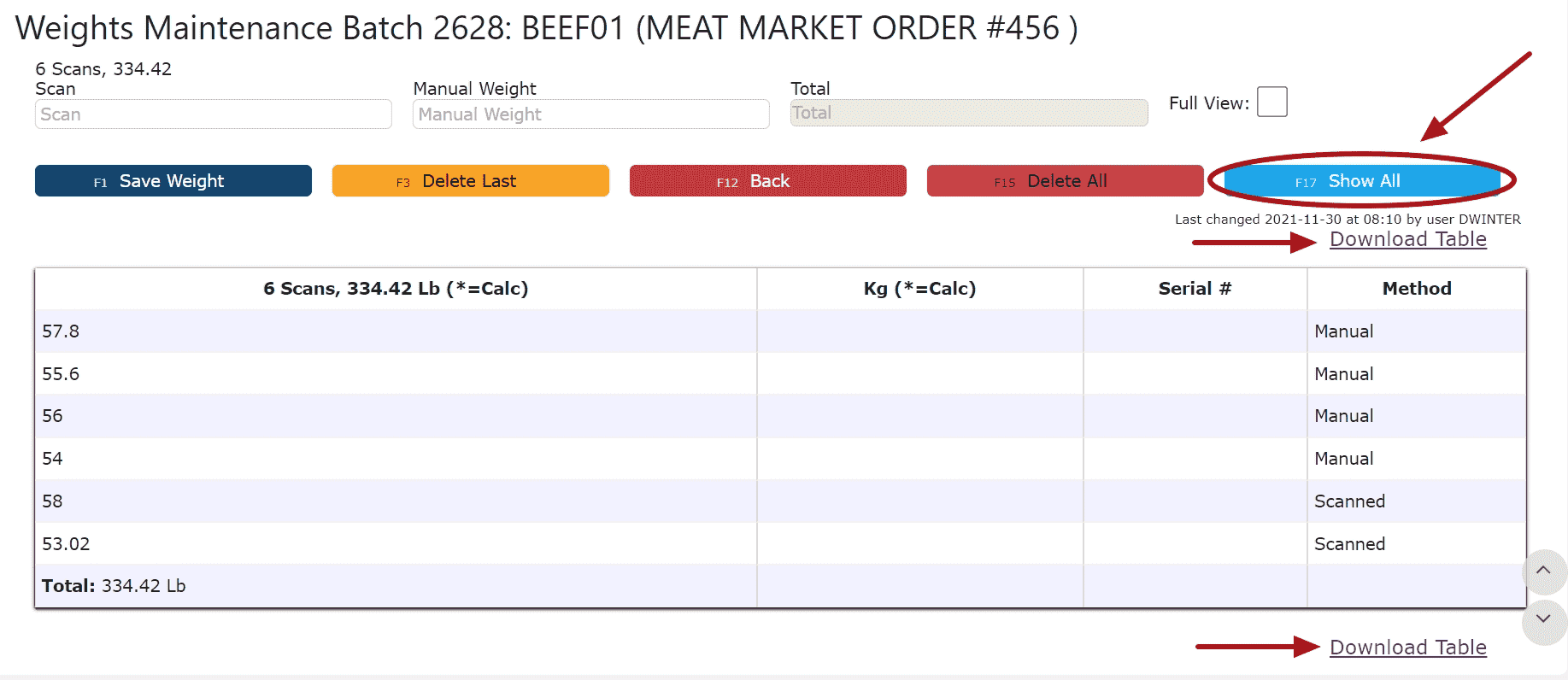
    5. Click the All Entries Button to view a list of all the weights 


    6. Use the Show All Button and the Download Table link to download an excel spreadsheet of the table 


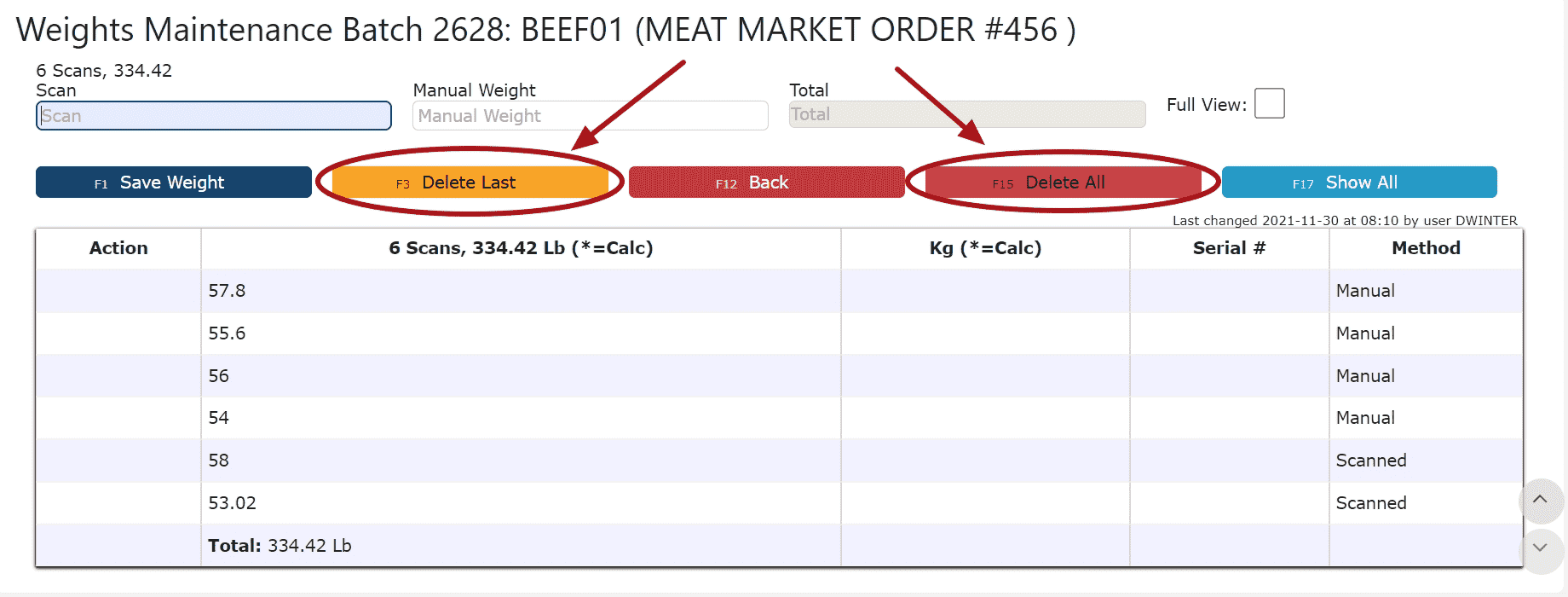
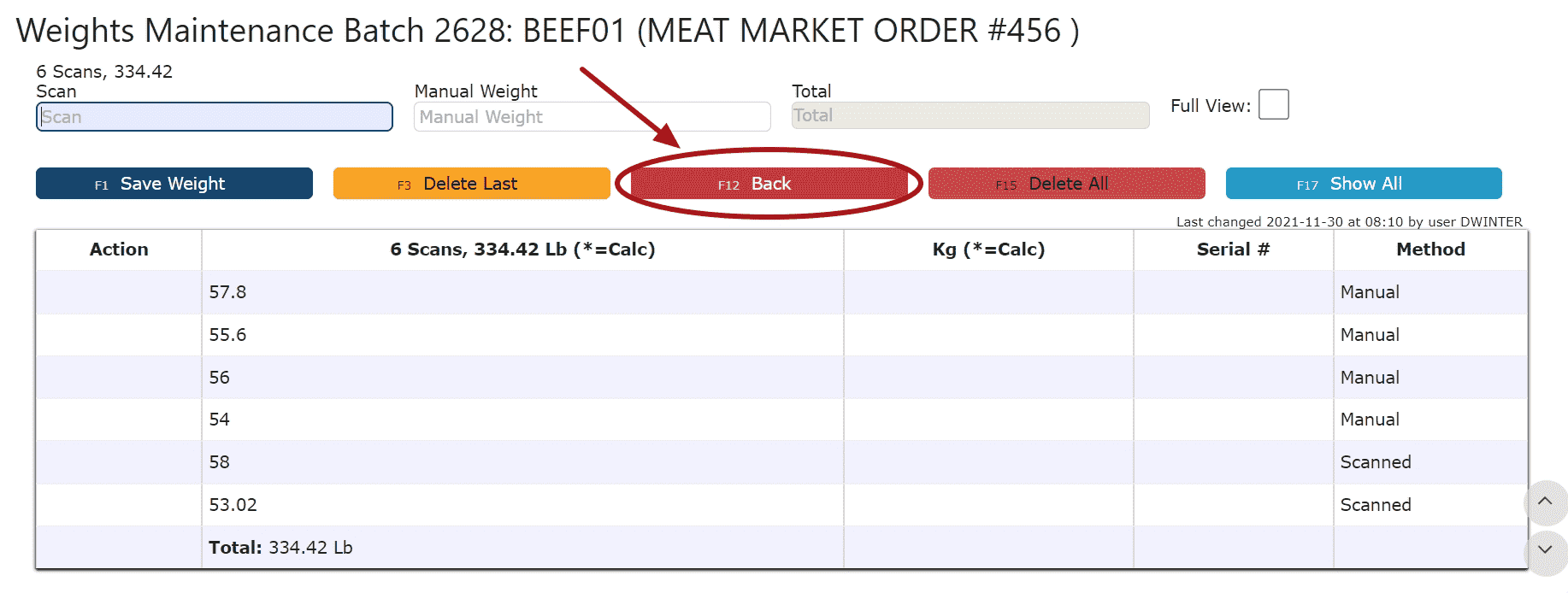
    7. Use the Delete Buttons to remove unwanted weights 


    8. Click the Back Button until editing the main batches screen, then select the Save & Exit option to save the batch 


    Disabling a Misc. Weights Batch


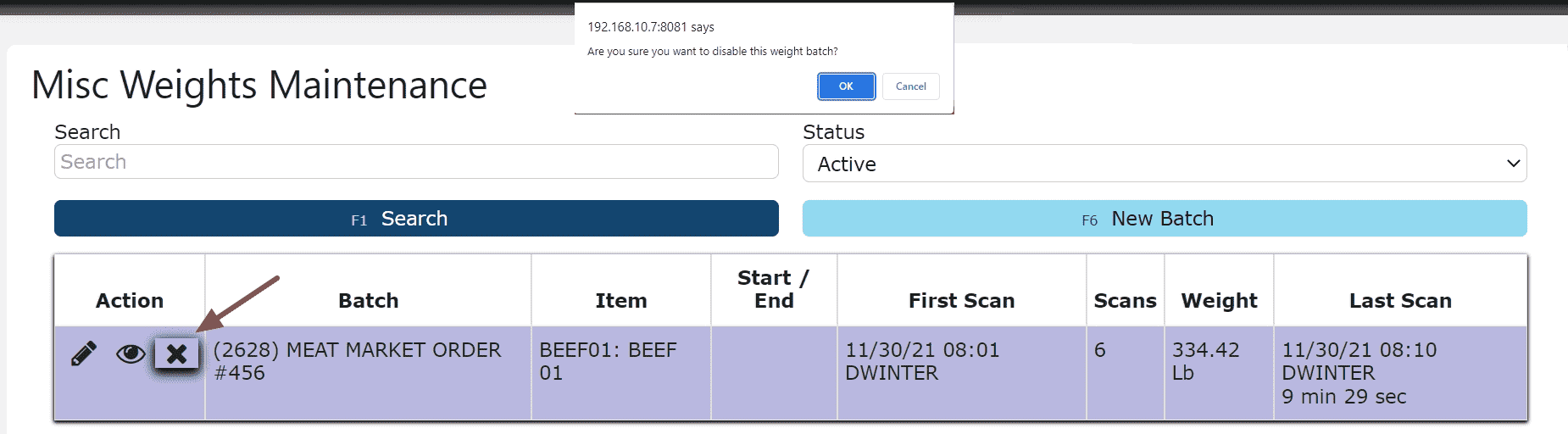
    1. Click on the Disable Weight Batch icon and select OK on the pop-up prompt 


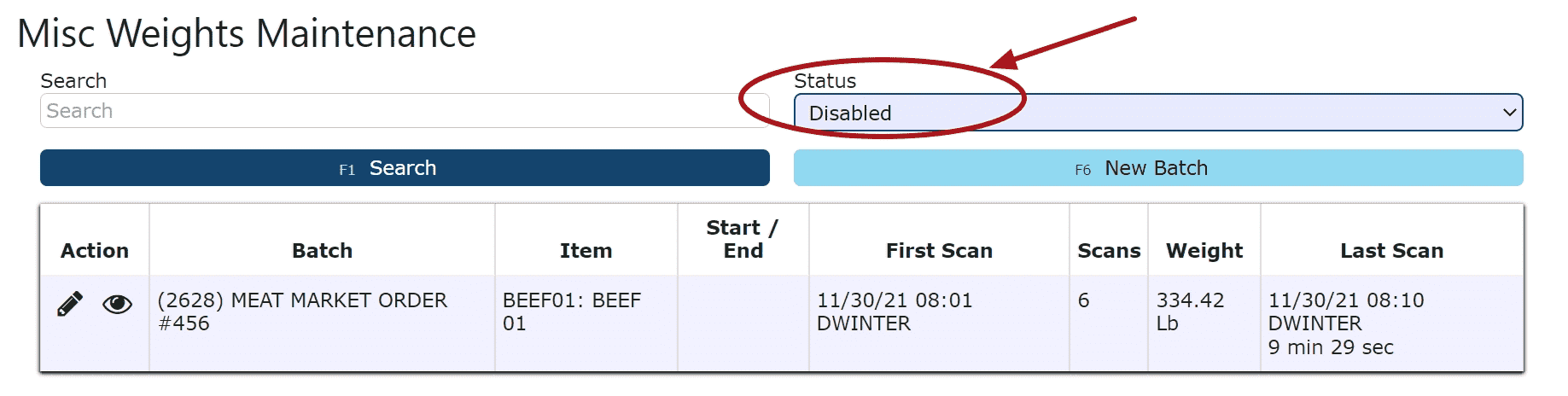
    2. The Misc. Weights Batch is now located under the disabled batches 

    Note: Misc. Weights Batches can be disabled but not deleted 


    Activating a Misc. Weights Batch

    1. Locate the Misc. Weights Batch under the list of disabled batches 


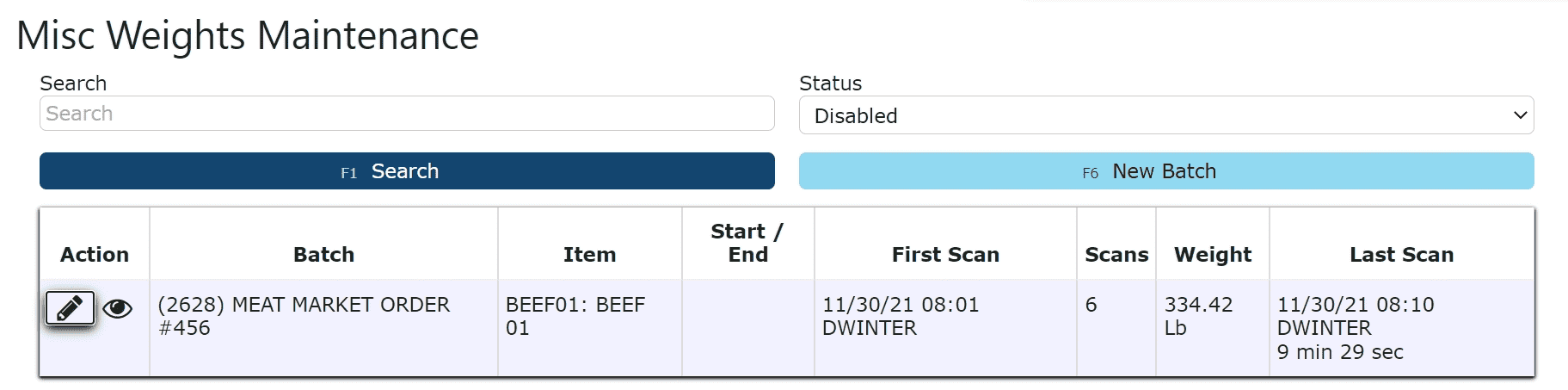
    2. Click on the Edit Weights icon 


    3. Select Active from the Status Dropdown and save the batch