Emails

Overview

  • Emails Overview

    Emails Overview

    Our ERP includes a system-wide email framework that supports customer communication, vendor correspondence, financial document delivery, and operational workflow notifications. Email behavior is driven primarily by contact records, system preferences, and module-specific options that determine how documents are sent, who receives them, and which formats are used. Once configured, users can email documents directly from transaction screens such as Sales Orders, Invoices, Purchase Orders, and WMS-related documents including BOLs and confirmations.

    Customer and vendor contacts store the email addresses and delivery preferences the system uses when sending invoices, statements, POs, reports, and other system-generated communications. These settings ensure that each document reaches the correct recipient without manual intervention. System-level email preferences—such as SMTP configuration, sender defaults, PDF formatting, bulk invoice settings, and auto-fill options—provide consistent delivery rules across all modules.

    Emailing is available from various Action menus throughout the platform, allowing users to generate and send documents on demand while automatically attaching the correct PDFs and populating recipients based on contact setup. In addition, many AR and Sales billing workflows support bulk emailing for high-volume operations, ensuring efficient delivery of invoices, statements, and other financial documents.

    Calendar events can also trigger automated email reminders, enabling users to schedule notifications for internal teams or operational activities. Together, these tools create a unified communication process that supports accuracy, compliance, and streamlined workflow management across the entire system.

Enabling Automatic Emailing

  • Enabling Automatic Emailing

    Automatic Emailing Key Information

    Automatic Emailing allows the system to automatically distribute invoices, statements, bulk invoices, purchase orders, NACHA files, and other documents based on the specific options enabled on each customer or vendor contact. These settings determine when the system should email documents, who should receive them, and whether AutoFill rules apply during bulk or automated processes.

    Customer Contact Email Options
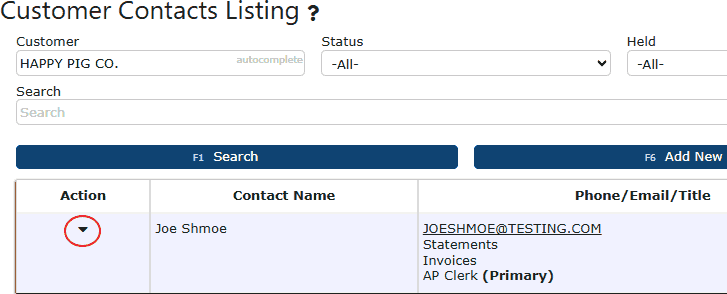
    Go to Sales → Contacts to set up automated emailing for a specific customer contact.

    On the Contacts page, simply look up the customer to narrow down your results, then click the triangle icon under the action tab & click manage to begin editing the enabling of automatic emailing.


    You will now be on the Change Contact screen, where the automatic emailing options can be turned on or off.

    Customer Contact-Level Options
    Statements Via Email – Yes/No
    Enables automatic emailing of AR statements to this contact.

    Invoices Via Email – Yes/No
    Sends individual invoices automatically to this contact when they are posted.

    Bulk Invoices Via Email – Yes/No
    Determines if this contact receives invoices during Bulk Invoice Runs (manual or automated).

    Statement in Bulk Email – Yes/No
    Includes this contact in automated/ bulk statement cycles.

    Auto Fill (Statements) – Yes/No
    When sending statements, automatically adds this contact as a CC or recipient based on AutoFill rules.

    Auto Fill (Sales) – Yes/No
    Automatically includes this contact on sales document emails generated from the system (e.g., confirmations, order updates), depending on AutoFill behavior.

    Vendor Level Email Options
    POs Via Email – Yes/No
    Automatically emails purchase orders to this vendor contact when the PO is released or printed.

    NACHA Via Email – Yes/No
    Sends NACHA remittance files (ACH payment details) to this vendor contact during AP payment batches.

    Company Level Email Options
    Automate Bulk Invoices DOTW (0=Mon … 6=Sun)
    Sets the day of the week the system will automatically generate and email bulk invoices. Example: 0 = Monday, 6 = Sunday.

    • Autofill Email Defaults - Determines which email address is automatically added to outgoing emails when contacts have Auto Fill enabled.

    AutoFill (Statements) CC Default
    Default CC email added when Auto Fill (Statements) is enabled on a customer contact.

    AutoFill (Sales) CC Default
    Default CC email added when Auto Fill (Sales) is enabled on a customer contact.

    Summary
    Automatic Emailing centralizes and streamlines how documents are delivered across your organization by combining customer contact settings, vendor contact options, and company-level automation rules. Customer and vendor contacts determine who receives invoices, statements, purchase orders, and NACHA files, while company preferences define when bulk emails are generated, as well as the default CC rules used for AutoFill behavior. Together, these settings ensure that transactional documents are emailed to the correct recipients automatically—reducing manual work, improving communication accuracy, and supporting consistent daily, weekly, or scheduled billing workflows.

Customer Order Emails

  • Customer Order Emails

    Customer Order Emails Overview

    Customer Order Emails allow users to send order documents—such as Order Confirmations, BOLs, ProForma invoices, and AR Statements—directly to customers. Email options become available once the related document is generated on the order, and recipients are controlled through each customer’s contact settings. Users can send emails manually through the Email icon on Sales Orders, while Invoices are typically emailed automatically when posted, depending on contact configuration.

    Where Customer Order Emails Are Accessed
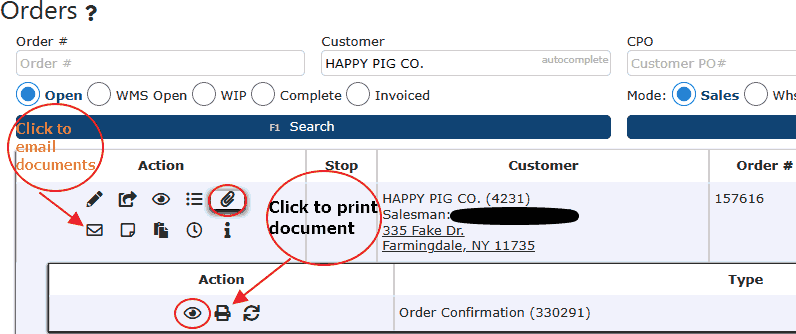
    You can find customer documents that have already been generated by going to Sales → Orders, finding the order, and then clicking on the email icon under the action tab to view and send the documents to the customer. Alternatively, you can click on the paperclip icon to just see which documents have been generated and then click the eyeball to view the newly generated PDF.


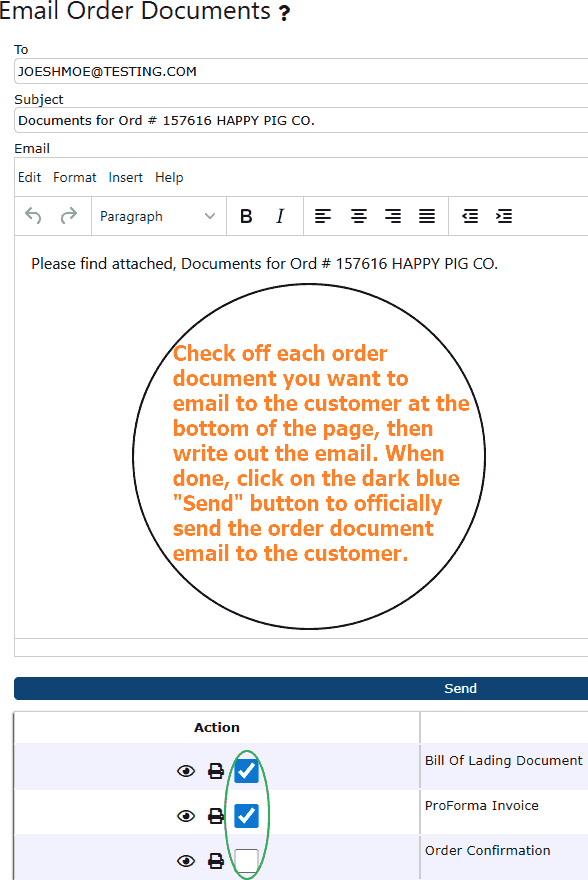
    Customer Order Email Screen
    When the email icon is clicked, users can:

    • Add recipients

    • Review attached order documents

    • Edit the subject and message

    • Send the email immediately


    Customer Contact Requirements
    Customer Contacts (Sales → Contacts → Manage Contact) determine who receives what.


    Key fields include:

    • Invoices Via Email

    • Bulk Invoices Via Email

    • Statements Via Email

    • Statement in Bulk Email

    • Auto Fill (Sales)

    • Auto Fill (Statements)

    If no contacts are enabled, users can manually enter emails on the send screen.

AR Invoice Emails

Purchase Order Emails

AR Statement Emails