Any Accounts Receivable operation can be performed from within the Accounting Menu.
AR Transactions include:Cash Receipts
Credits
Invoice Adjustments
Miscellaneous Cash
Statement and Invoice Submissions
AR Statements
Overview
AR Statements
-
Key Information
Age statements and/or generate/email customers accordingly.Note for the "Generate" and "Email" options:1-Only customers having an open AR Balance will be considered2-Only customers having contacts set to receive statements will be considered
-
Running Statements
1. Go to the Accounting Menu and click on the AR Statements Sub-Menu
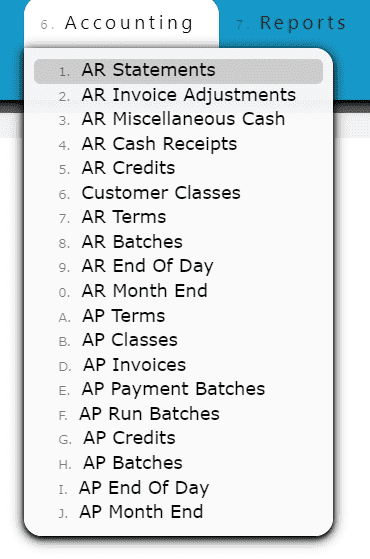
2. Click on the Run Statements Button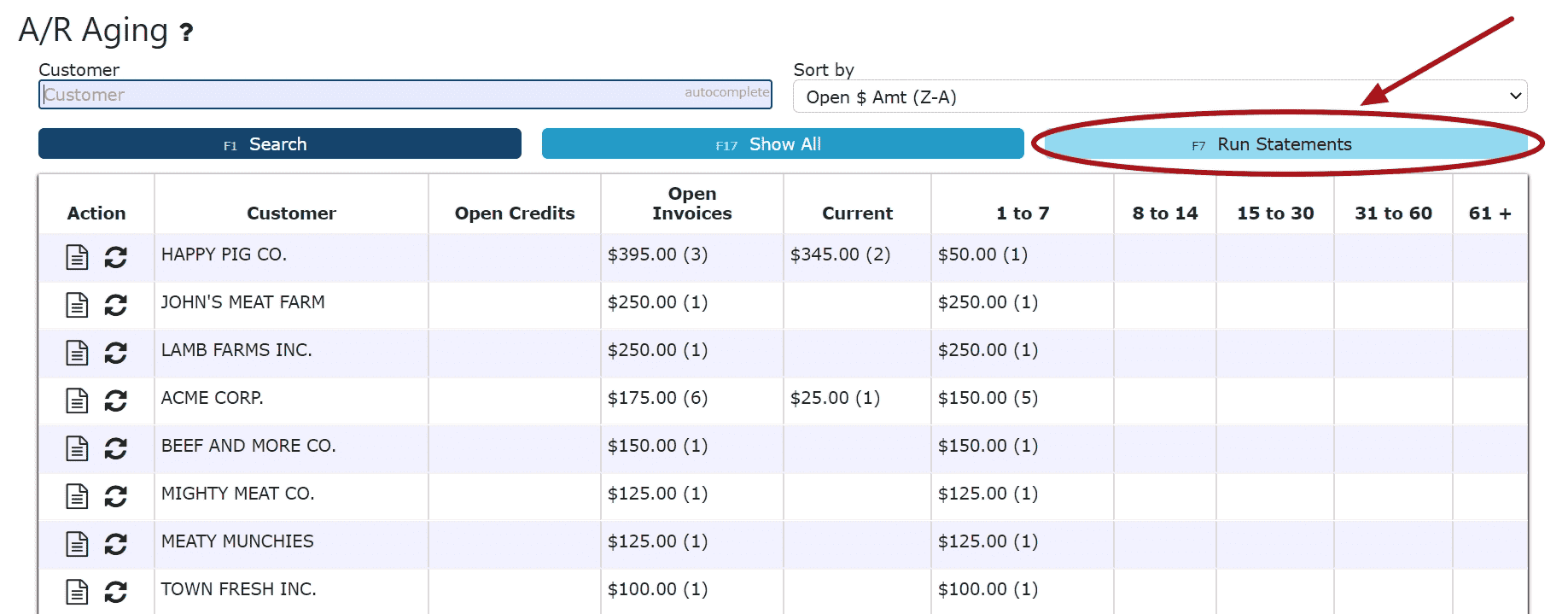
3. Enter a single customer to run statements for, otherwise leave blank to run statements for all customers
4. Select one of the 3 modes available for running statements
Mode: Age, Generate and Email: Ages the statement/AR to include updated information pertaining to what's currently owed, regenerates an updated pdf and emails the aged statement to any contact set up to receive statements by email for that customer(s)
Age and Generate Only: Ages the statement/AR to include updated information pertaining to what's currently owed, regenerates an updated pdf
Age Only: Ages the statement/AR to include updated information pertaining to what's currently owed (A PDF will not be generated with this option)
Note:
For the "Generate" and "Email" options:
- Only customers having an open AR Balance will be considered
- Only customers having contacts set to receive statements will be considered
5. Click on the Submit Button to submit the statement run
-
Automatic Statements
Have statements sent to customers automatically on one or multiple days of the week. Please Contact I.T to discuss utilizing this feature.
Example:
Send out statements to any customer with an Open AR Balance on Tuesdays and Thursdays
AR Statement Days Of The Week
(0=Mon,1=Tue, 6=Sun): 13AR Statement Yes=Past Due Only, No=All Open:Yes/No: No
AR Invoices
-
Invoice Document Type
Provide your customers with invoice documents in a format that they prefer. Choose among different invoice types that provide varying degrees of detail.
Invoice Types Include:
Summary - A summarized invoice document to provide an overview grouped by service, item and price
Detailed - A detailed invoice document to provide a breakdown of invoice details, including weights, lots, reference numbers, and any additional information tied to an invoiced item or service
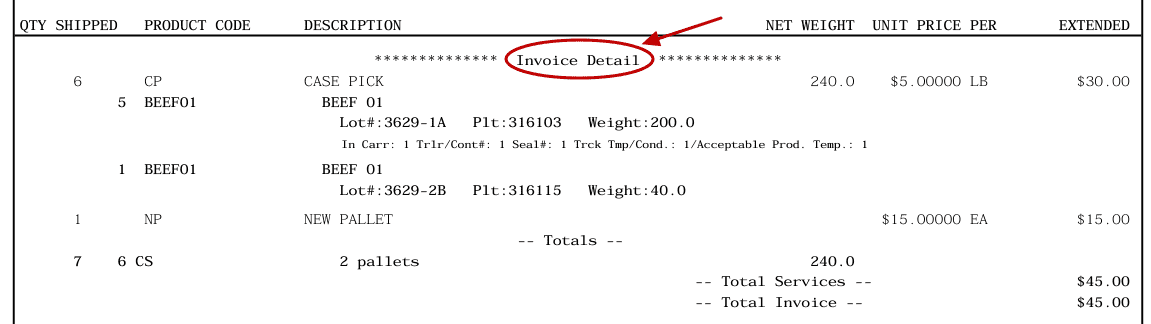
Both (Summary then Detail) - A single document including both the summary breakdown, followed by the details
Summary Invoice Example:
Detailed Invoice Example: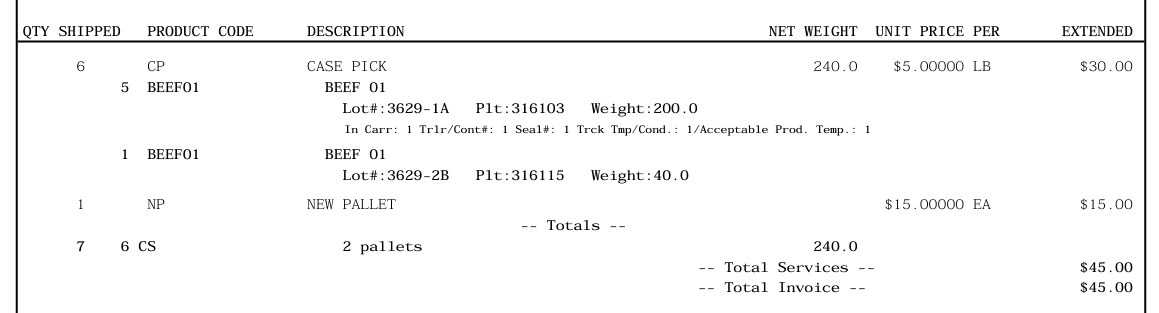
Note:
When a customer is set up for the Both (Summary then Detail) Invoice Type option, they'll see a section for "Invoice Summary" initially, then followed by a section for the "Invoice Detail".
Both (Summary then Detail) Example:
Setting a Customer's Preferred Invoice Type:
1. Go to the Sales Menu and click on the Customers Sub-Menu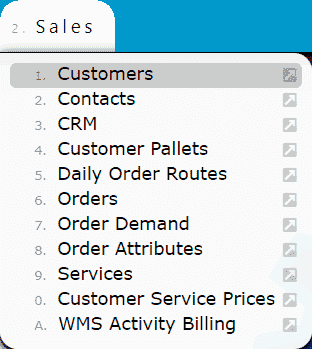
2. Click the Action dropdown beside the customer whose Invoice Type you desire to set, then use the pencil icon to edit the customer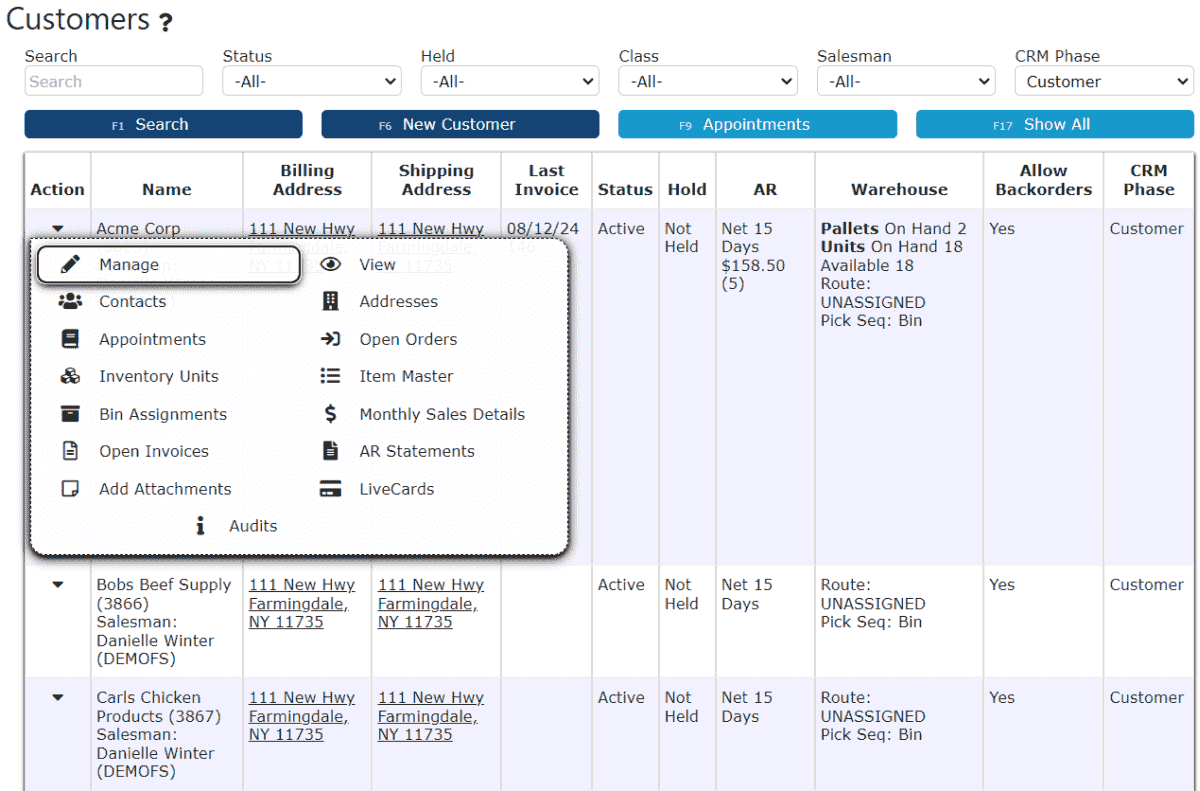 3. Click on the Invoice Type dropdown and click on your preferred Invoice Type, then click the Save & Exit Button.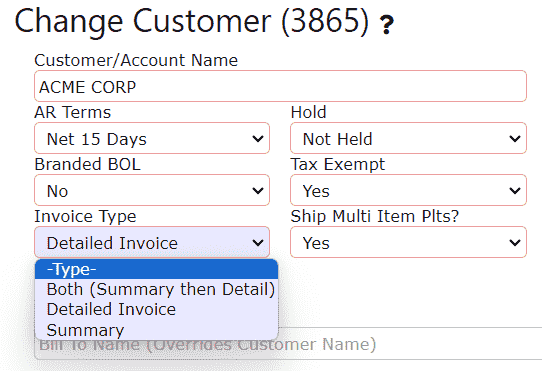
Note:
These changes will begin to take effect immediately for all new invoices generated moving forward. Previously generated invoices can be re-generated from the Invoice Register to utilize the new format.
AR Bulk Invoicing
-
Key Information
Send customer(s) emails containing a zip file of all current invoices that have not previously been sent.Note:1-Only customers having an open AR Balance will be considered2-Only customers having contacts set to receive statements will be considered
3-Invoices paid before bulk invoices sent, will not be sent again through bulk process
4-Invoices already sent to any contact for that customer will not be sent again through the bulk process
-
Sending Bulk Invoice Emails
1. Go to the Accounting Menu and click on the AR Statements Sub-Menu
2. Click on the Run Statements Button
3. Enter a single customer to send invoices to, otherwise leave blank to send all invoices (those not already sent) to all customers
4. Select the Bulk Invoice Emails Only option as the Mode
5. Click on the Submit Button to submit the emailing process
Note: Each submission automatically sends an email to the specified customer(s) with a zip file that contains ALL invoices that have yet to be emailed. Any invoices that have been manually sent elsewhere from within the system will not be re-sent through this submission.
-
Automatic Bulk Invoice Emails
Have bulk invoice emails sent to customers automatically on one or multiple days of the week.
Optional Feature: In addition to the zip file containing the bulk group of invoices, an AR Statement can also be included as a separate file within the same email. This statement will include all Open AR.
Each contact must be setup accordingly to utilize this feature. Please Contact I.T to discuss utilizing this feature.Example:Send out all new invoices to any customer on Tuesdays and Thursdays. In addition, send out a statement along with the invoices on Thursday.
Contact Setup:
Setup all necessary contacts to be receiving automatic bulk invoice emails and/or statements accordingly.
1. In contact maintenance, select Yes for Bulk Invoices Via Email and/or select Yes for Statement in Bulk Email (Optional)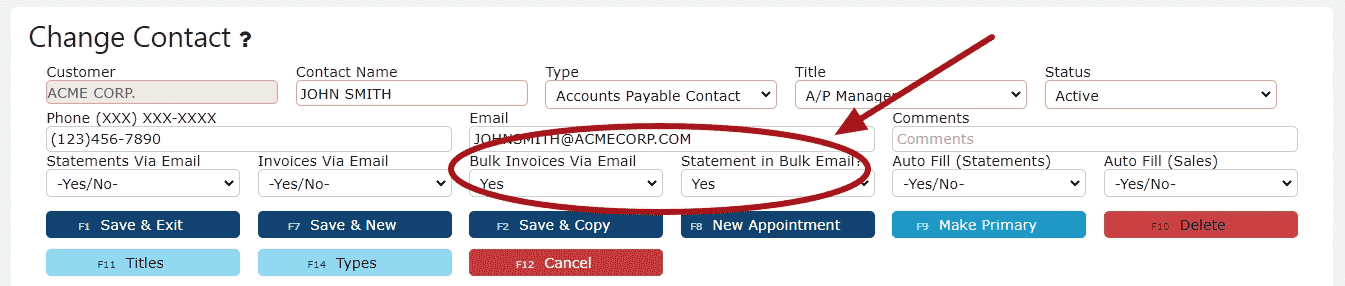
Note: Those setup to receive bulk invoice emails will only receive those invoices that have not yet been emailed out to any contact before.
For I.T to Enable:Bulk Invoice: Automate Bulk Invoices DOTW(0=Mon,1=Tue, 6=Sun): 13Bulk Invoice Text 1: Your account invoice(s) {INV} through {DATE} are attached.
Statement:AR Statement Days Of The Week(0=Mon,1=Tue, 6=Sun): 3AR Statement Yes=Past Due Only, No=All Open:Yes/No: No
AR Invoice Adjustments
-
Key Information
Adjust the total amount of an AR invoice down.Note: Invoice adjustments cannot be used to increase the total of an invoiceExample:WriteoffInvoice Adjustment Statuses:In Progress -> the adjustment is open and is able to be editedPosted -> the adjustment has been posted and cannot be editedReady to Post -> the adjustment has been closed and is ready for posting, it cannot be edited when closed, but can be reopened if edits are necessary
Note: Posting will only successfully go through if the adjustment date equals the current cutoff date
-
Creating and Posting an AR Invoice Adjustment
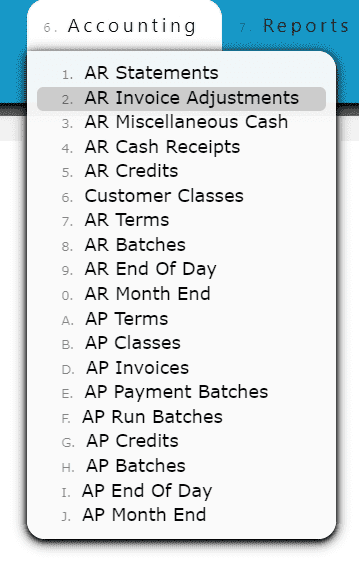
1. Go to the Accounting Menu and click on the AR Invoice Adjustment Sub-Menu
2. Click on the Add New Button
3. Enter the customer, adjustment date, type of invoice adjustment and any notes needed to label the adjustment
4. Click on the Distribute Adj Button
5. Distribute the amount of the adjustment towards any open invoice(s) listed
Add to Line (Adjusting a partial amount of an invoice):
Step 1: Click on the Add to Line Icon next to the invoice to be adjusted
Step 2: Enter the amount that the invoice must be adjusted down by (must be a negative value if adjusting an invoice, or a positive value if adjusting a credit)
Step 3: Click on the Add/Update Button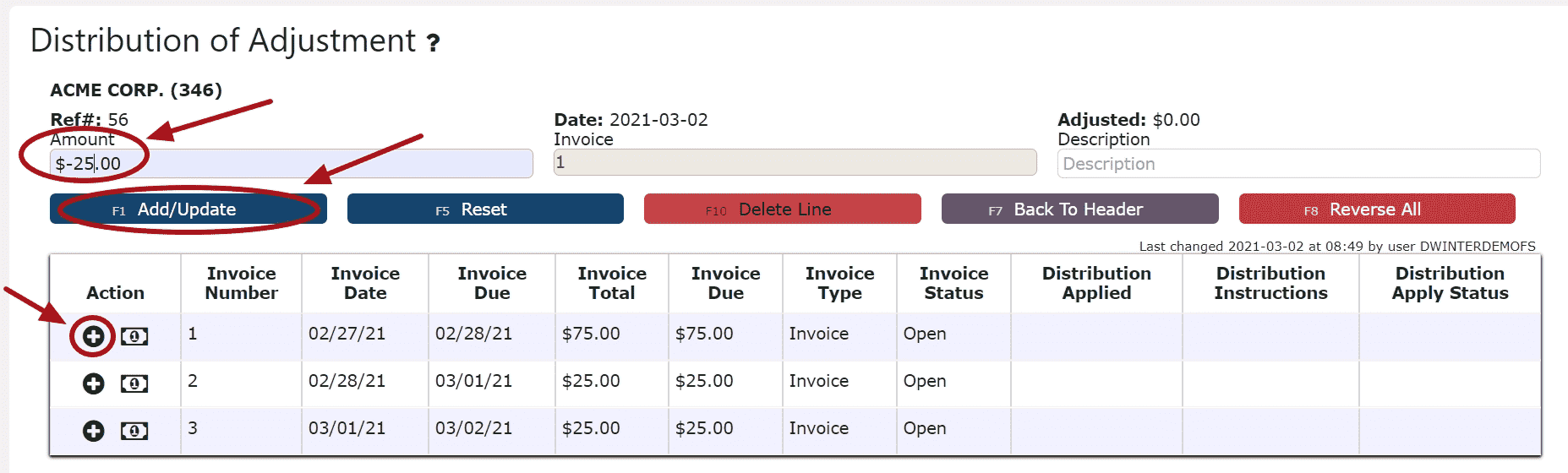
Adjusting the Entire Invoice or Credit Balance:
Step 1: Click on the Adjust Entire Invoice/Credit Balance Icon next to the invoice to be adjusted6. Click on the Back to Header Button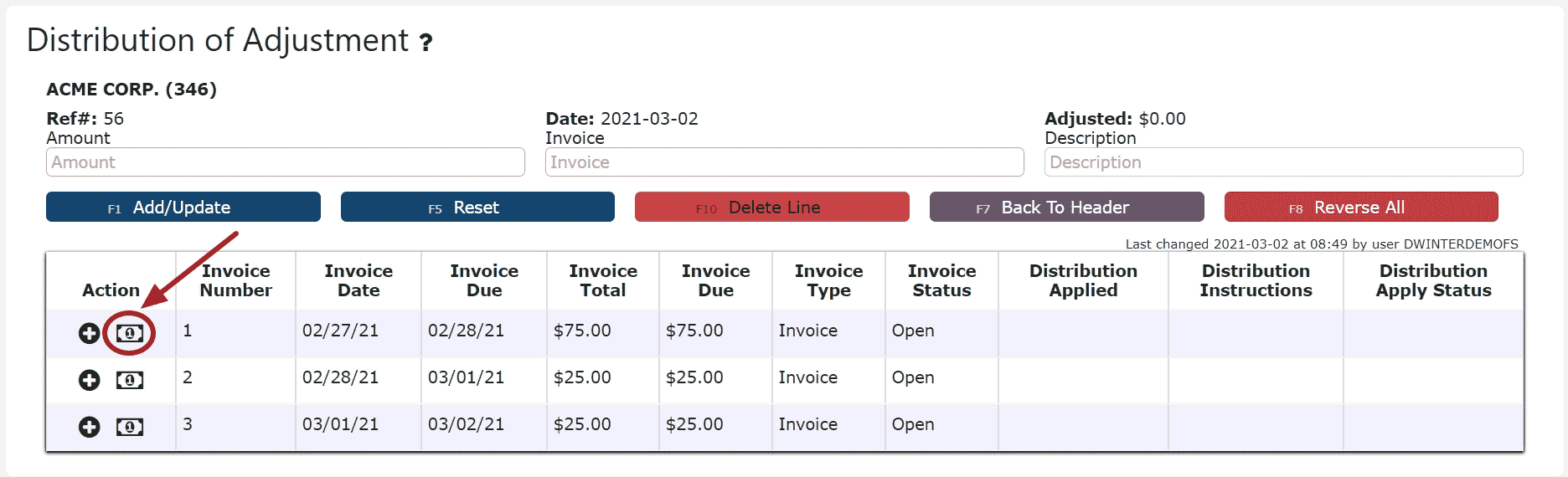
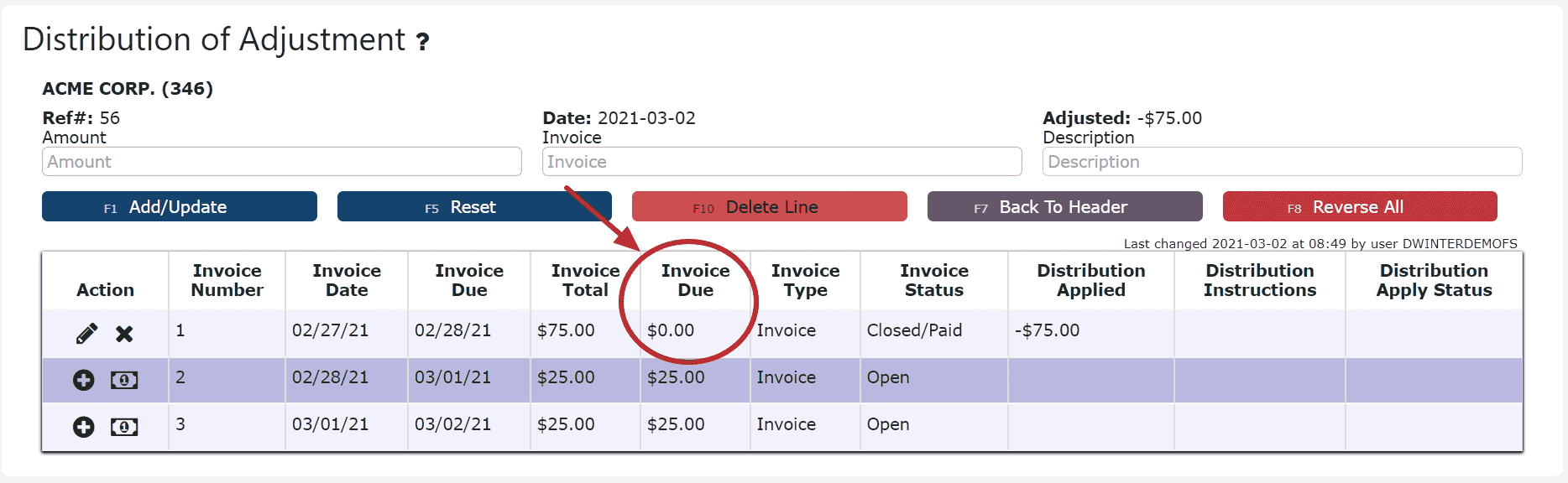
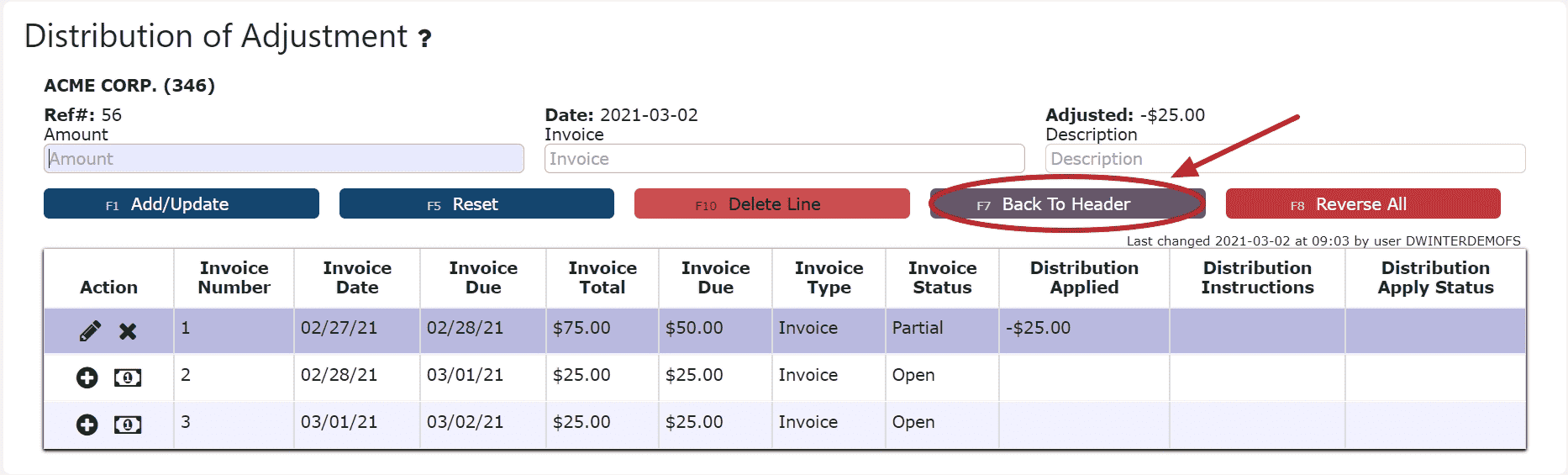
7. Click on the Close Adjustment Button
Note: Once closed, the adjustment is ready to post
8. Review the adjustment that is ready to post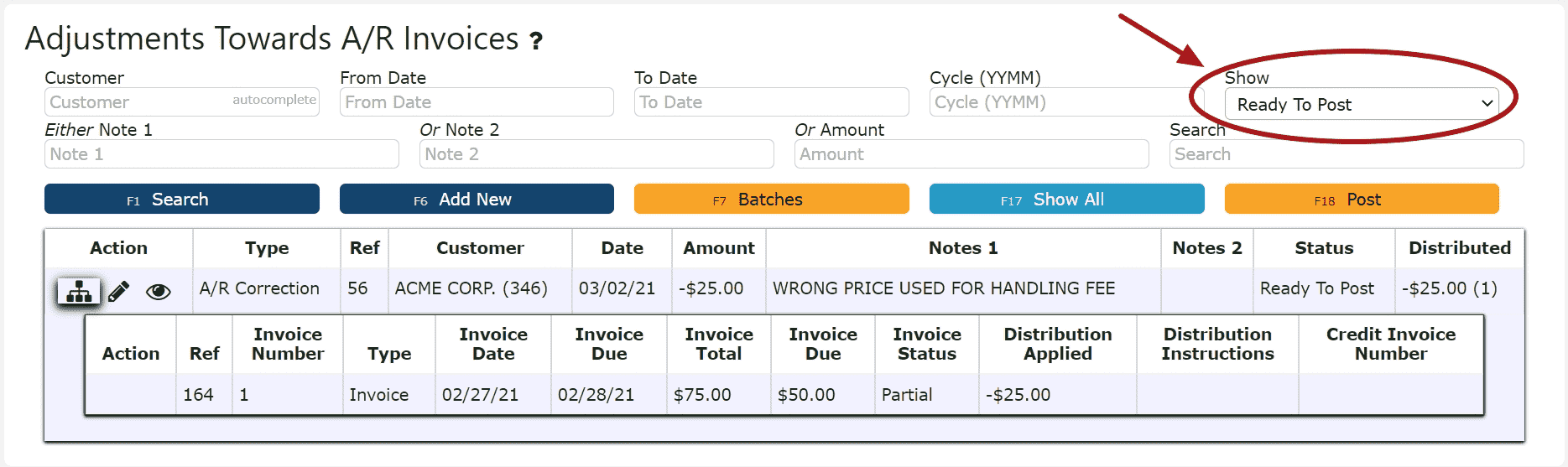
9. Click the Post Button
Note:Once Posted, AR Invoice Adjustments cannot be edited/canceled
Adjustments will only post successfully if their date matches the end of day cutoff date
Any adjustments left open/in progress will prevent the end of day process from automatically moving forward during the night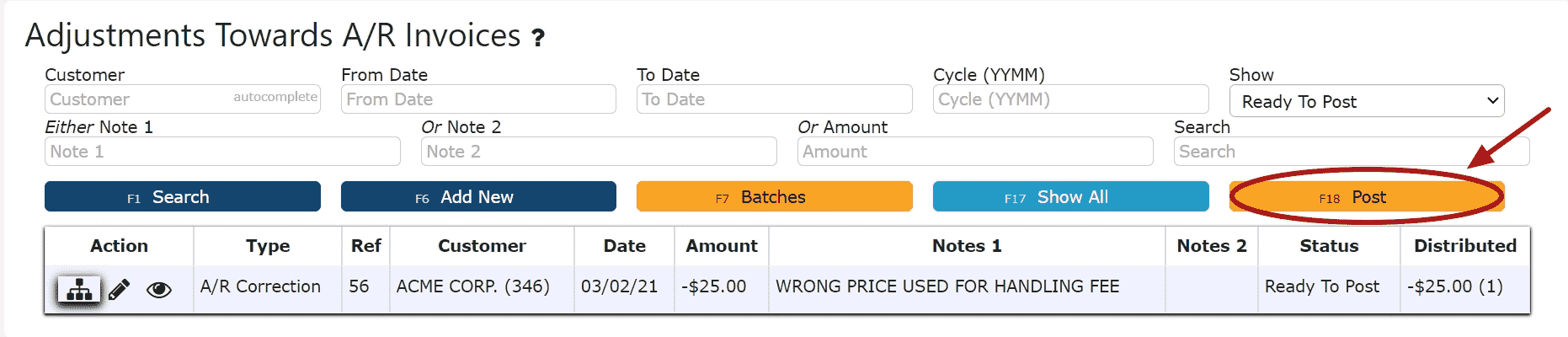
-
Editing an AR Invoice Adjustment
1. Click on the Edit Adj Icon (Pencil) next to the AR Invoice Adjustment to be edited
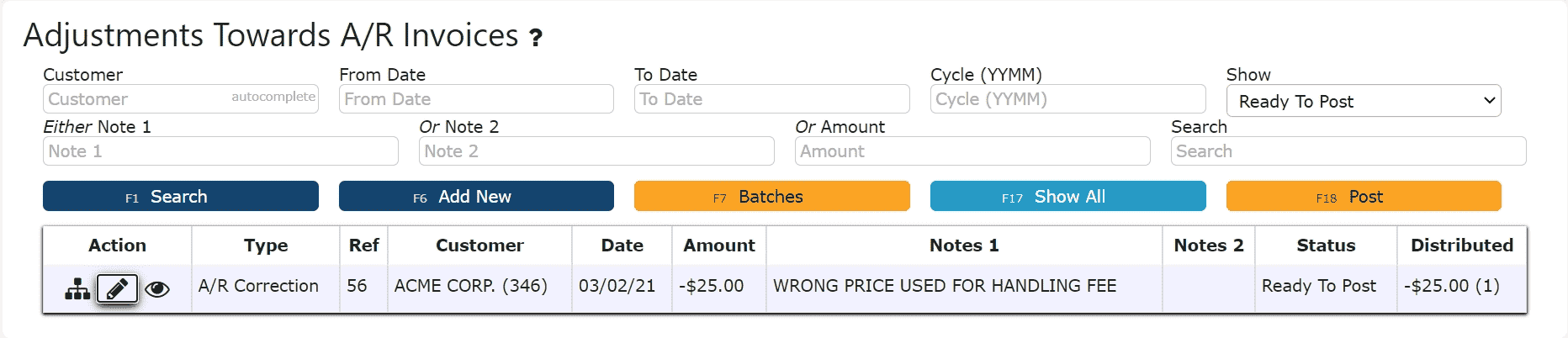
If Closed:
2. Click on the Open Adj Button to re-open the adjustment. 3. Make any necessary changes to the details of the AR Invoice AdjustmentReversing a Line (Reverses the distribution made to that particular invoice):Step 1: Click on the Reverse Line Icon (X) next to the invoice to reverse the adjustment associated with it
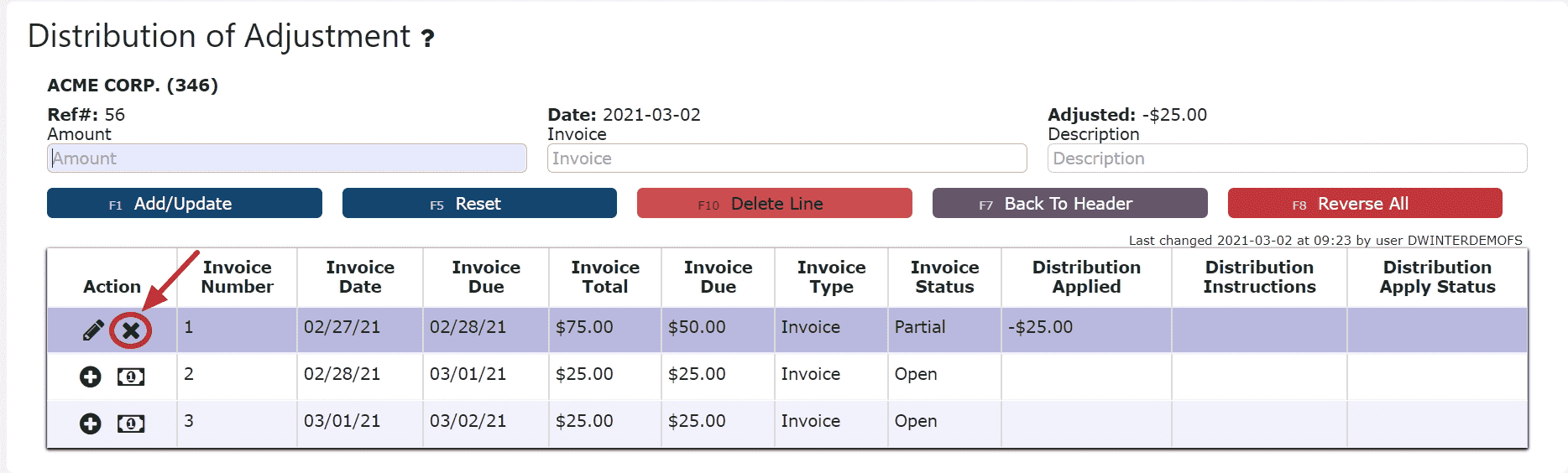 Deleting a Line: (Deletes the distribution made to that particular invoice):Step1: Click on the Edit Line Icon (Pencil)Step 2: Click on the Delete Line Button
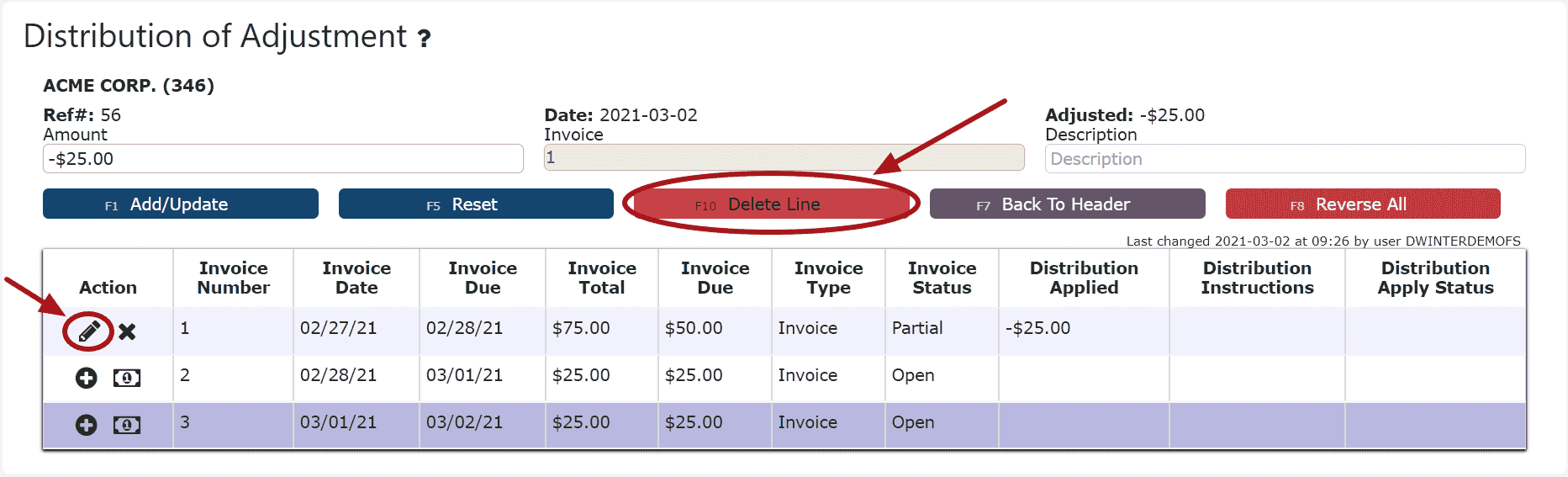 Reversing All Distributions (Deletes/Reverses all distributions made across all invoices:Step 1: Click on the Reverse All Button
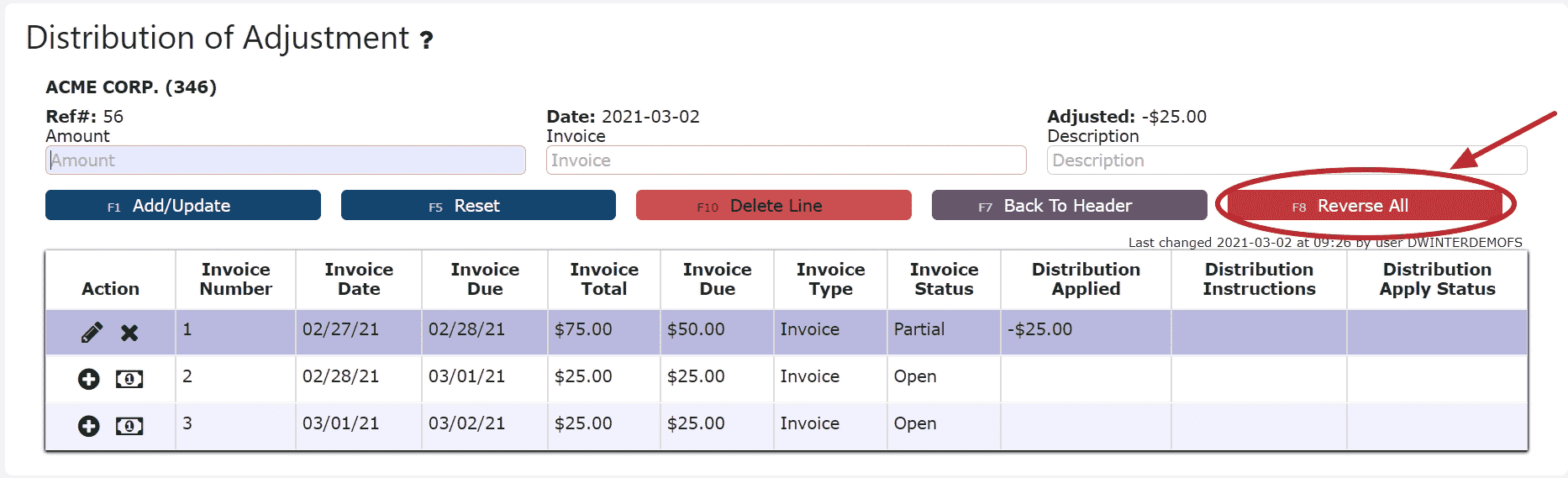 Editing a Line:Step 1: Click on the Edit Line Icon (Pencil)Step 2: Make Any necessary changes to the amount and/or description for that lineStep 3: Click on the Add/Update Button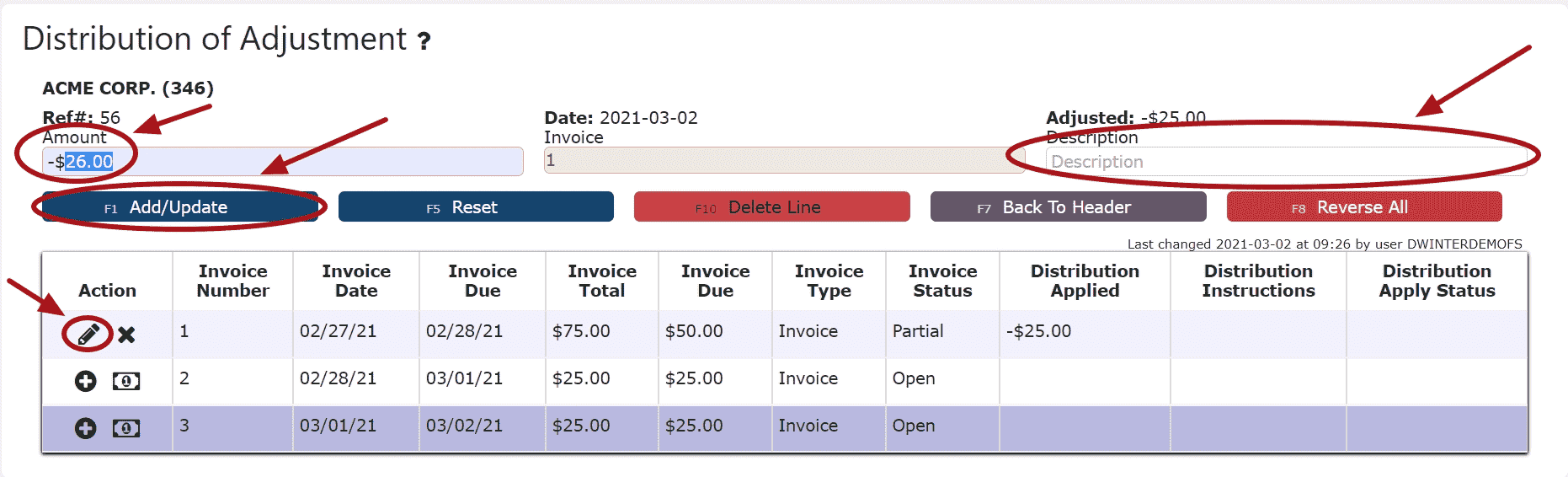
4. Click on the Back to Header Button and make changes to the header of the adjustment as necessary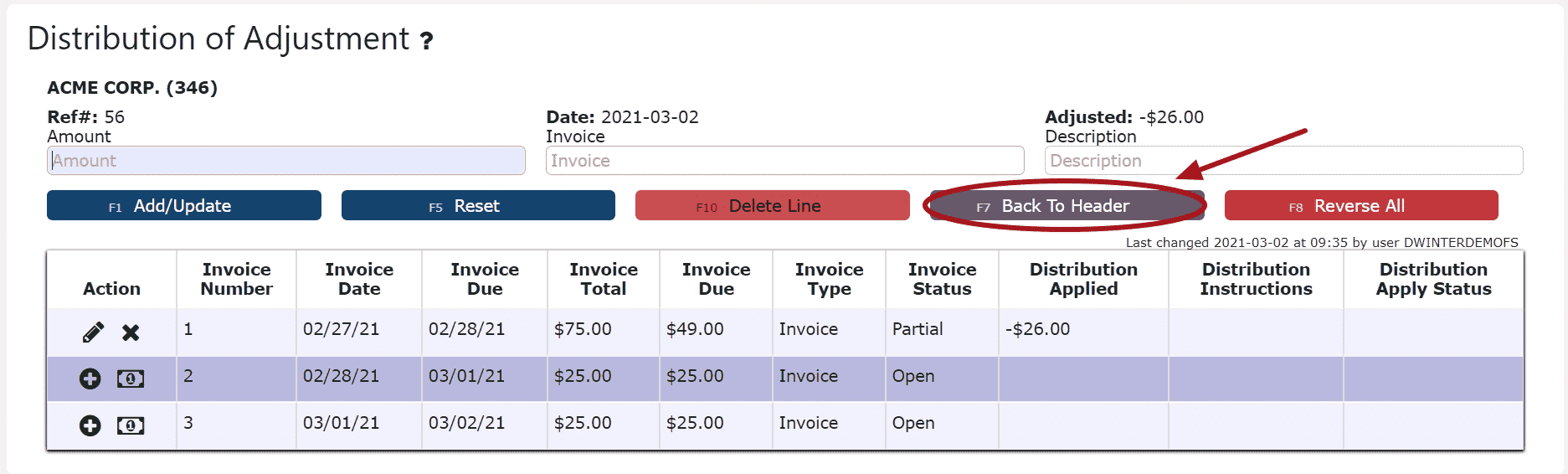

5. Click on the Close Adj Button if ready to close and post the adjustment
6. Click on the Post Button to post the adjustmentNote:Once Posted, AR Invoice Adjustments cannot be edited/canceledAdjustments will only post successfully if their date matches the end of day cutoff dateAny adjustments left open/in progress will prevent the end of day process from automatically moving forward during the night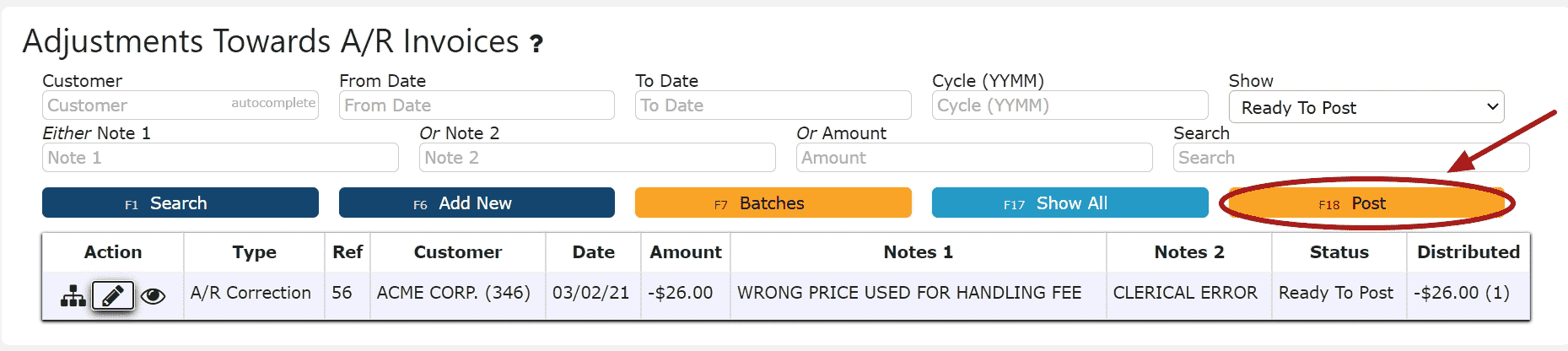
If Open:
2. Adjust any of the header information as necessary.
3. Click on the Distribute Adj Button to make changes to the details of the adjustment 4. Make any necessary changes to the details of the AR Invoice AdjustmentReversing a Line (Reverses the distribution made to that particular invoice):Step 1: Click on the Reverse Line Icon (X) next to the invoice to reverse the adjustment associated with itDeleting a Line: (Deletes the distribution made to that particular invoice):Step1: Click on the Edit Line Icon (Pencil)Step 2: Click on the Delete Line ButtonReversing All Distributions (Deletes/Reverses all distributions made across all invoices:Step 1: Click on the Reverse All ButtonEditing a Line:Step 1: Click on the Edit Line Icon (Pencil)Step 2: Make Any necessary changes to the amount and/or description for that lineStep 3: Click on the Add/Update Button5. Click on the Back to Header Button
6. Click on the Close Adj Button if ready to close and post the adjustment
7. Click on the Post Button to post the adjustmentNote:Once Posted, AR Invoice Adjustments cannot be edited/canceledAdjustments will only post successfully if their date matches the end of day cutoff dateAny adjustments left open/in progress will prevent the end of day process from automatically moving forward during the night
-
Deleting an AR Invoice Adjustment
1. Click on the Edit Adj Icon (Pencil) next to the AR Invoice Adjustment to be deleted
If Closed:
2. Click on the Open Button to re-open the AR Invoice Adjustment
3. Click on the Back to Header Button to return to the header of the adjustment
4. Click on the Delete Adj Button, then click Ok on the pop up prompt
Note:Once deleted, an AR Invoice Adjustment is permanently removed and can no longer be retrieved
If Open:
2. Click on the Delete Adj Button, then click Ok on the pop up prompt
Note:Once deleted, an AR Invoice Adjustment is permanently removed and can no longer be retrieved
-
Troubleshooting Batch Errors
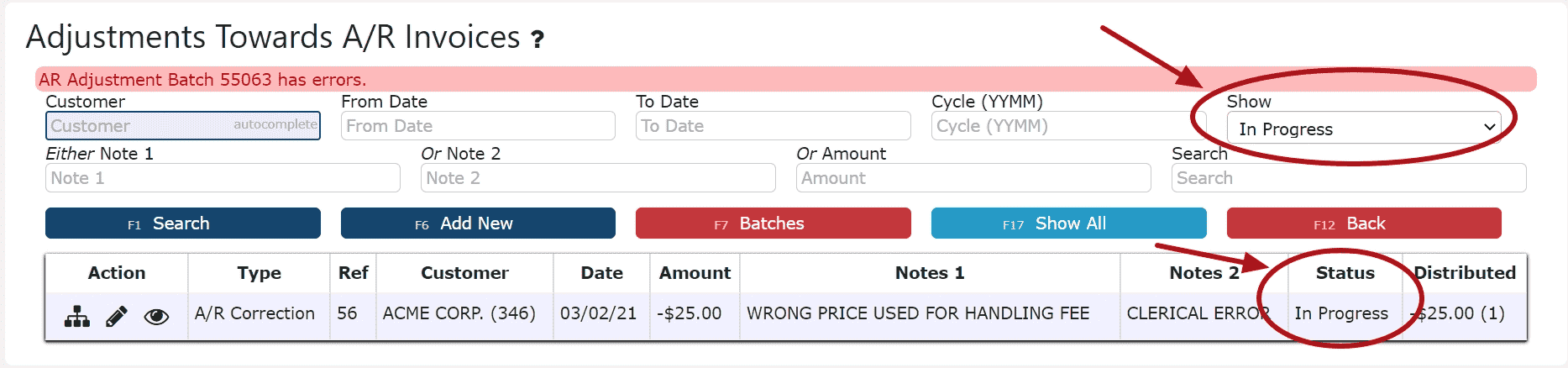
1. Click on the Batches Button
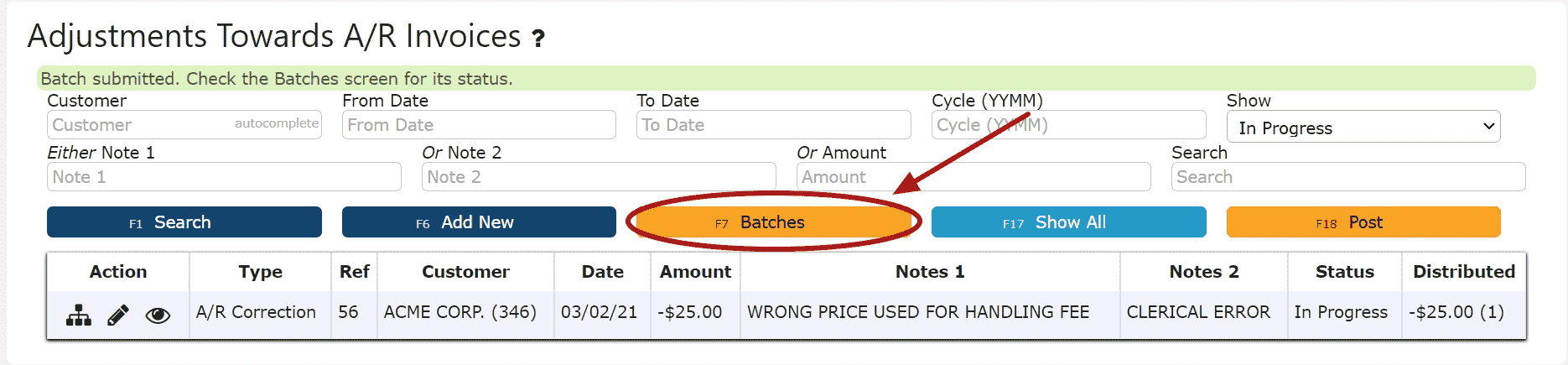
2. Remove the dates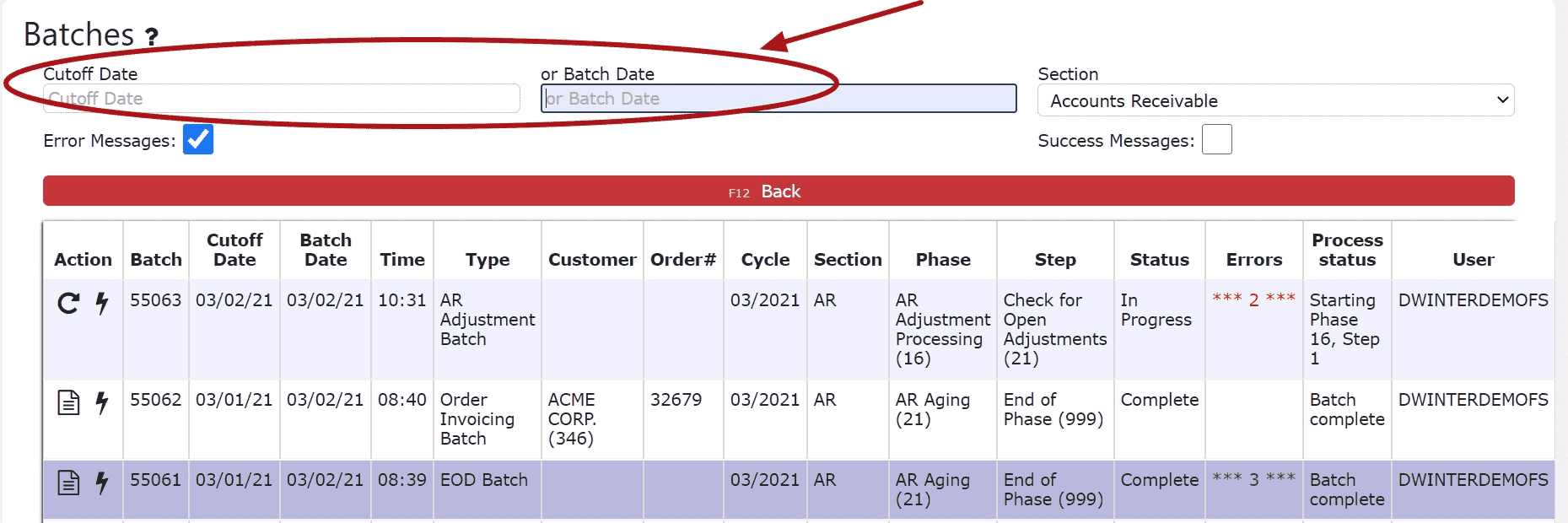
3. Locate the error batch that contains errors in red and a Re-Start This Batch Icon (Circle Arrow)
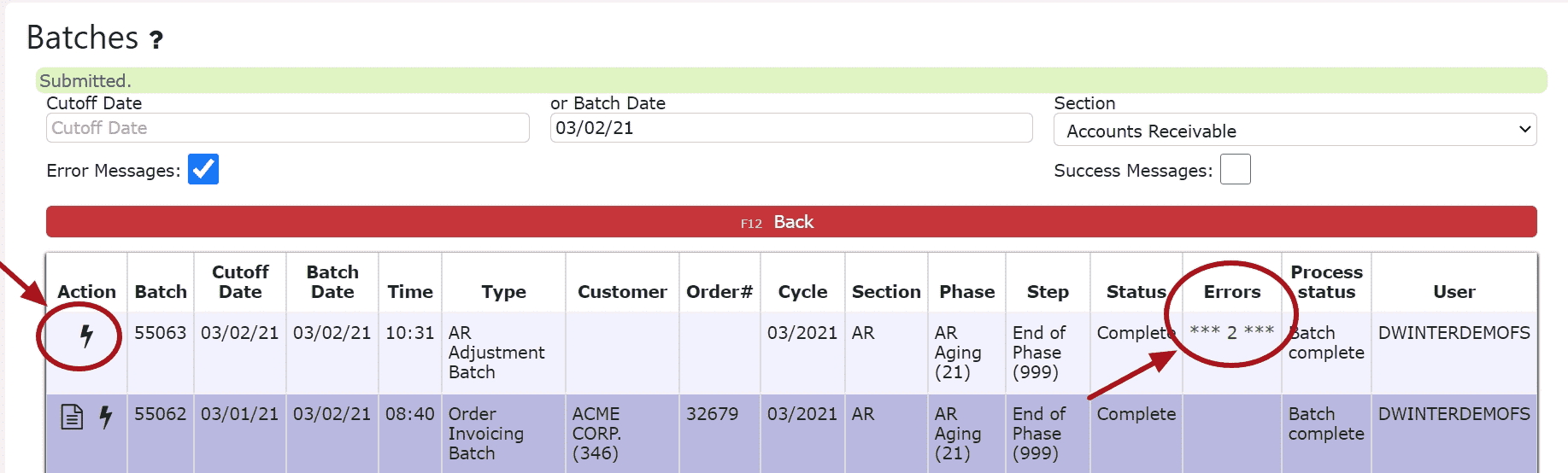
Note: Any AR Batch Error that has not been resolved will prevent any transactions from posting successfully (including AR Invoice Adjustments)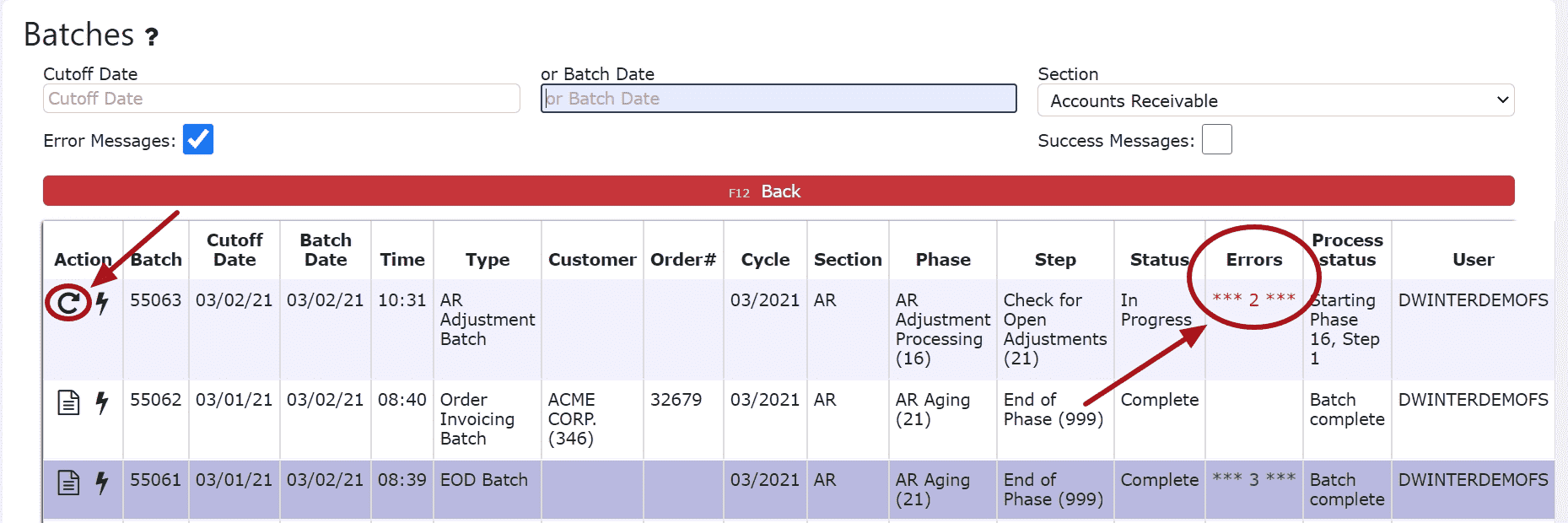 4. Click on the Batch Messages Icon (Lightning Bolt) next to the Error Batch in question
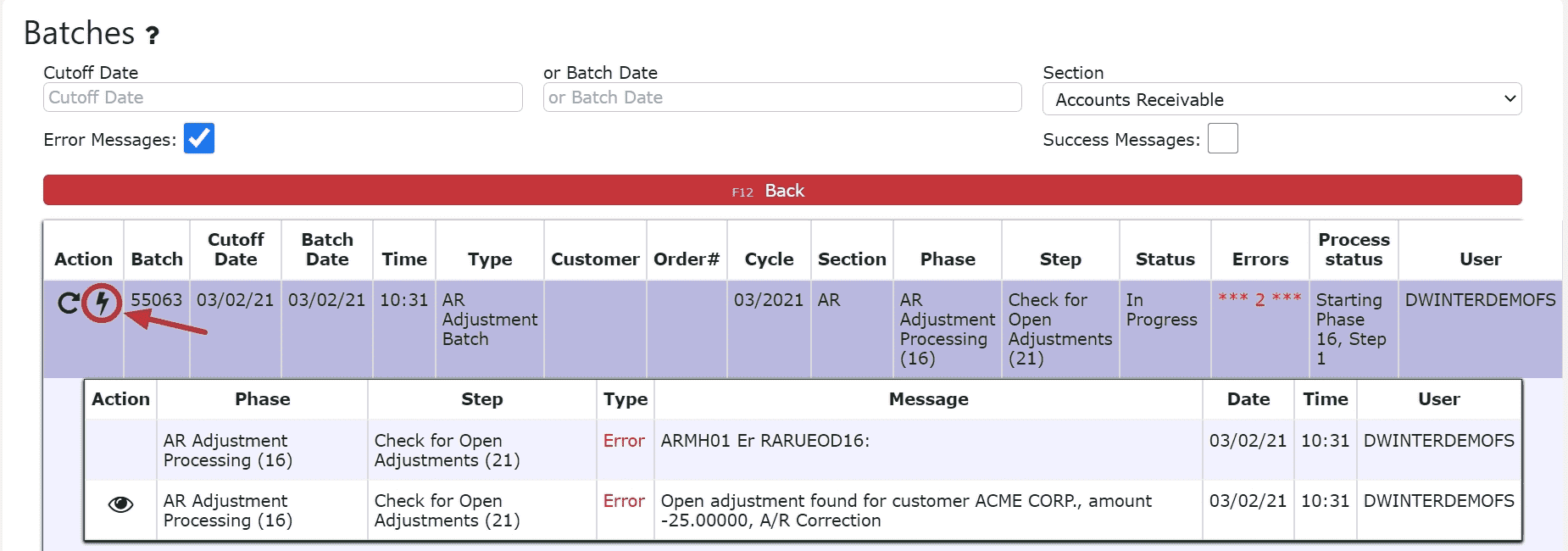 5. Review the errors preventing the AR Invoice Adjustment from posting
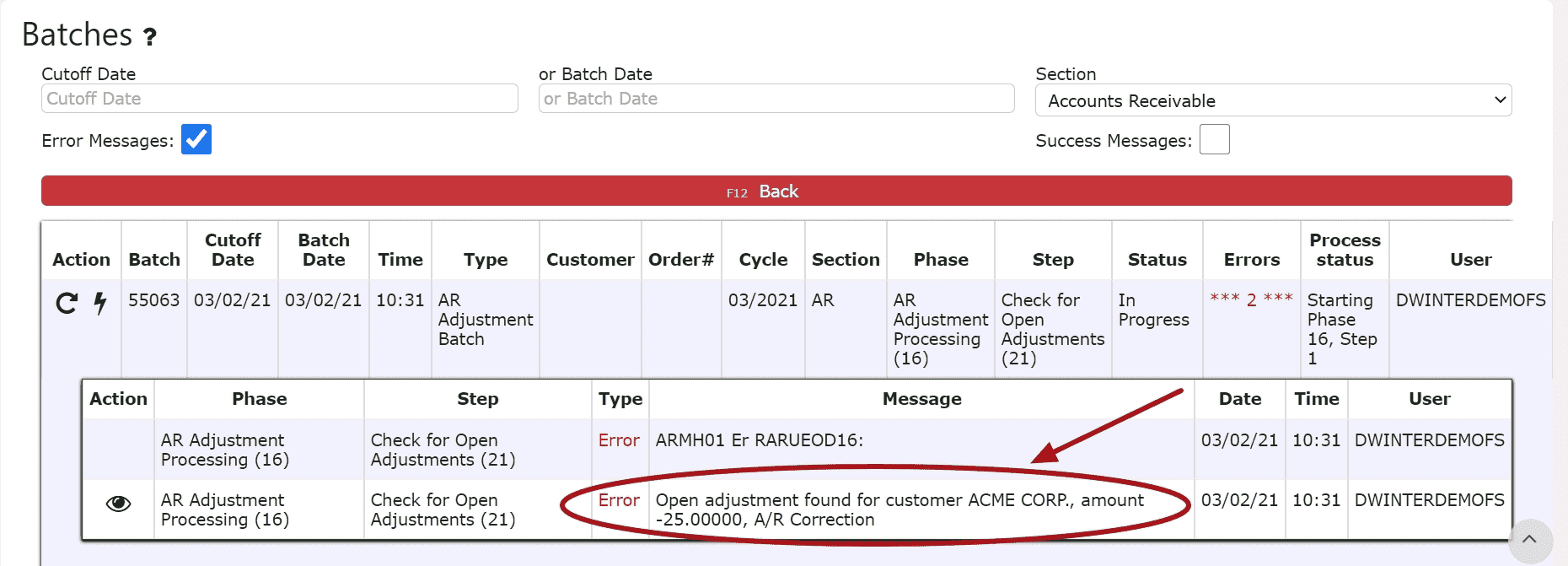 6. Resolve each error listed in the batch. Click on the eyeball next to each error to be automatically redirected to the order/transaction in question.For Open Orders:Either invoice, cancel or forward date the orderFor Open/In Progress Transactions (AR Credits, AR Misc. Cash Entries, AR Cash Receipts, AR Adjustments):Either close and post, cancel or forward date the transaction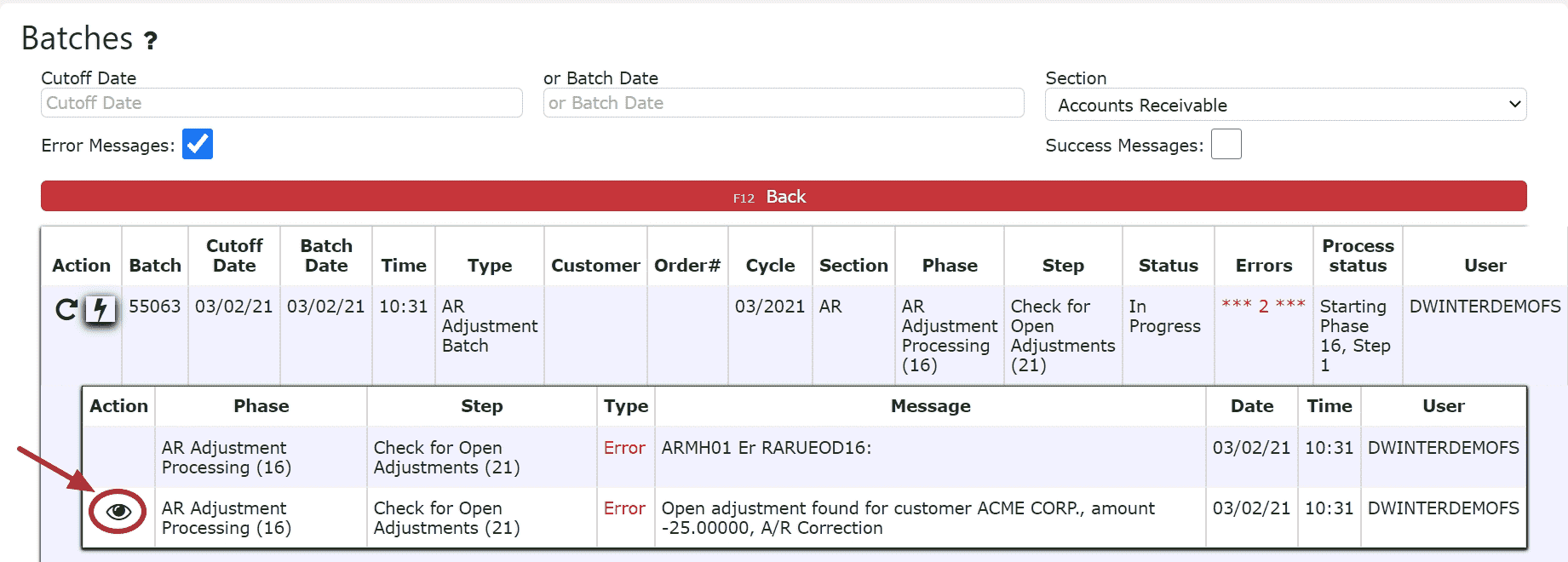
 7. After all errors have been resolved, go back to AR Batches and click on the Re-Start This Batch Icon to re-start the error batch. The AR Invoice Adjustment will automatically post, the Re-Start this Batch icon will dissapear and the red errors will turn green, if the batch is successful.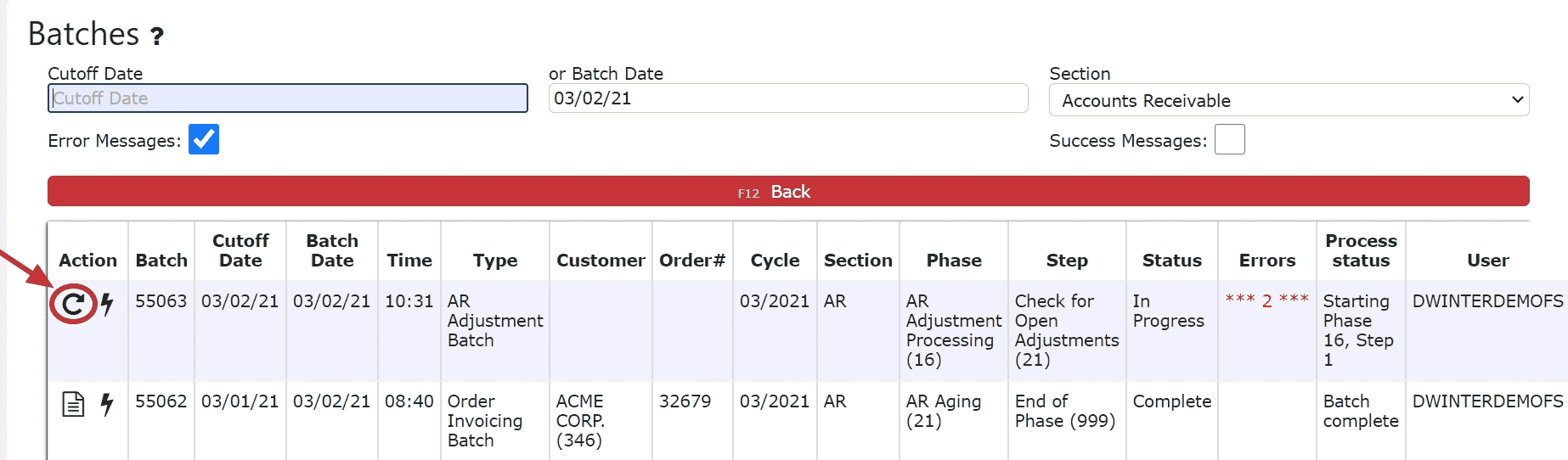
AR Miscellaneous Cash
-
Key Information
Create and maintain any miscellaneous cash that has been received.Examples:InvestmentMiscellaneous DepositAR Miscellaneous Cash Statuses:In Progress -> the misc. cash entry is open and is able to be editedPosted -> the misc. cash entry has been posted and cannot be editedReady to Post -> the cash entry has been closed and is ready for posting, it cannot be edited when closed, but can be reopened if edits are necessary
Note: Posting will only successfully go through if the misc. cash record date equals the current cutoff date
-
Creating and Posting an AR Miscellaneous Cash Entry
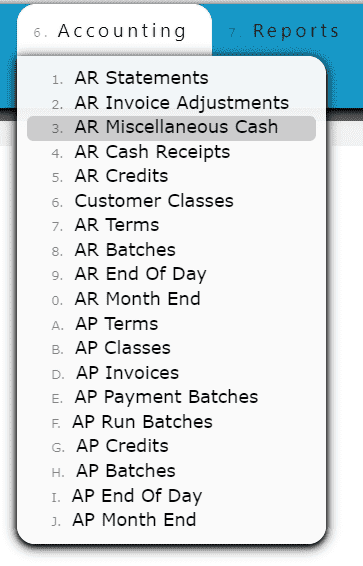
1. Go to the Accounting Menu and click on the AR Miscellaneous Cash Sub-Menu
 2. Click on the Add New Button
 3. Select the bank, and enter the customer, cash credit date, type of AR Misc. Cash deposit and any notes needed to label the entry. Click on the Save & Exit Button to save and close the entry.
 4. Review the Misc. Cash Entry that is ready to post
 5. Click the Post ButtonNote:Once Posted, AR Miscellaneous Cash Entries cannot be edited/canceledMiscellaneous Cash Entries will only post successfully if their date matches the end of day cutoff dateAny Miscellaneous Cash Entries left open/in progress will prevent the end of day process from automatically moving forward during the night
-
Editing an AR Miscellaneous Cash Entry
1. Click on the Edit Icon (Pencil) next to the AR Misc. Cash Entry to be edited
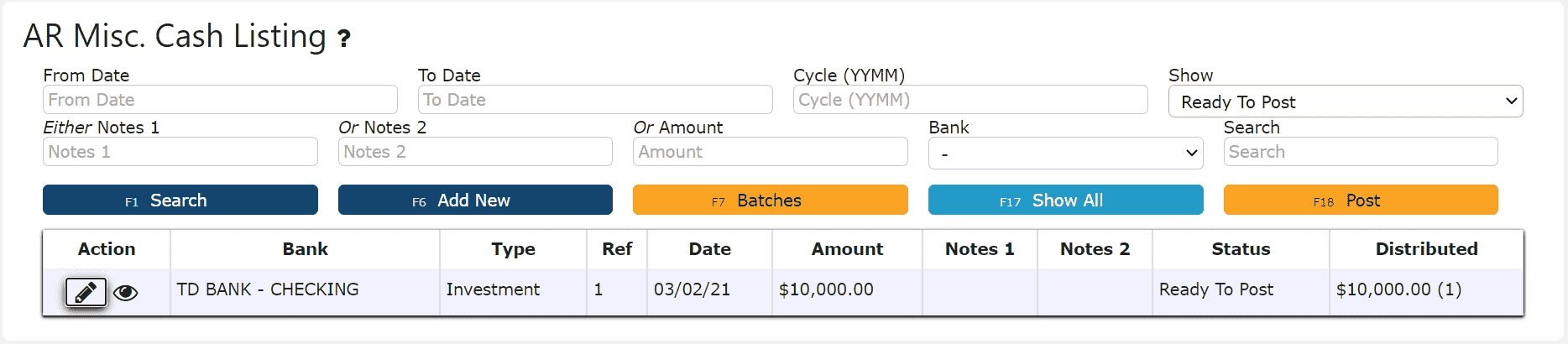 If Closed:2. Click on the Open Button to re-open the Misc. Cash Entry. Adjust any of the header information as necessary.
 3. Click on the Close Button if ready to close and post the Misc. Cash Entry
 4. Click on the Post Button to post the Misc. Cash EntryNote:Once Posted, AR Misc. Cash Entries cannot be edited/canceledMisc. Cash Entries will only post successfully if their date matches the end of day cutoff dateAny Misc. Cash Entries left open/in progress will prevent the end of day process from automatically moving forward during the night
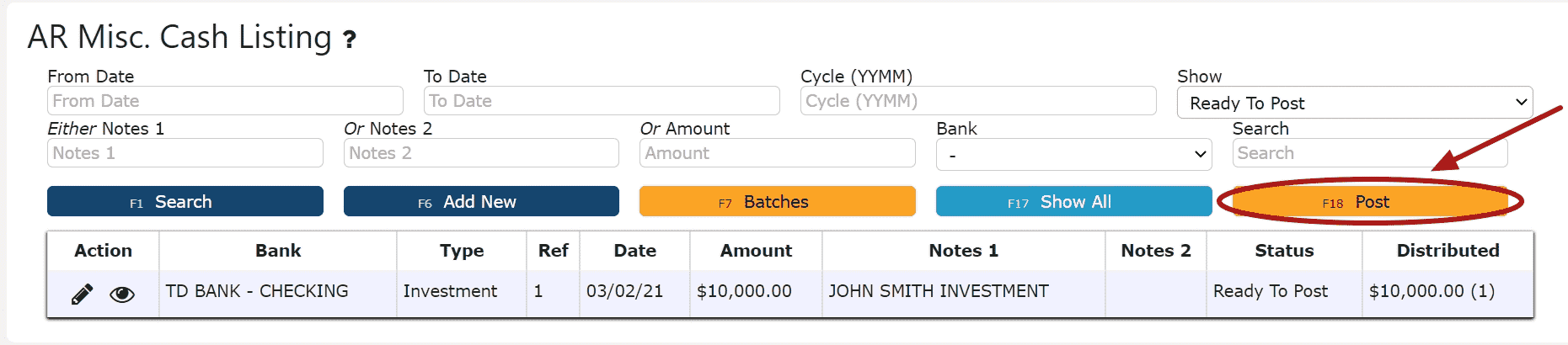 If Open:2. Adjust any of the header information as necessary.3. Click on the Close Button if ready to close and post the Misc. Cash Entry4. Click on the Post Button to post the entryNote:Once Posted, AR Misc. Cash Entries cannot be edited/canceled
Misc. Cash Entries will only post successfully if their date matches the end of day cutoff dateAny Misc. Cash Entries left open/in progress will prevent the end of day process from automatically moving forward during the night
-
Deleting an AR Miscellaneous Cash Entry
1. Click on the Edit Icon (Pencil) next to the AR Misc. Cash Entry to be deletedIf Closed:2. Click on the Open Button to re-open the AR Misc. Cash Entry3. Click on the Delete Button, then click Ok on the pop up promptNote:Once deleted, an AR Misc. Cash Entry is permanently removed and can no longer be retrieved
 If Open:2. Click on the Delete Button, then click Ok on the pop up promptNote:Once deleted, an AR Misc. Cash Entry is permanently removed and can no longer be retrieved
-
Troubleshooting Batch Errors
1. Click on the Batches Button
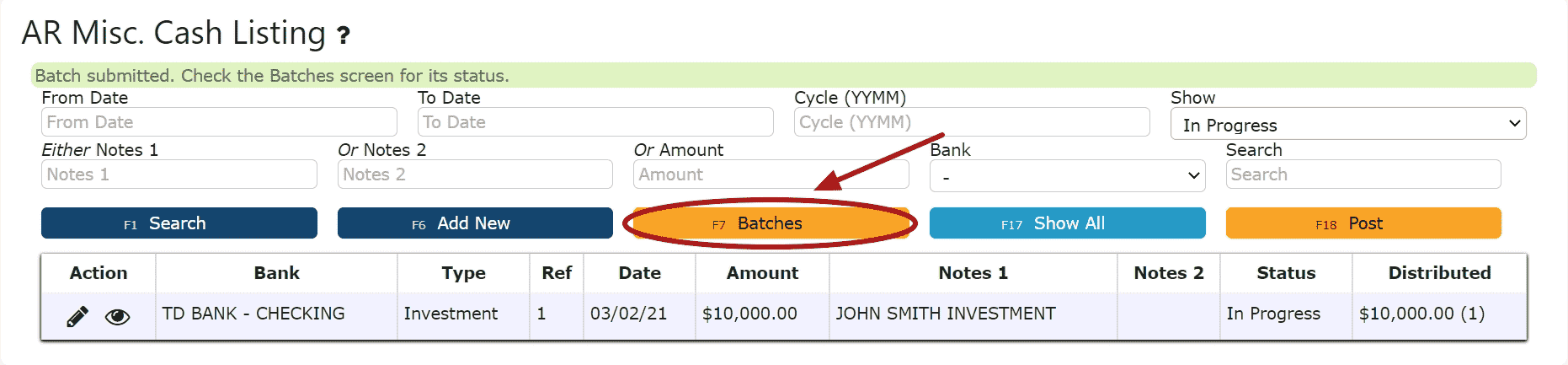 2. Remove the dates
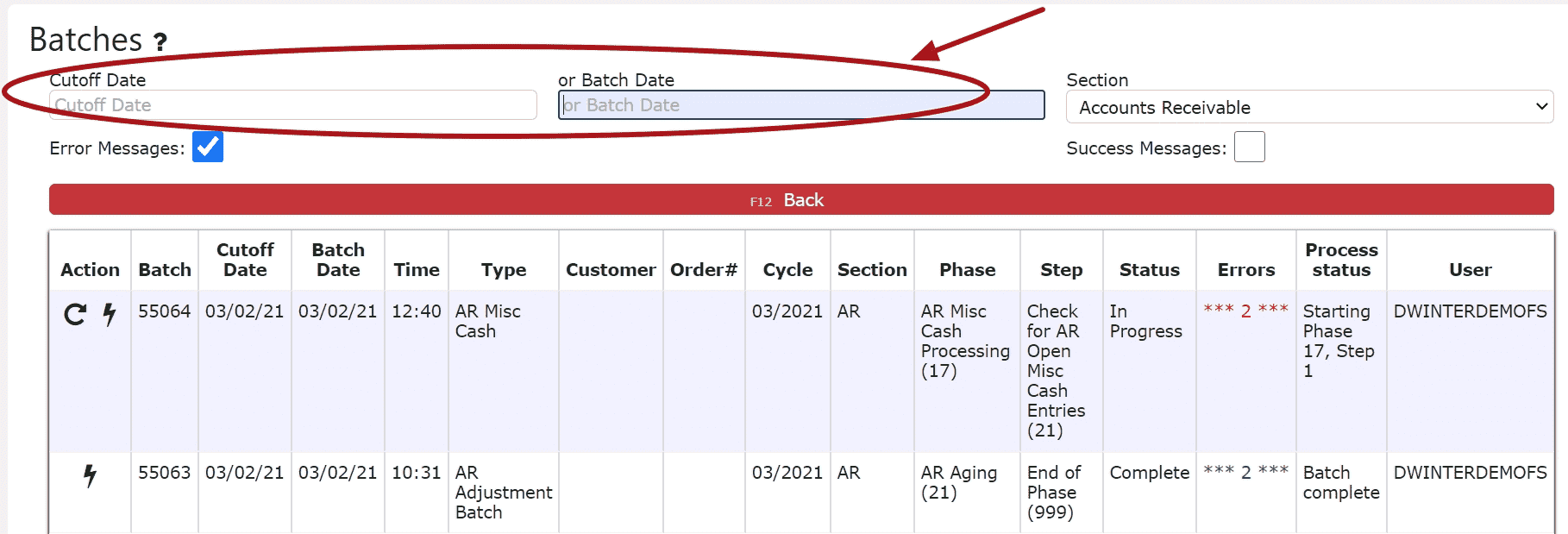 3. Locate the error batch that contains errors in red and a Re-Start This Batch Icon (Circle Arrow)Note:Any AR Batch Error that has not been resolved will prevent any transactions from posting successfully (including AR Misc. Cash Entries)
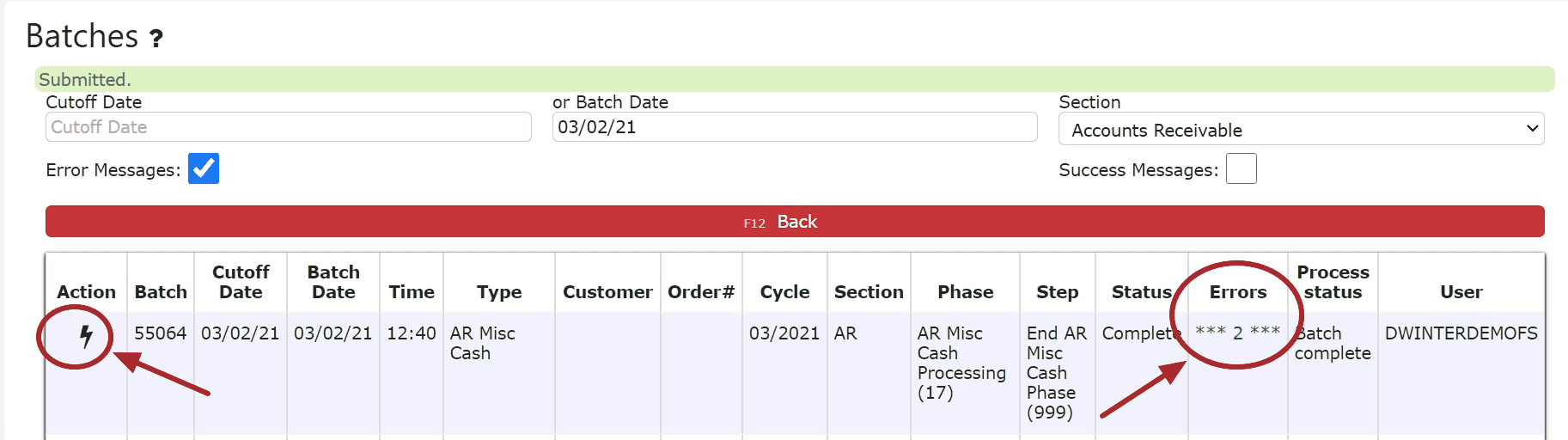
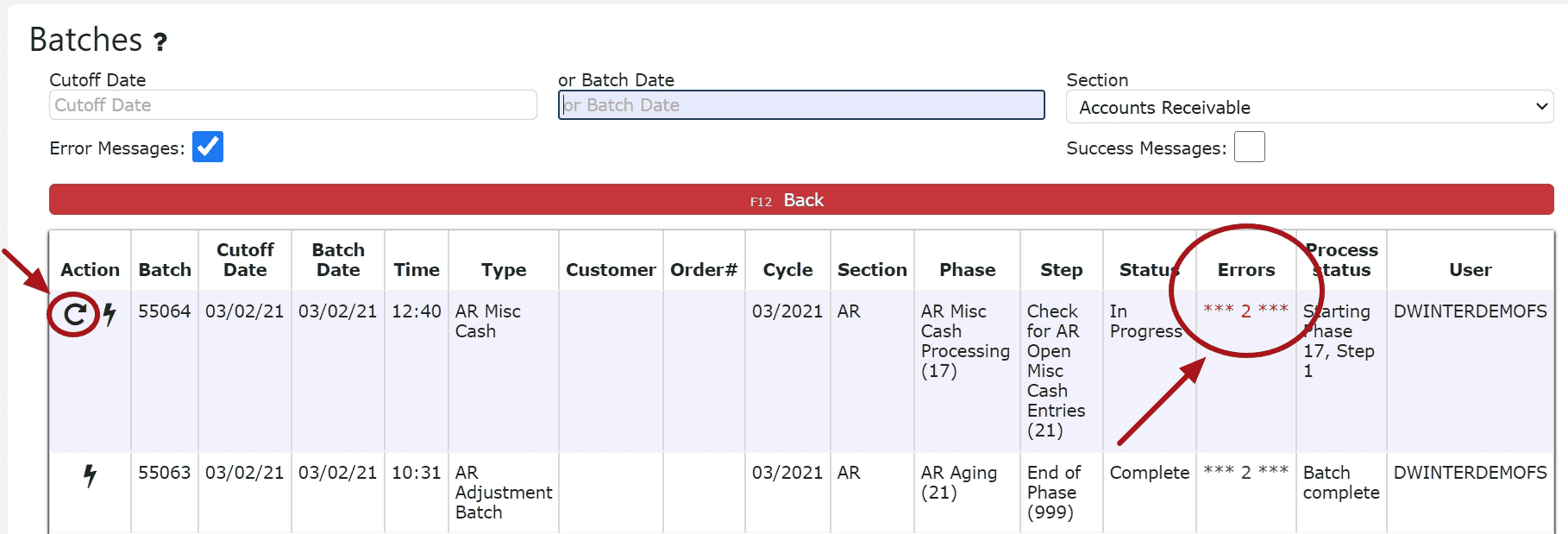 4. Click on the Batch Messages Icon (Lightning Bolt) next to the Error Batch in question
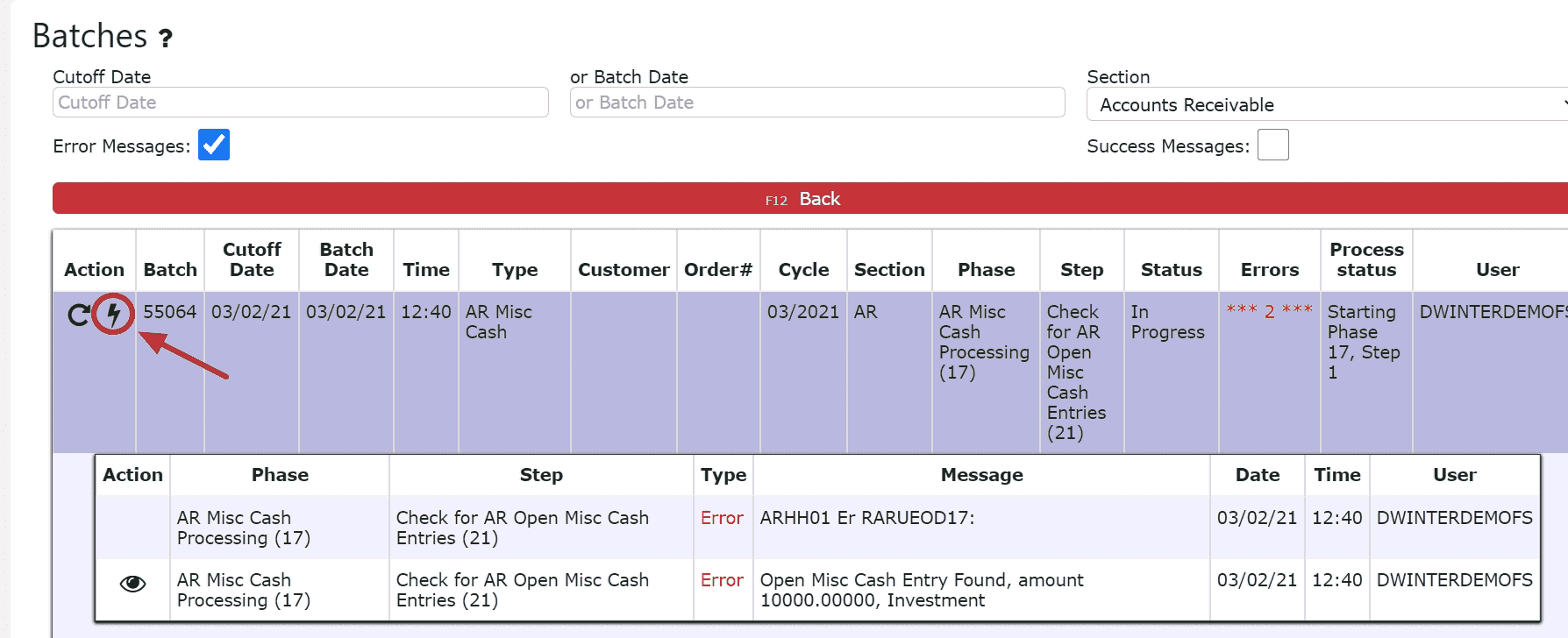 5. Review the errors preventing the AR Misc. Cash Entry from posting
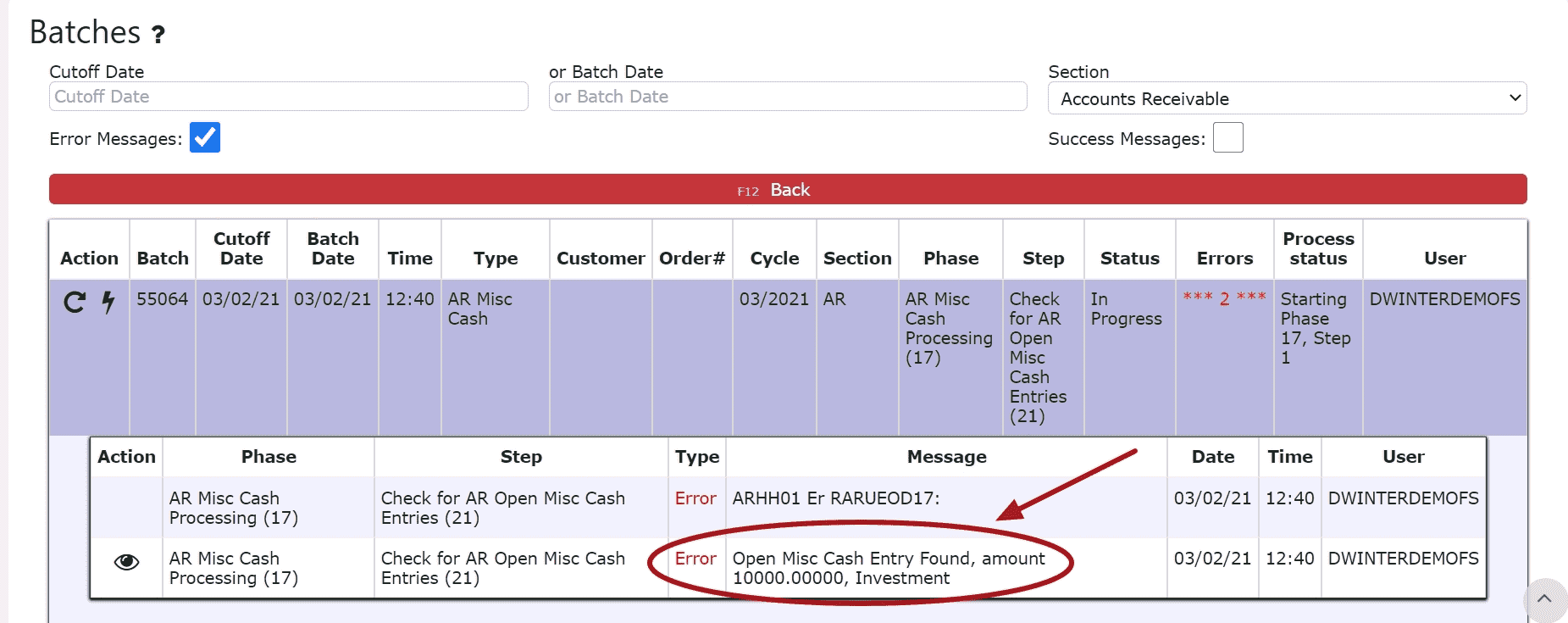 6. Resolve each error listed in the batch. Click on the eyeball next to each error to be automatically redirected to the order/transaction in question.For Open Orders:Either invoice, cancel or forward date the orderFor Open/In Progress Transactions (AR Credits, AR Misc. Cash Entries, AR Cash Receipts, AR Adjustments):Either close and post, cancel or forward date the transaction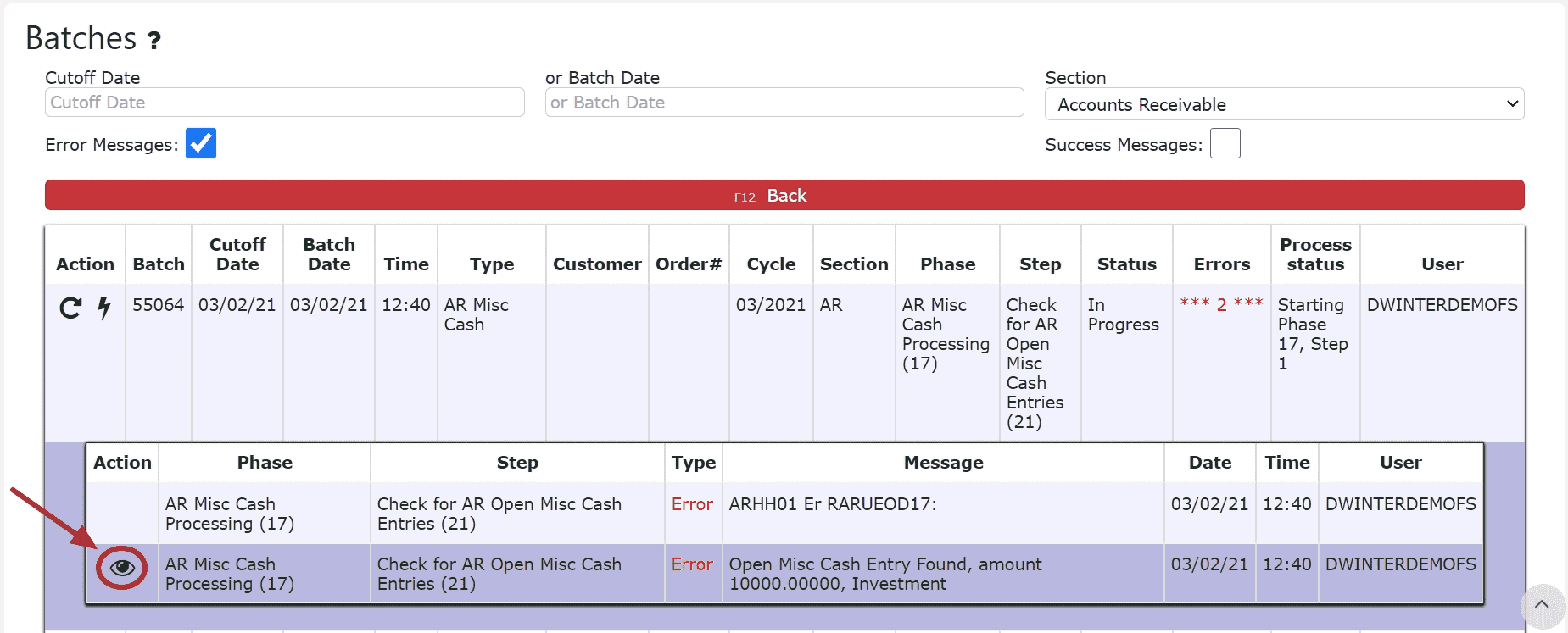
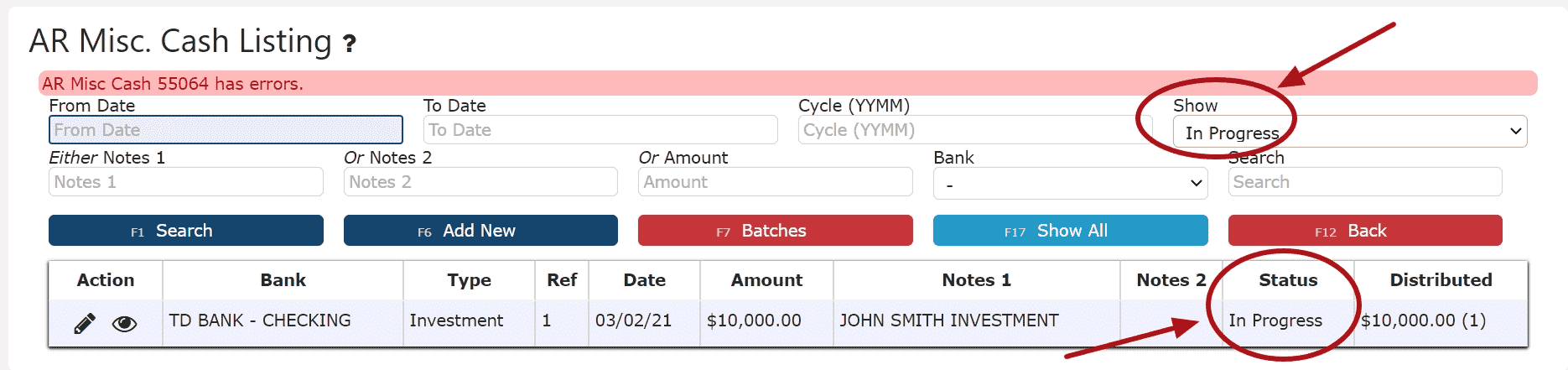 7. After all errors have been resolved, go back to AR Batches and click on the Re-Start This Batch Icon to re-start the error batch. The AR Misc. Cash Entry will automatically post, the Re-Start this Batch icon will dissapear and the red errors will turn green, if the batch is successful.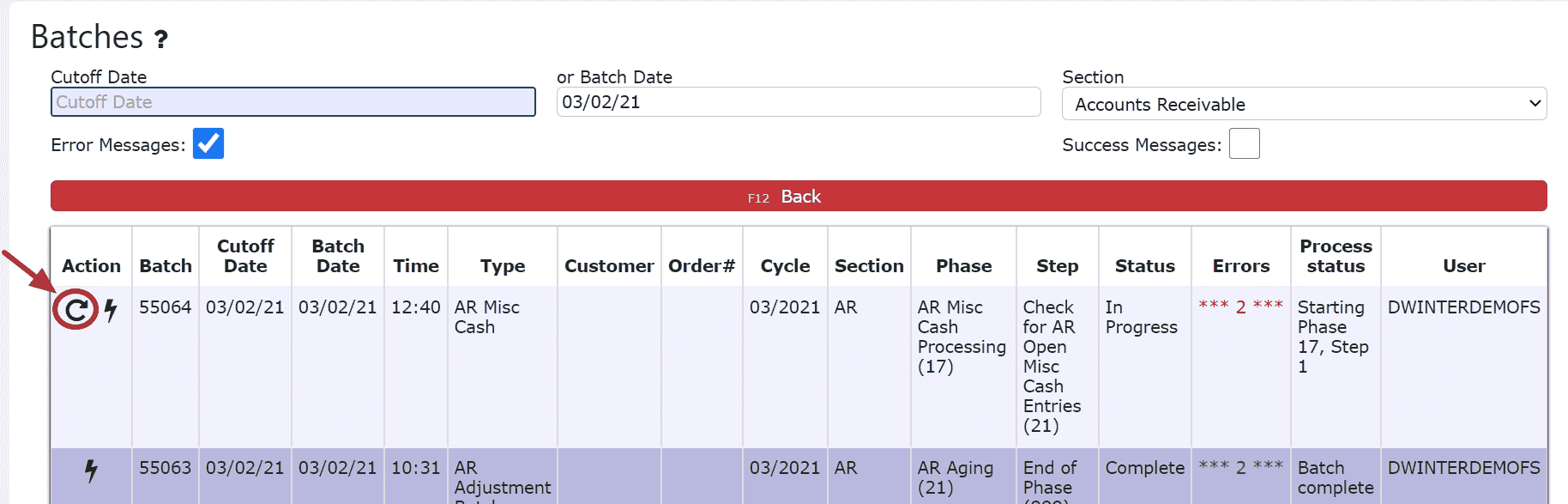
AR Cash Receipts
-
Key Information
Apply payments received and on account credits towards open invoices within the system.Examples:ChecksCash
LiveCards: Process a credit card payment in real-timeExternally Processed Credit Cards: Use an external credit card processor to process the actual credit cardExternally Processed ACH/Transfer/Wire: Use an external processor to proccess the actual ACH/Transfer/Wire transactionAR Cash Receipt Statuses:In Progress -> the cash receipt is open and is able to be editedPosted -> the cash receipt has been posted and cannot be editedReady to Post -> the cash receipt has been closed and is ready for posting, it cannot be edited when closed, but can be reopened if edits are necessary
Note: Posting will only successfully go through if the cash receipt date equals the current cutoff date
-
Creating and Posting an AR Cash Receipt
1. Go to the Accounting Menu and click on the AR Cash Receipts Sub-Menu
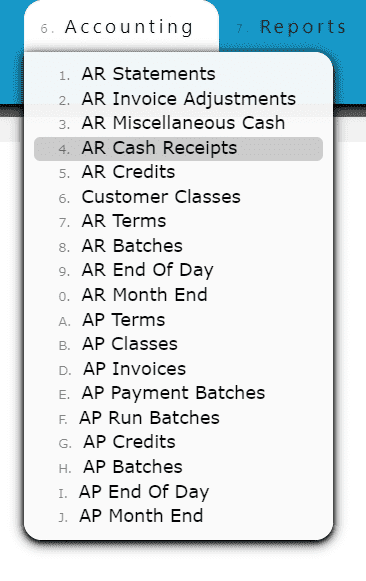
2. Click on the Add New Button
3. Enter the customer who made the payment, select a payment date, payment type, and total payment amount. Enter a check # or reference # if applicable.
Note:Reference numbers are required for Credit Card and ACH/Transfer/Wire Payments. Once a Credit Card or ACH/Transfer/Wire Payment has been completed from an outside source, the reference number generated from that transaction must be included as part of the corresponding AR Cash Receipt.
Check numbers are required for all payments made by check
4. Click on the Distribute $ Button
5. Distribute the amount of the payment towards any open invoice(s) listedAdd to Line (paying a partial amount of the invoice):
Step 1: Click on the Add to Line Icon next to the invoice to be paid
Step 2: Enter the amount of the invoice to pay
Step 3: Click on the Add/Update Button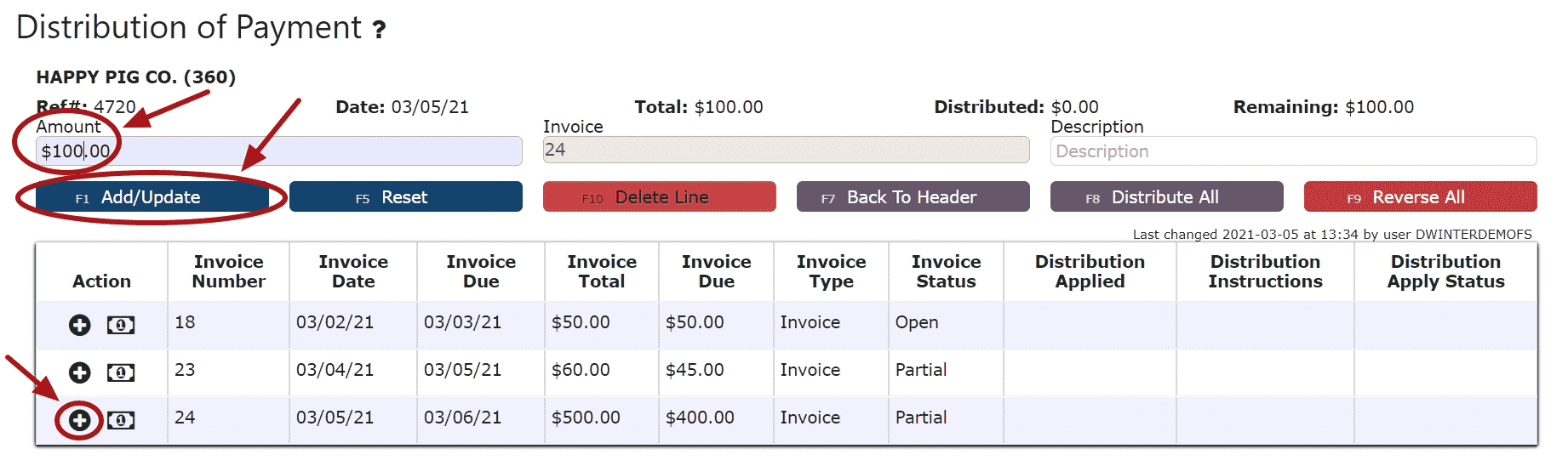
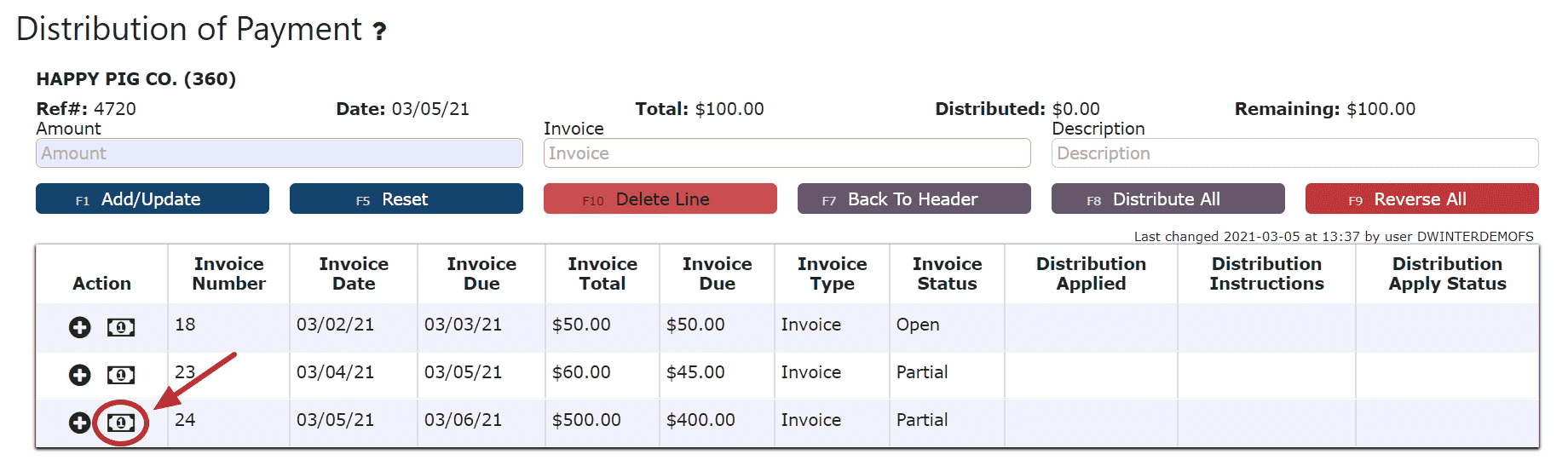
Auto Pay Remaining Balance (applies the entire remaining payment amount to the invoice):
Step 1: Click on the Auto Pay Remaining Balance Icon
Distribute All (distributes the entire amount of the payment to the invoices starting from the top of the list, up until the payment amount runs out):
Step 1: Click on the Distribute All Button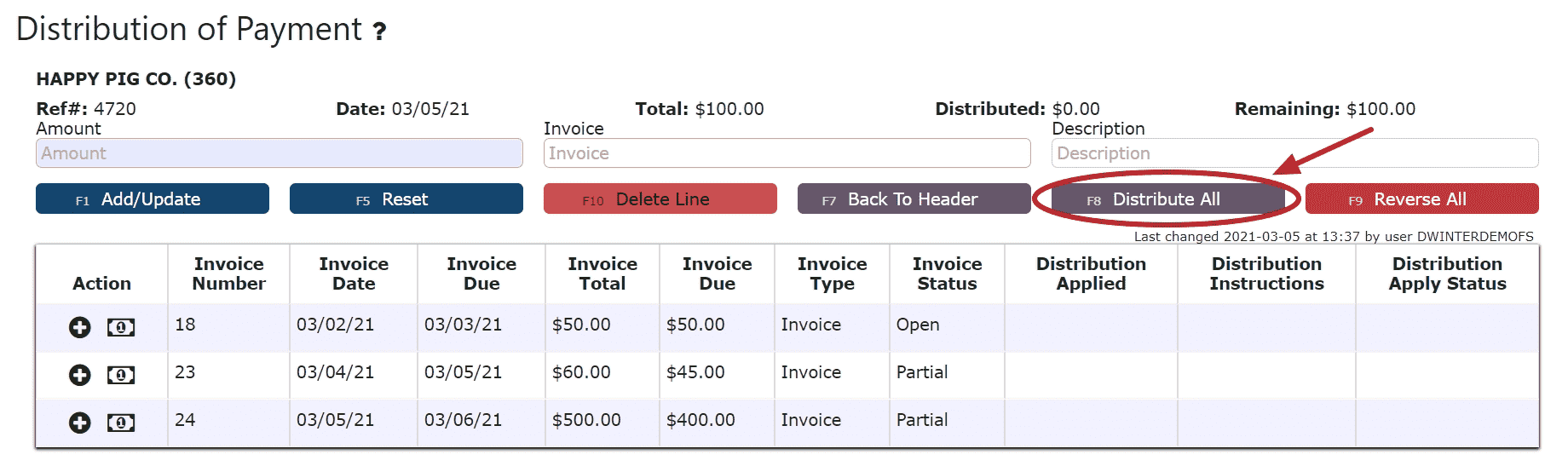
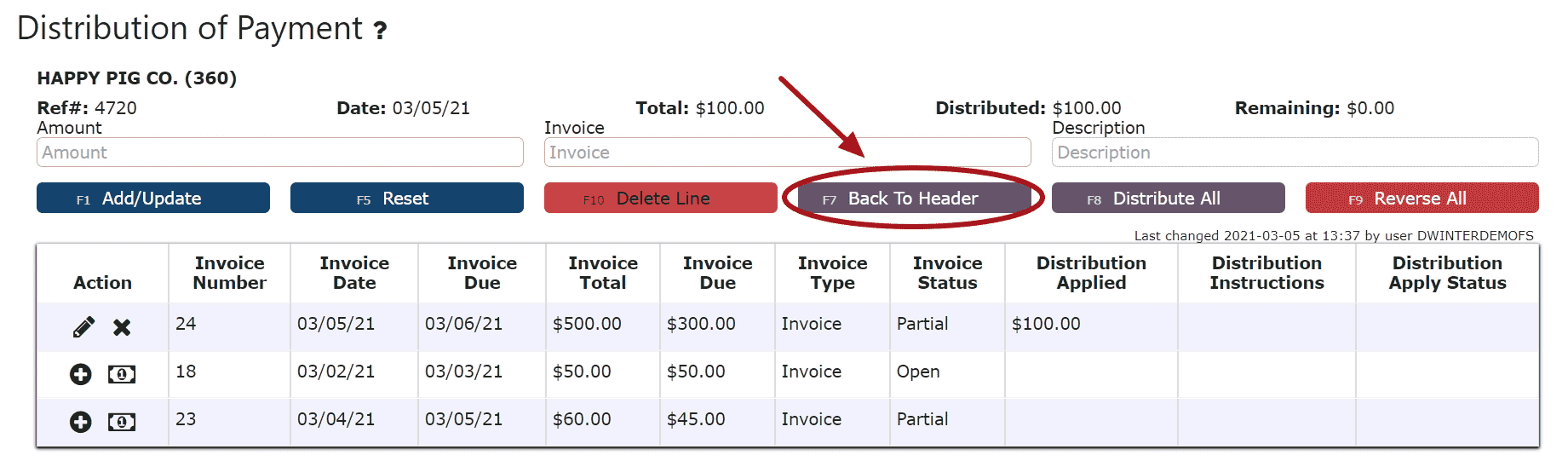
6. Click on the Back to Header Button
7. Click on the Close Payment Button
Note: Once closed, the cash receipt is ready to post
8. Review the Cash Receipt that is ready to post
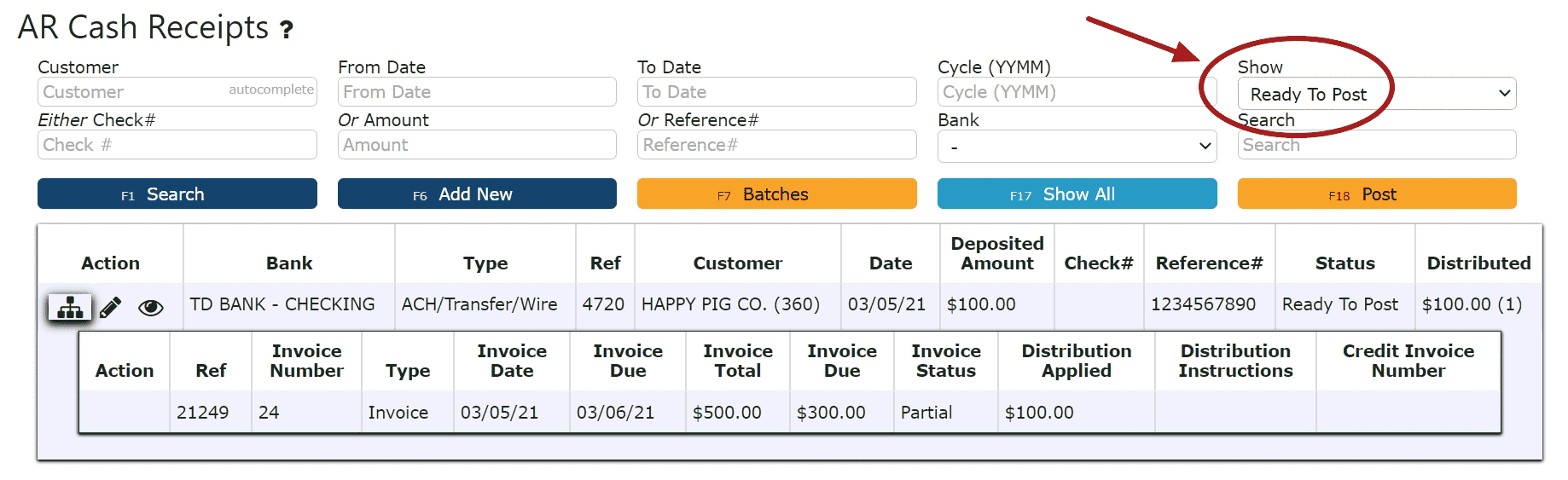
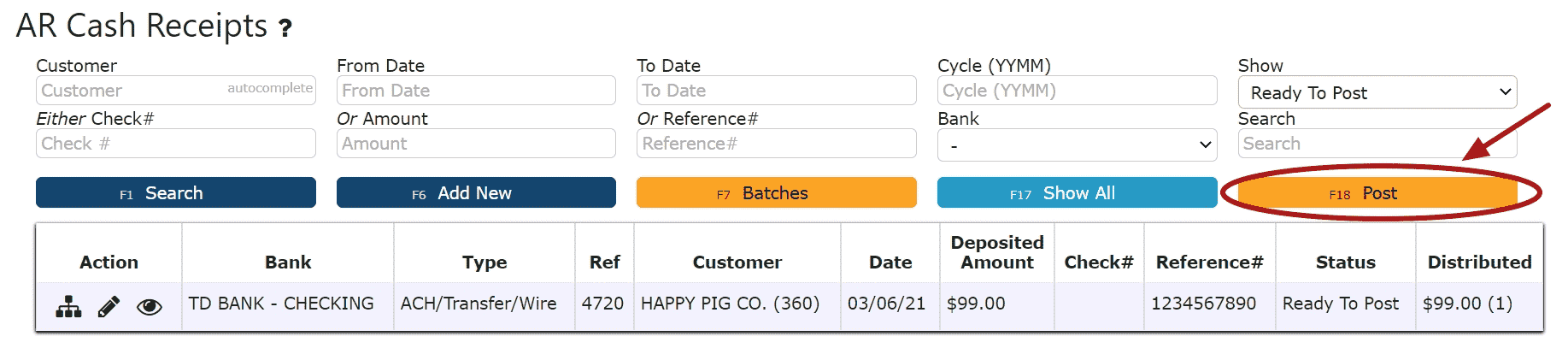
9. Click the Post Button
Note: Cash Receipts will only post successfully if their date matches the end of day cutoff date. Any Cash Receipts left open/in progress will prevent the end of day process from automatically moving forward during the night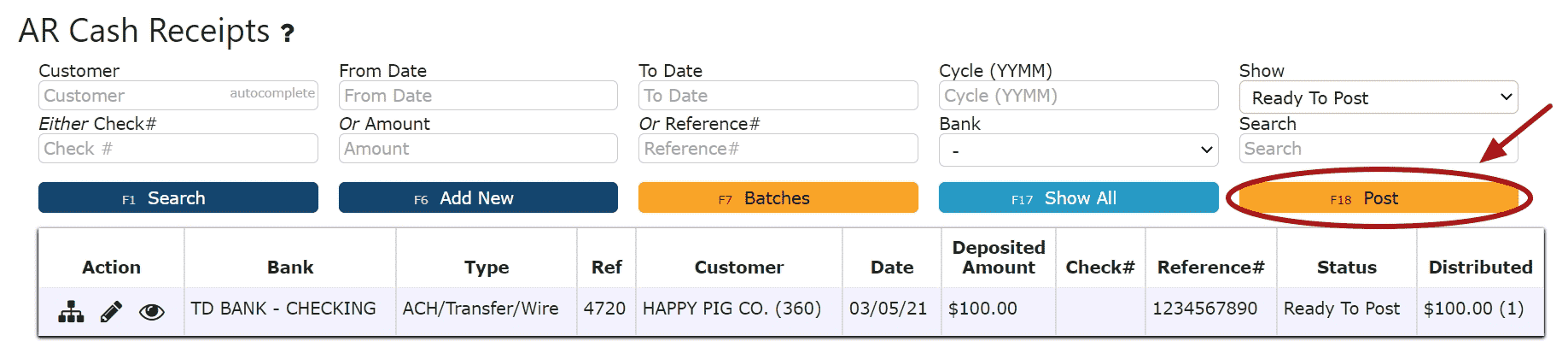
-
Using LiveCards
Inspired LiveCard Transactions
Credit cards can be used to submit a live payment for a cash receipt. As opposed to externally processed credit card transactions that are processed elsewhere outside of the Inspired system, these "Live" credit card transactions will be processed immediately upon posting, and eliminate the need for other external credit card processors.
Your applicable merchant fees will apply accordingly.
Note: Inspired Technology Systems does not save nor store any credit card information on our servers.
Secure tokens are used instead. Account tokenization involves completely removing sensitive data and replacing it with a randomly generated value called a token.
Setting up Inspired LiveCards:
LiveCards(credit cards) can be maintained for each customer, and are assigned through the customer master list, or directly from within a cash receipt
1. Go to the Sales Menu and click on the Customers Sub-Menu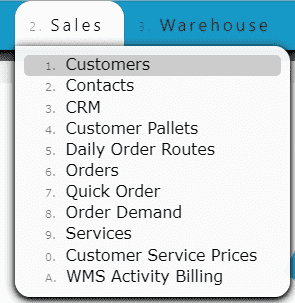
2. Click on the LiveCards Icon to view and maintain that customer's list of credit cards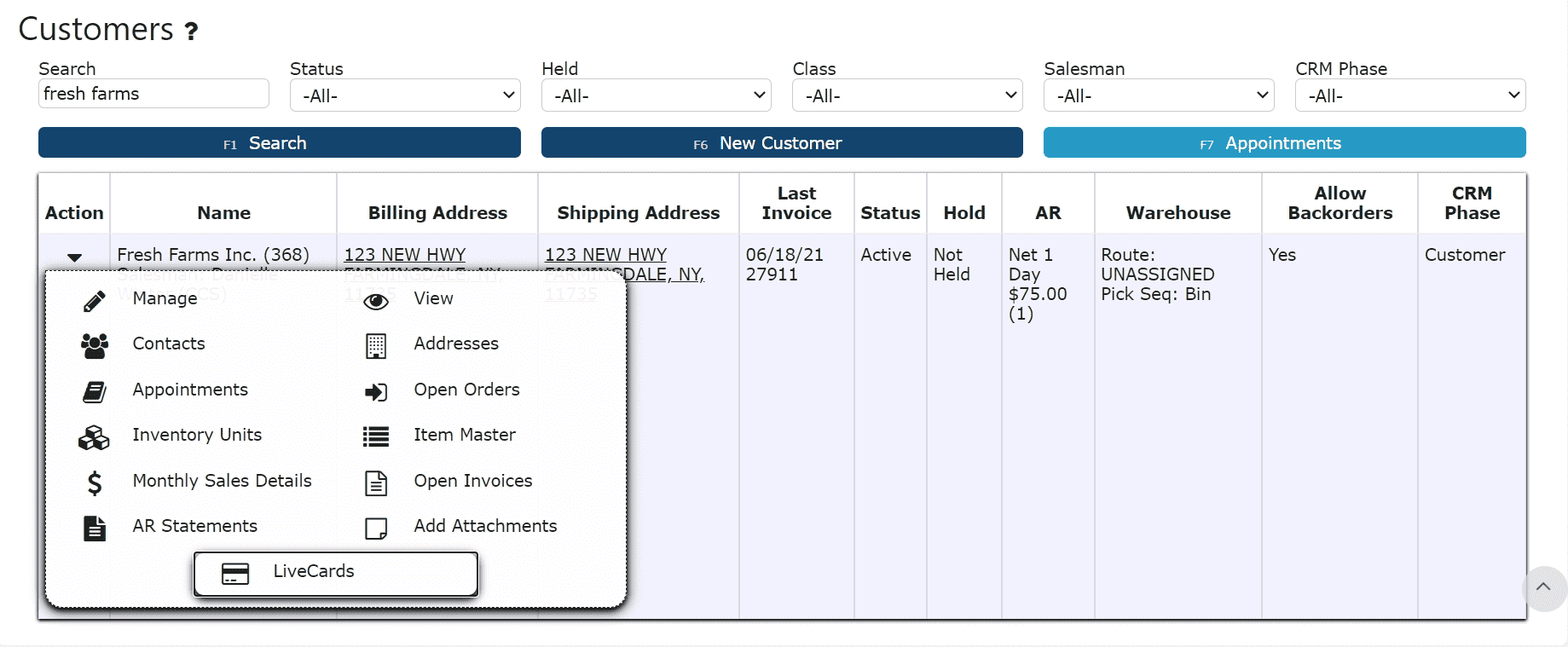
3. Create and maintain customers' LiveCards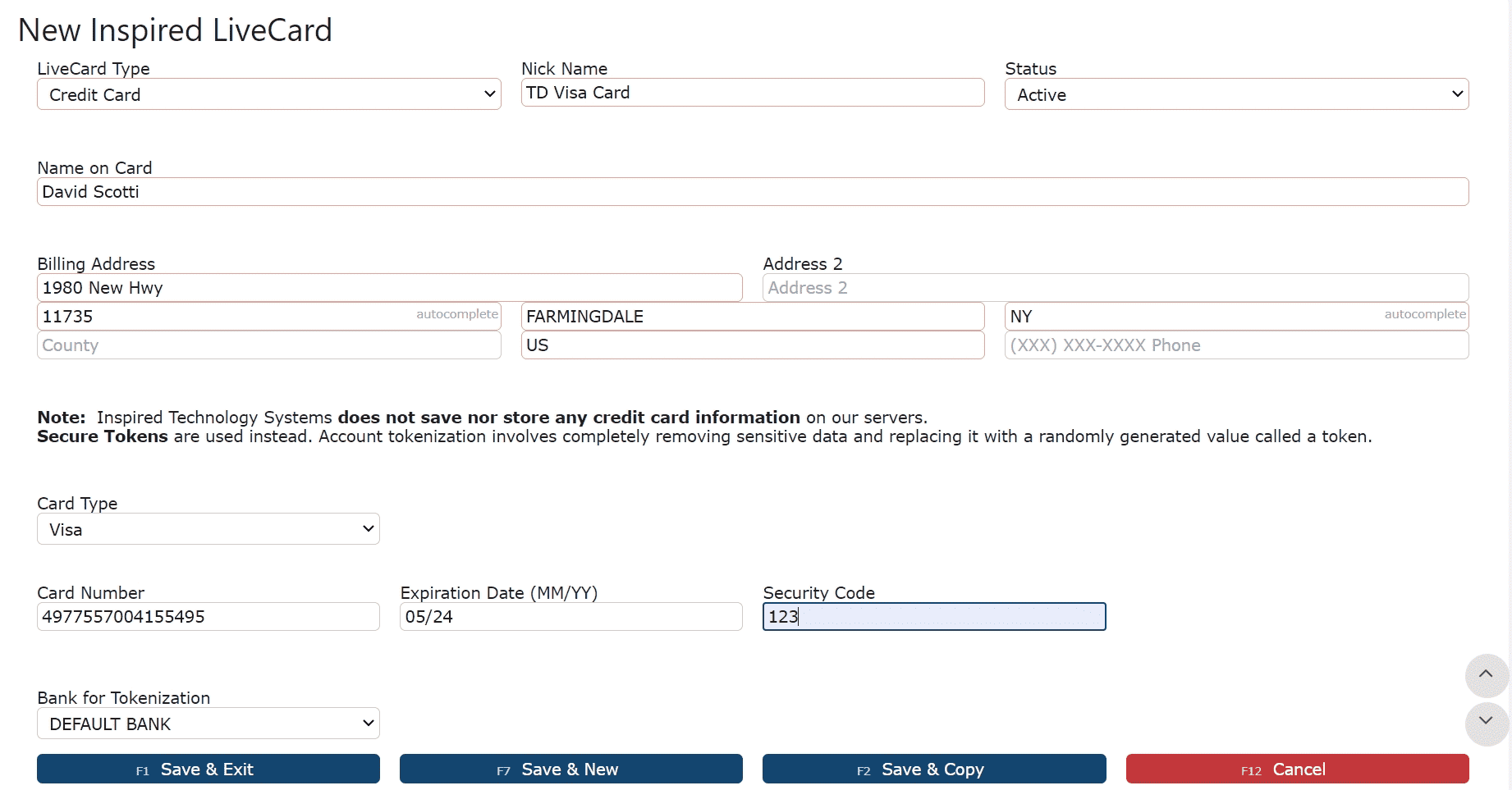
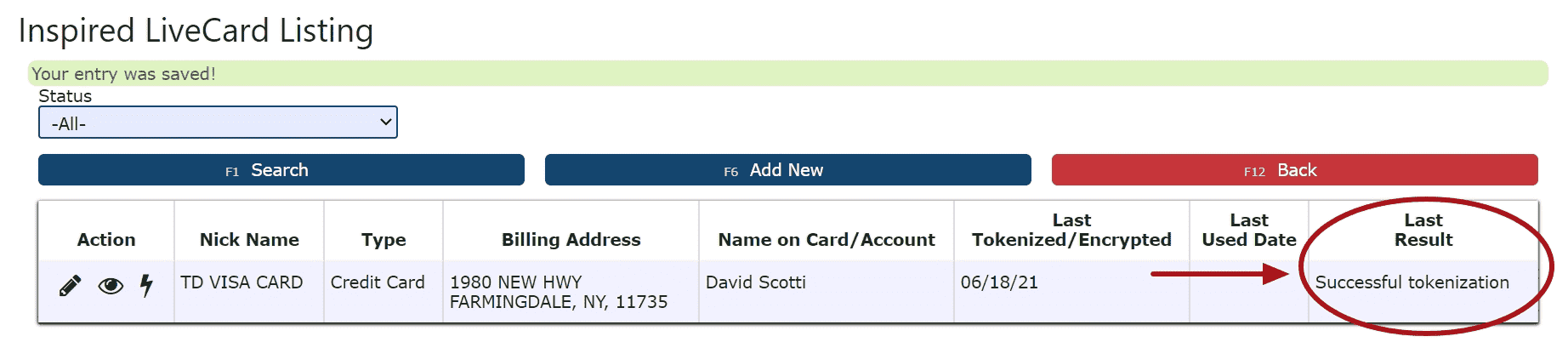
Note: LiveCards must be tokenized successfully in order to use.
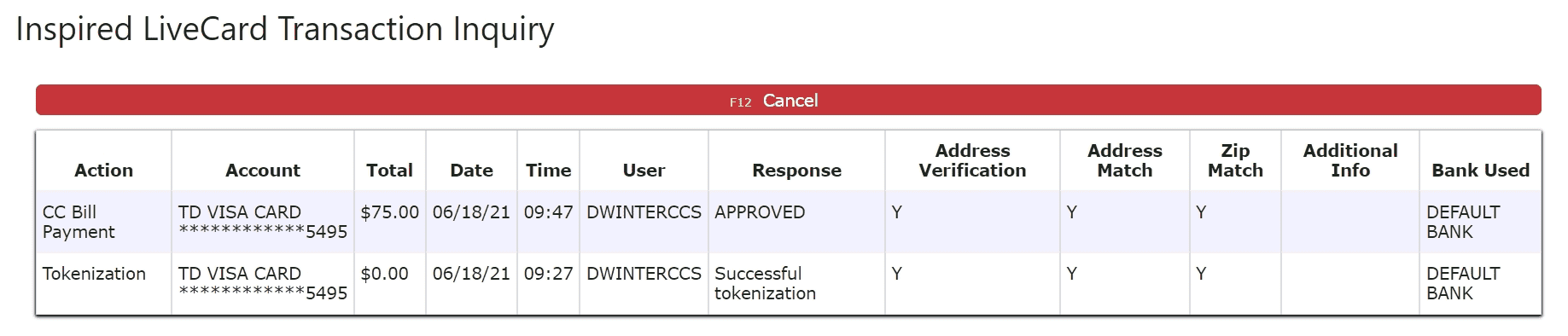
4. View transaction history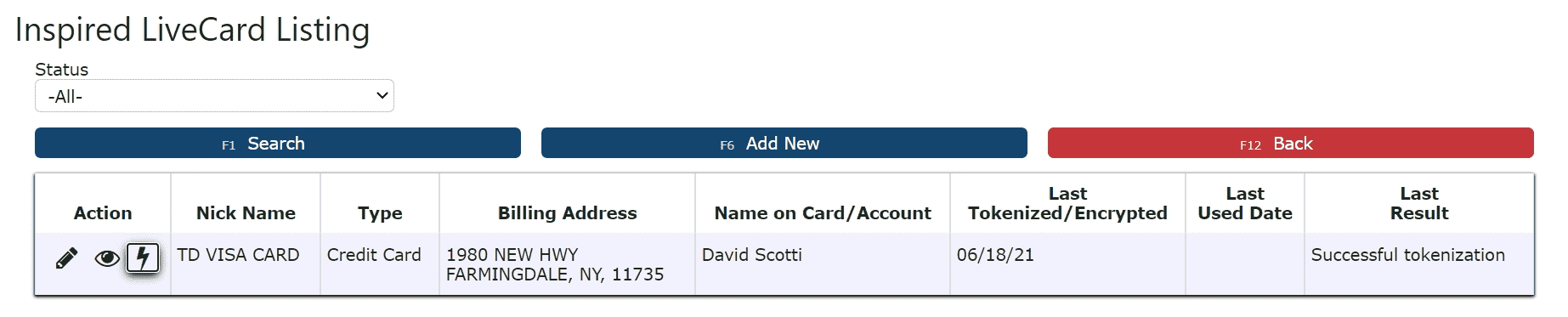
Using a LiveCard in a Cash Receipt:
1. Select the Live Card option as the payment type, and the LiveCard to use for the transaction
Note: Add/edit LiveCards using the Manage LiveCards Button
2. Click on the Distribute Button to start distributing the payment
3. Choose the Pay All Button or click on the Dollar Icon next to each invoice to pay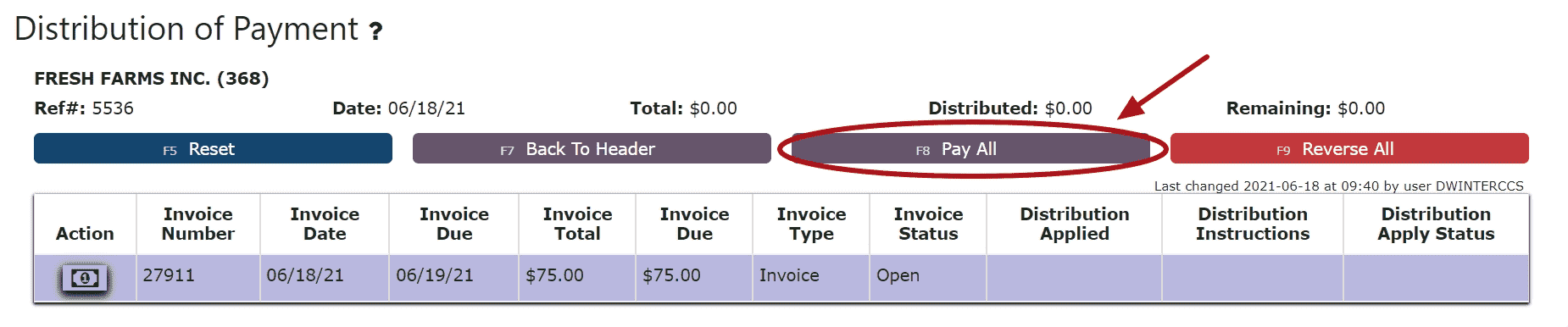
4. Click the Back to Header Button and proceed to close and post the Cash Receipt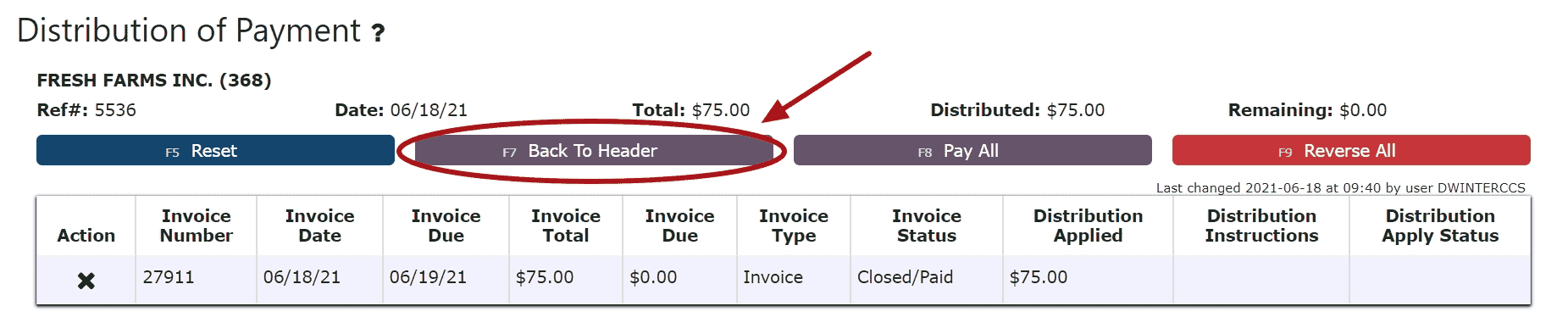

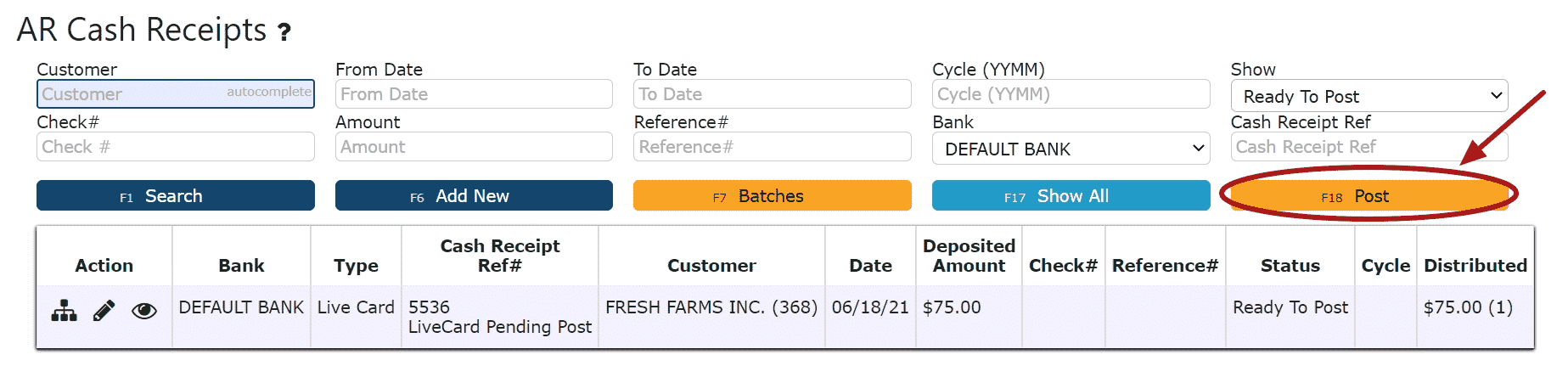
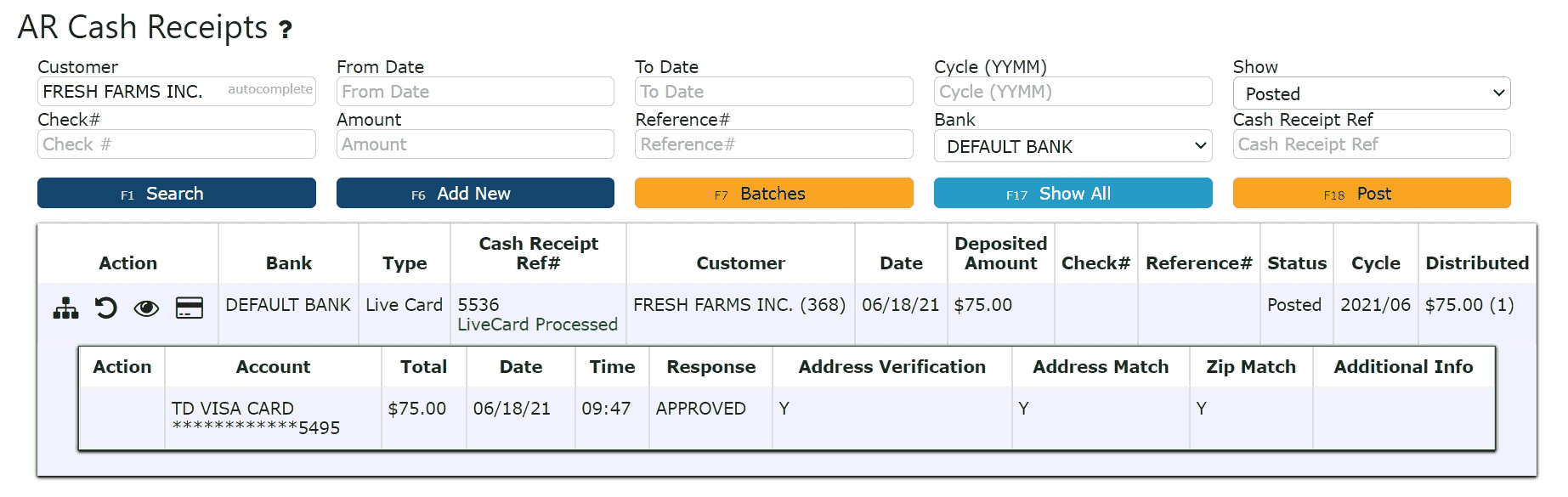
-
Applying an On Account Credit through an AR Cash Receipt
1. Go to the Accounting Menu and click on the AR Cash Receipts Sub-Menu2. Click on the Add New Button
3. Enter the customer, select a payment date, payment type and enter a total payment amount
For On Account Credits Only:
Select Apply Credit as the payment type
Enter $0 for the total payment amount
For On Account Credits + Additional Payments:
Select the payment type for the additional payment(s) to be applied
Enter the amount for the total amount of the additional payments (not including the on account credits to be applied) 4. Click on the Distribute $ Button
 5. Select the credit(s) and the amount(s) to apply towards the open invoice(s)Add to Line (Selecting a partial amount of the credit):Step 1: Click on the Add to Line Icon next to the credit to applyStep 2: Enter the amount of the credit to use (must be a negative value)Step 3: Click on the Add/Update Button
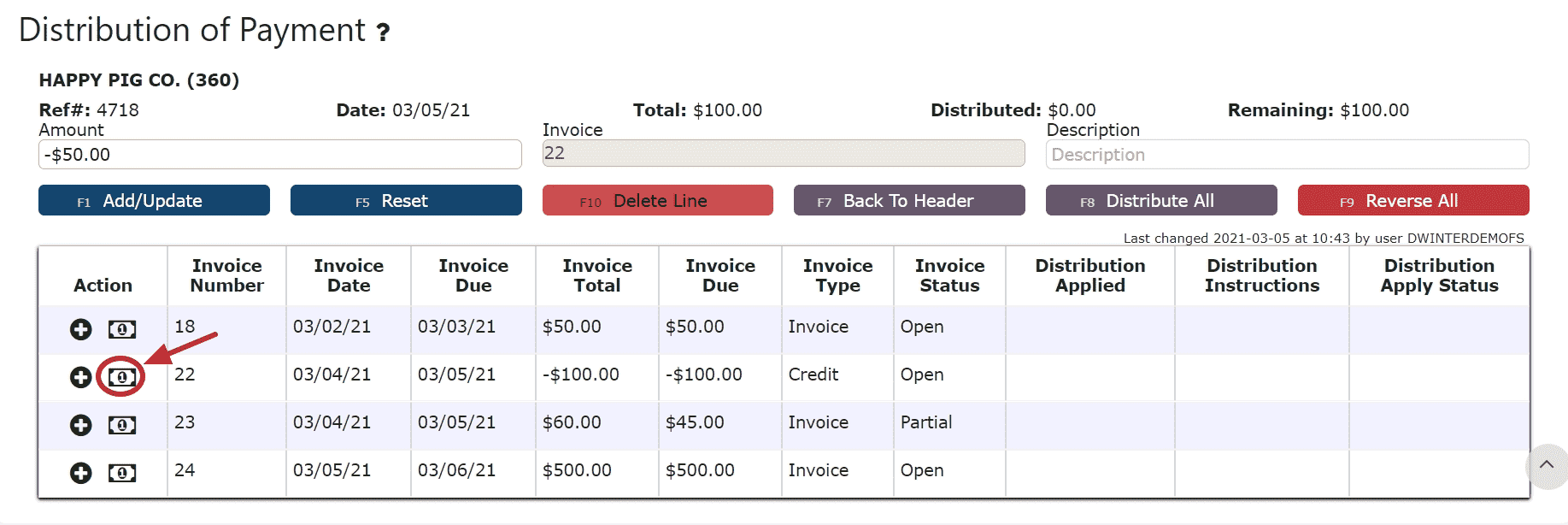
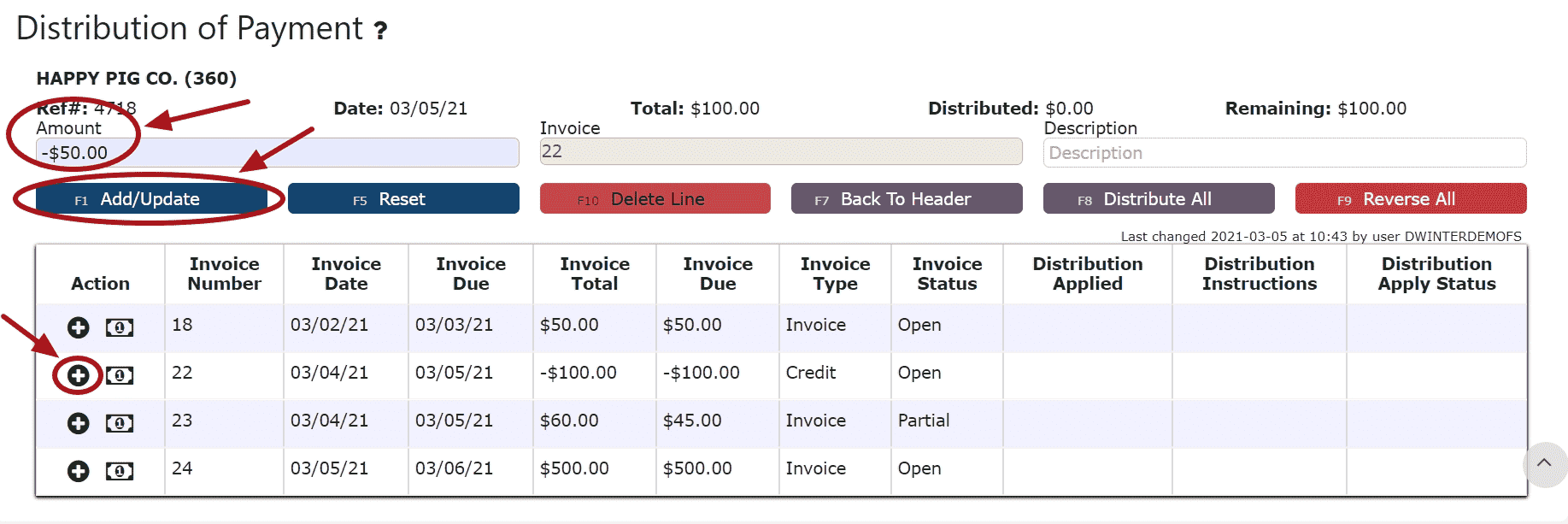 Take Full Credit Balance (applying the full amount of the credit):Step 1: Click on the Take Full Credit Balance Icon
 6. Distribute the amount of the credit(s) towards any open invoice(s) listed
Add to Line (paying a partial amount of the invoice):Step 1: Click on the Add to Line Icon next to the invoice to be paidStep 2: Enter the amount of the invoice to payStep 3: Click on the Add/Update Button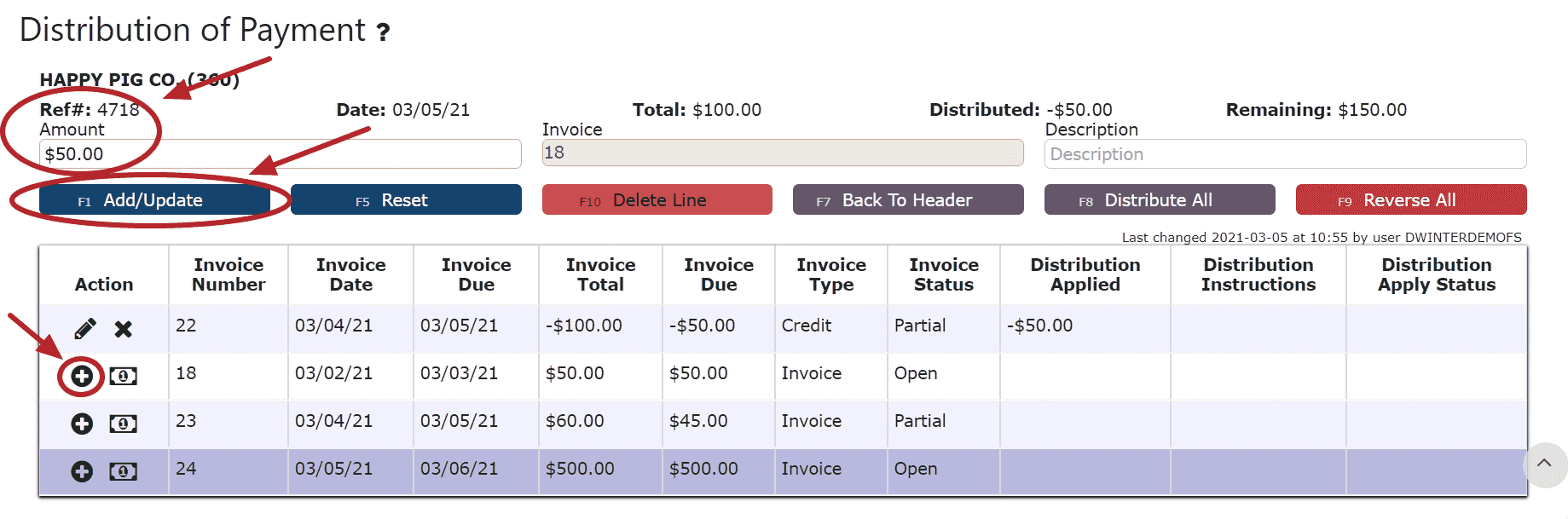 Auto Pay Remaining Balance (paying the entire amount of the invoice):Step 1: Click on the Auto Pay Remaining Balance Icon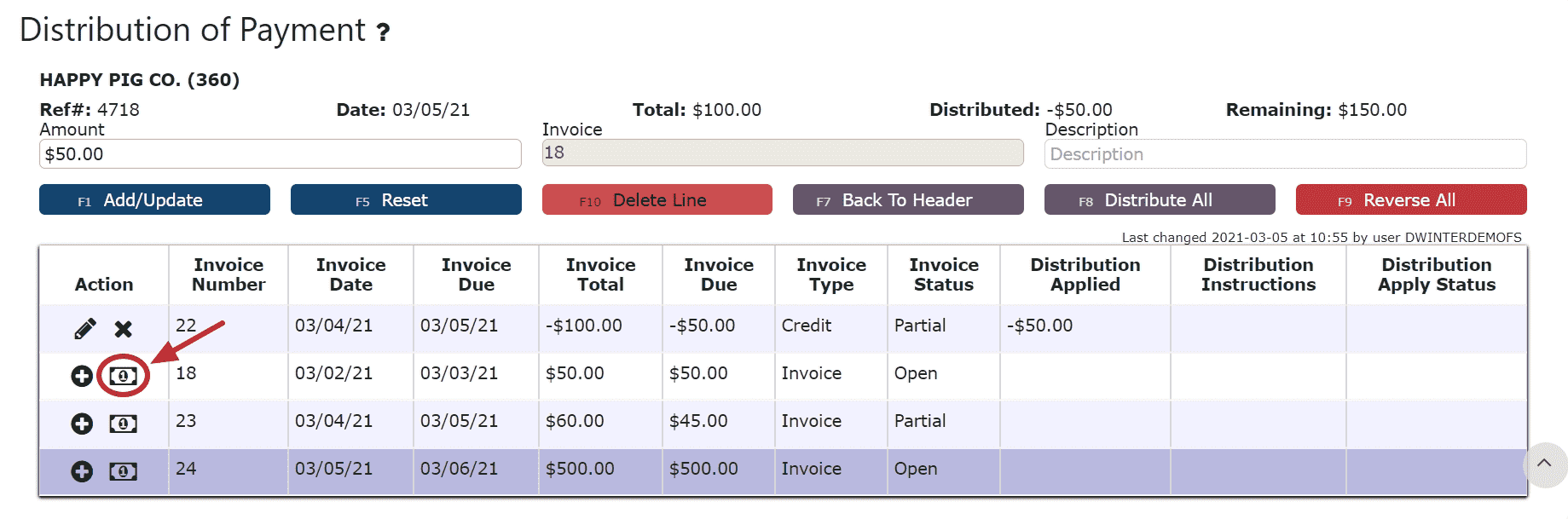
For On Account Credits + Additional Payments Only:
7. Apply the total payment amount towards any remaining open invoices using the Add to Line Icon or Auto Pay Remaining Balance Icon next to the open invoice to pay
Note: The total amount of the payment must equal the total amount distributed to open invoices in order to close the payment. The remaining amount to apply will indicate how much of the total payment is still left to distribute and will indicate $0 when all has successfully been applied.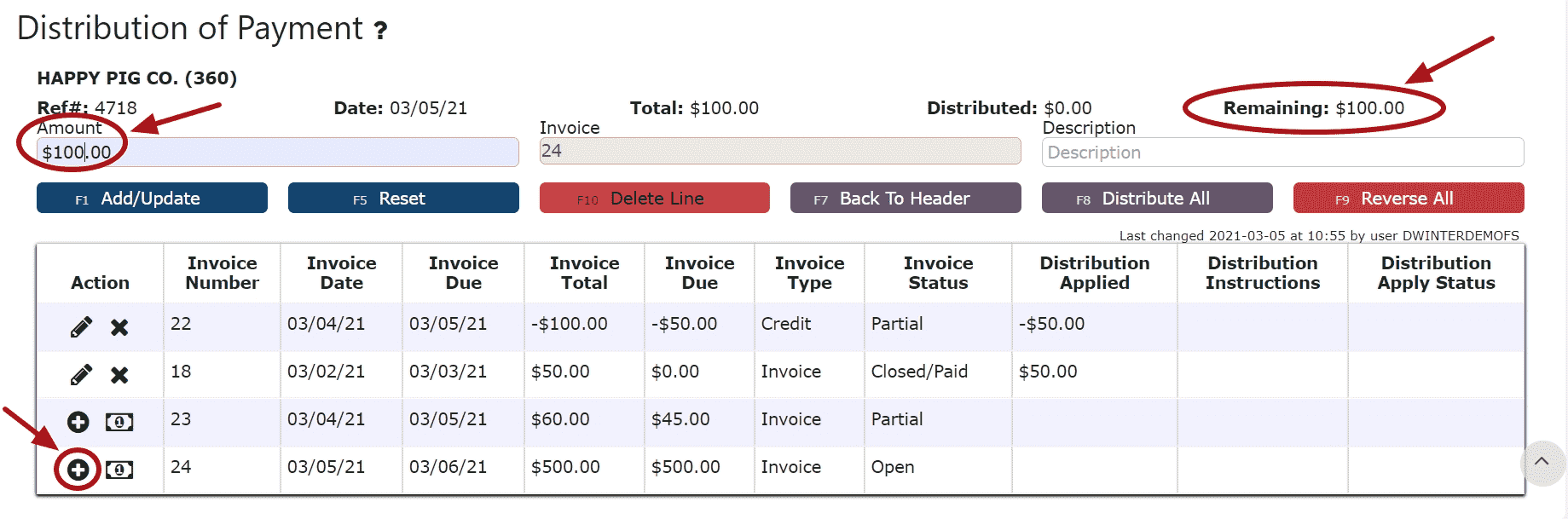 8. Click on the Back to Header Button
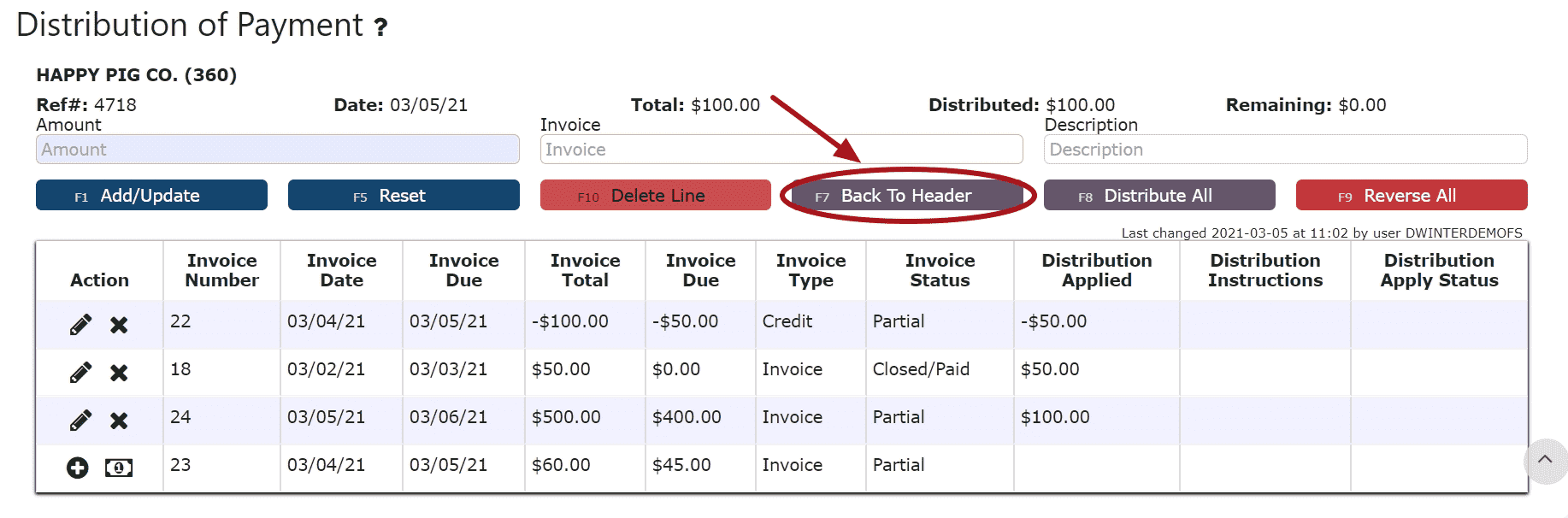 9. Click on the Close Payment ButtonNote: Once closed, the cash receipt is ready to post
 10. Review the Cash Receipt that is ready to post
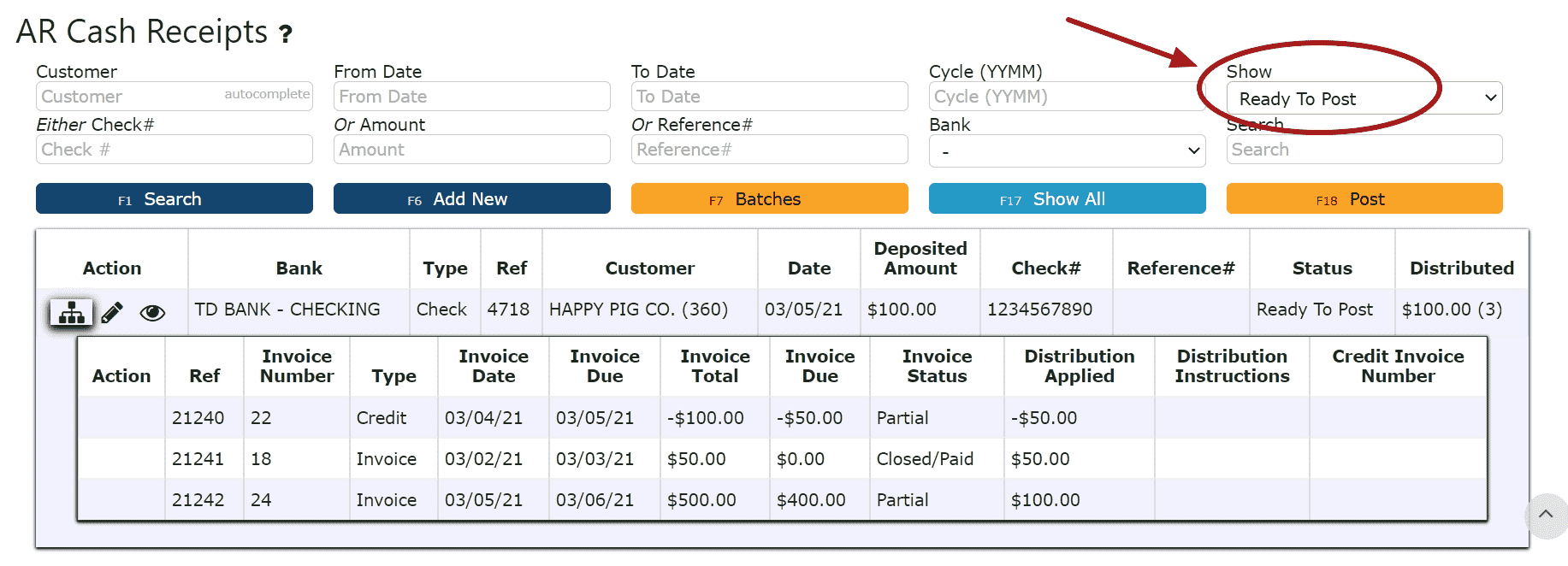 11. Click the Post ButtonNote:Cash Receipts will only post successfully if their date matches the end of day cutoff dateAny Cash Receipts left open/in progress will prevent the end of day process from automatically moving forward during the night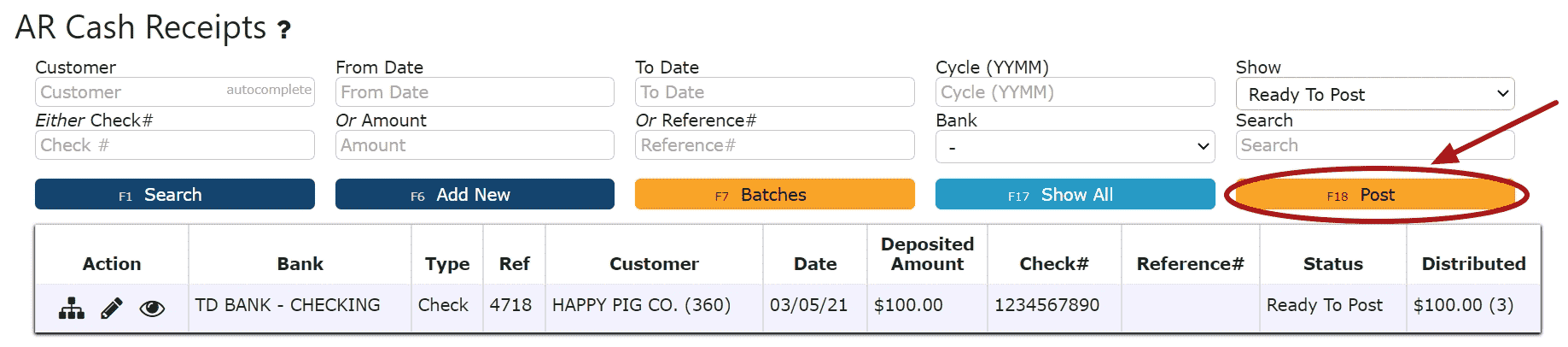
-
Creating an Overpayment AR Cash Receipt
1. Go to the Accounting Menu and click on the AR Cash Receipts Sub-Menu2. Click on the Add New Button3. Enter the customer who made the payment, select a payment date, payment type, and total payment amount. Enter a check # or reference # if applicable.Note:Reference numbers are required for Credit Card and ACH/Transfer/Wire Payments. Once a Credit Card or ACH/Transfer/Wire Payment has been completed from an outside source, the reference number generated from that transaction must be included as part of the corresponding AR Cash Receipt.Check numbers are required for all payments made by check
 4. Click on the Distribute $ Button
 5. Distribute the amount of the payment towards any open invoice(s) listedAdd to Line (paying a partial amount of the invoice):Step 1: Click on the Add to Line Icon next to the invoice to be paidStep 2: Enter the amount of the invoice to payStep 3: Click on the Add/Update Button
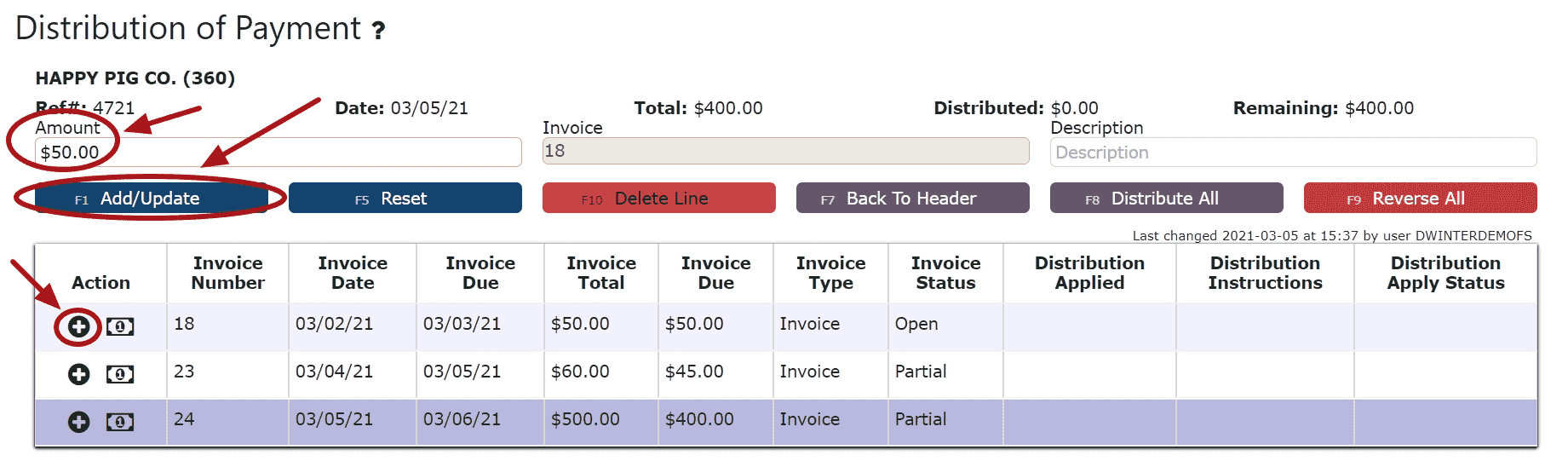 Auto Pay Remaining Balance (paying the entire amount of the invoice):Step 1: Click on the Auto Pay Remaining Balance Icon
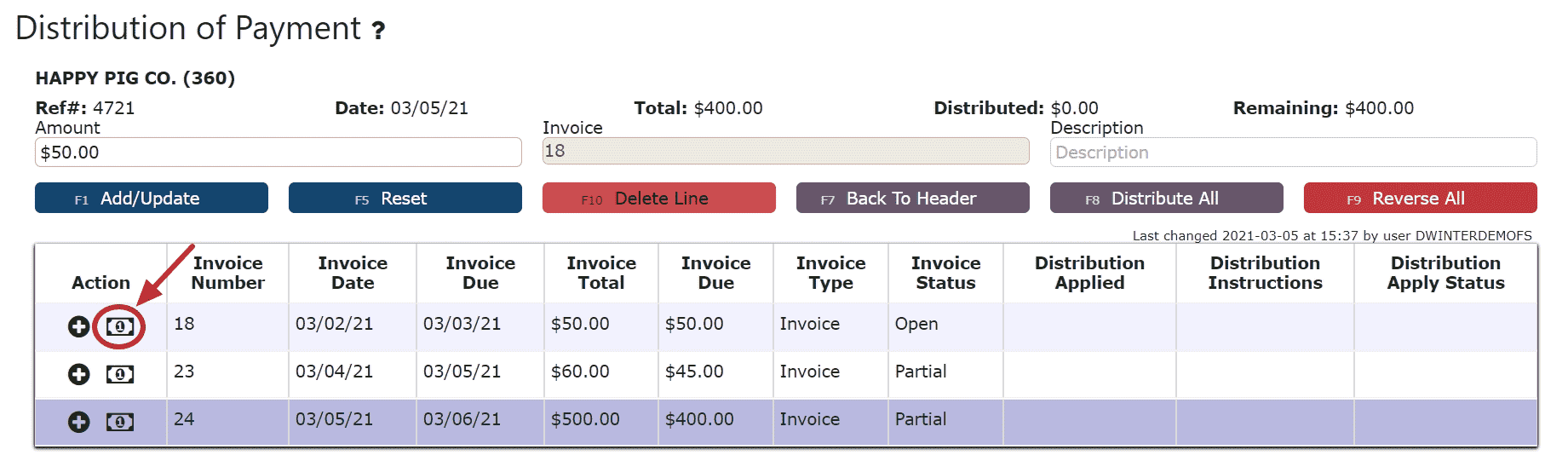 Distribute All (distributes the entire amount of the payment to the invoices starting from the top of the list, up until the payment amount runs out):Step 1: Click on the Distribute All Button
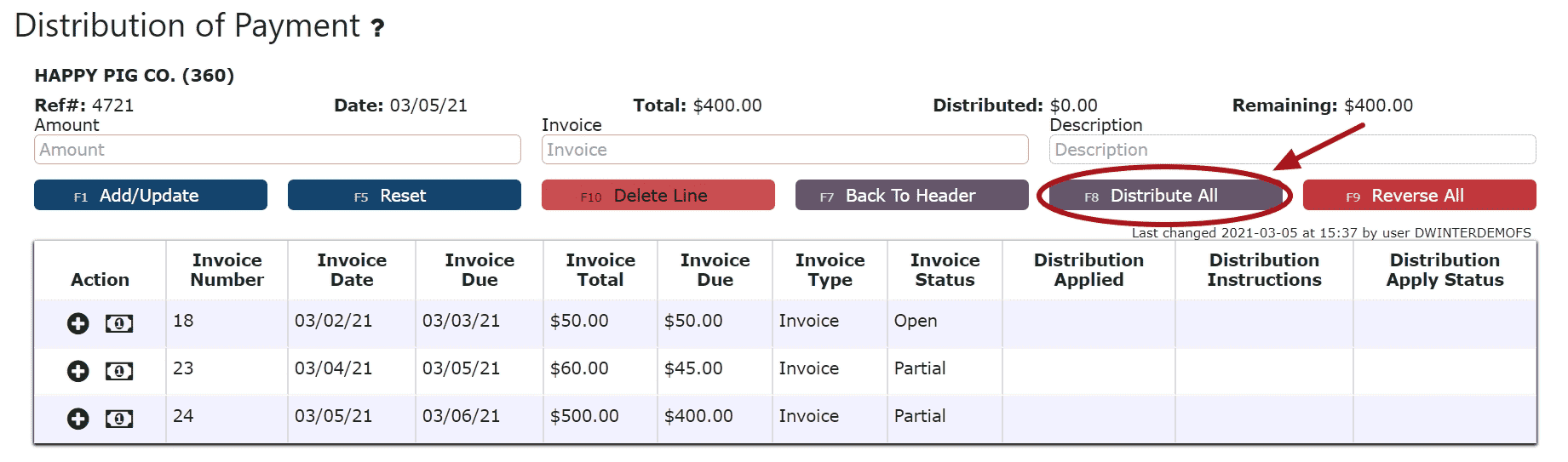 6. Click on the Back to Header Button
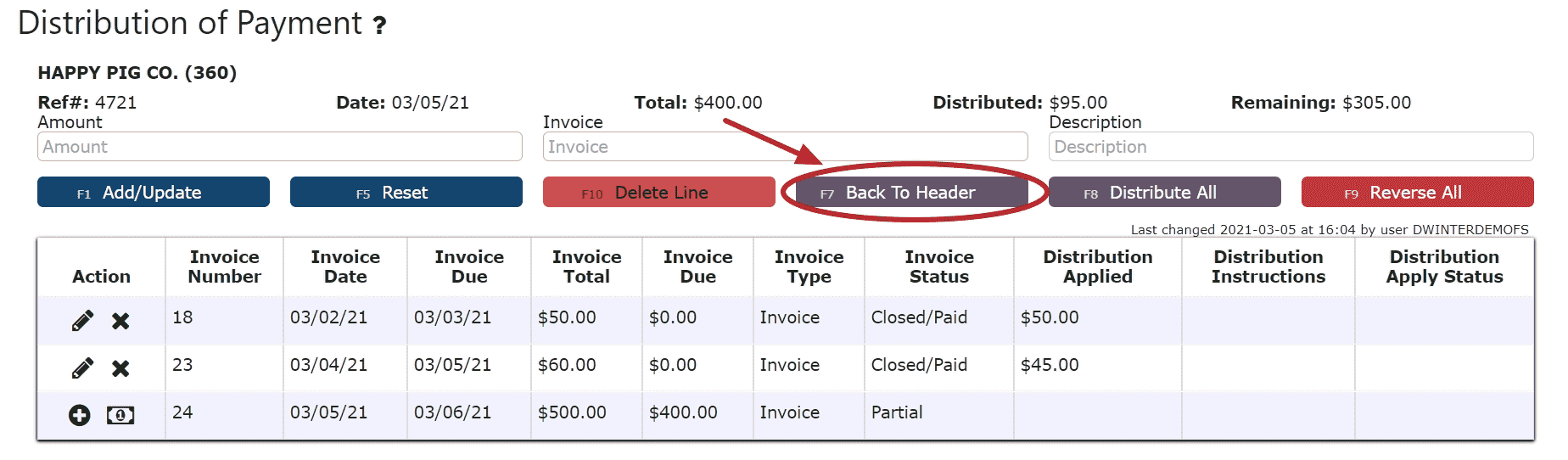 7. Click on the $ on Account Icon, then click Ok on the pop up prompt, to apply the remainder of the payment on account. The AR Cash Receipt will automatically close and be placed in Ready to Post Status.
 8. Review the Cash Receipt that is ready to post
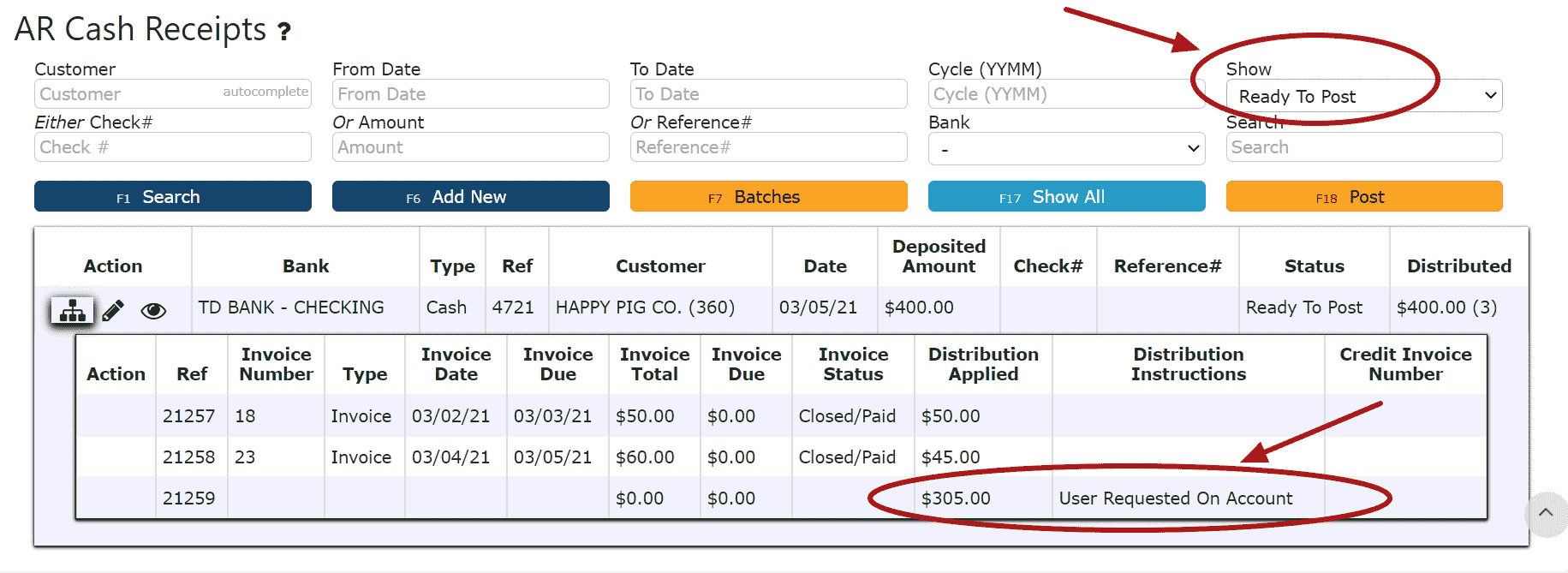 9. Click the Post ButtonNote:Cash Receipts will only post successfully if their date matches the end of day cutoff dateAny Cash Receipts left open/in progress will prevent the end of day process from automatically moving forward during the night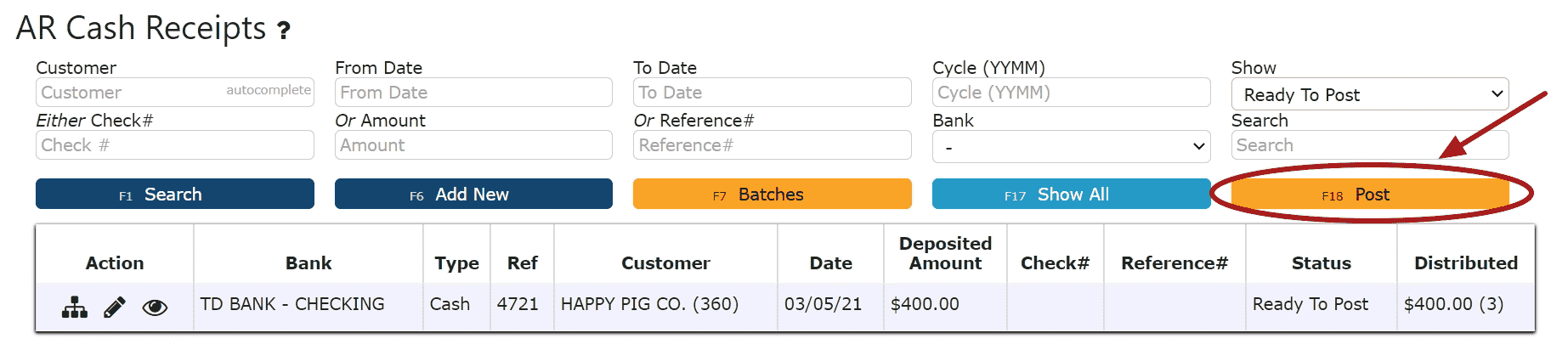
-
Editing an AR Cash Receipt
1. Click on the Edit Payment Icon (Pencil) next to the AR Cash Receipt to be edited
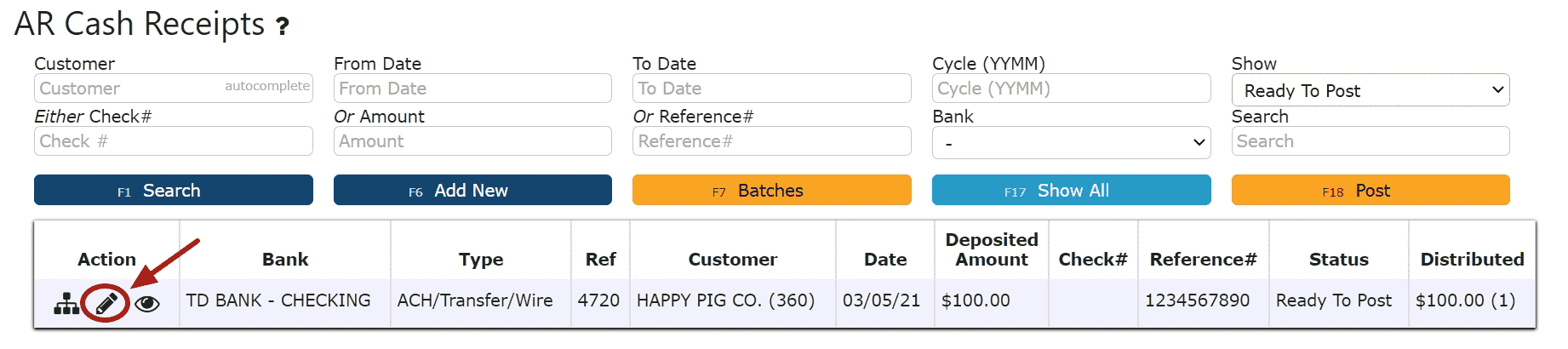 If Closed:2. Click on the Open Button to re-open the AR Cash Receipt.
 3. Make any necessary changes to the details of the AR Cash Receipt
Reversing a Line (Reverses the distribution made to that particular invoice/credit):
Step 1: Click on the Reverse Line Icon (X) next to the invoice/credit to reverse payment on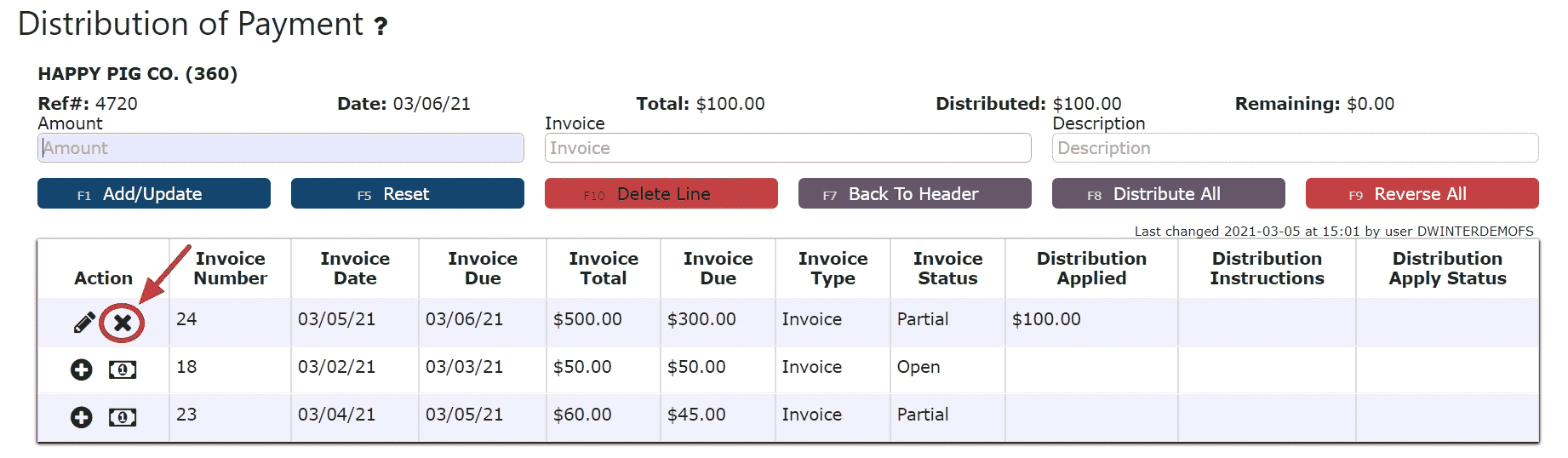
Deleting a Line: (Deletes the distribution made to that particular invoice/credit):
Step1: Click on the Edit Line Icon (Pencil)
Step 2: Click on the Delete Line Button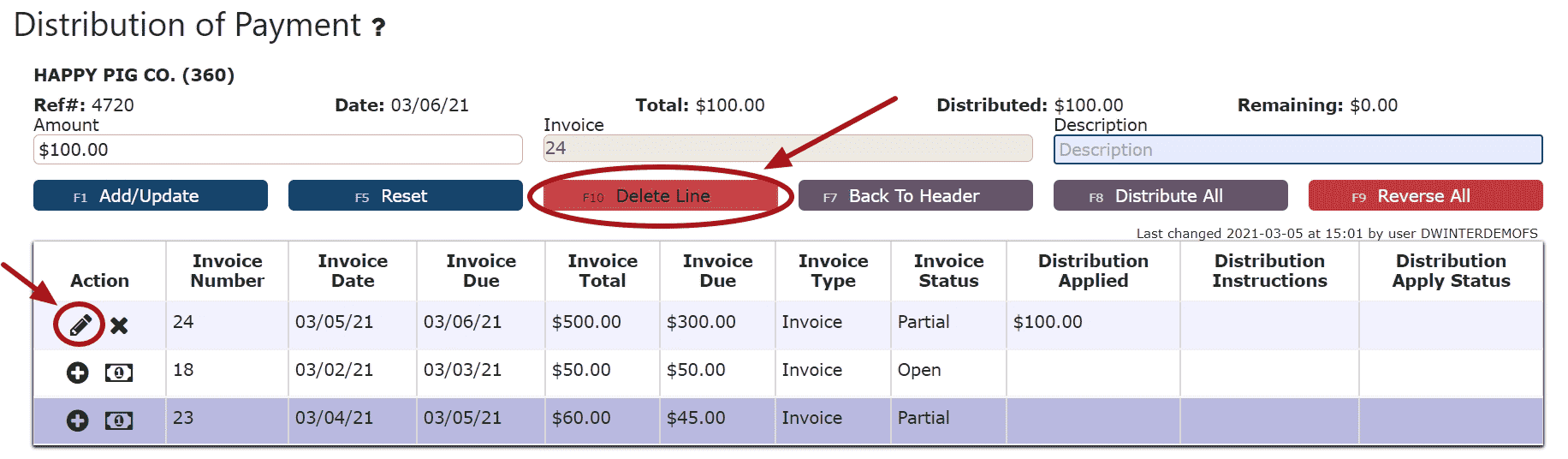
Reversing All Distributions (Deletes/Reverses all distributions made across all invoices/credits:
Step 1: Click on the Reverse All Button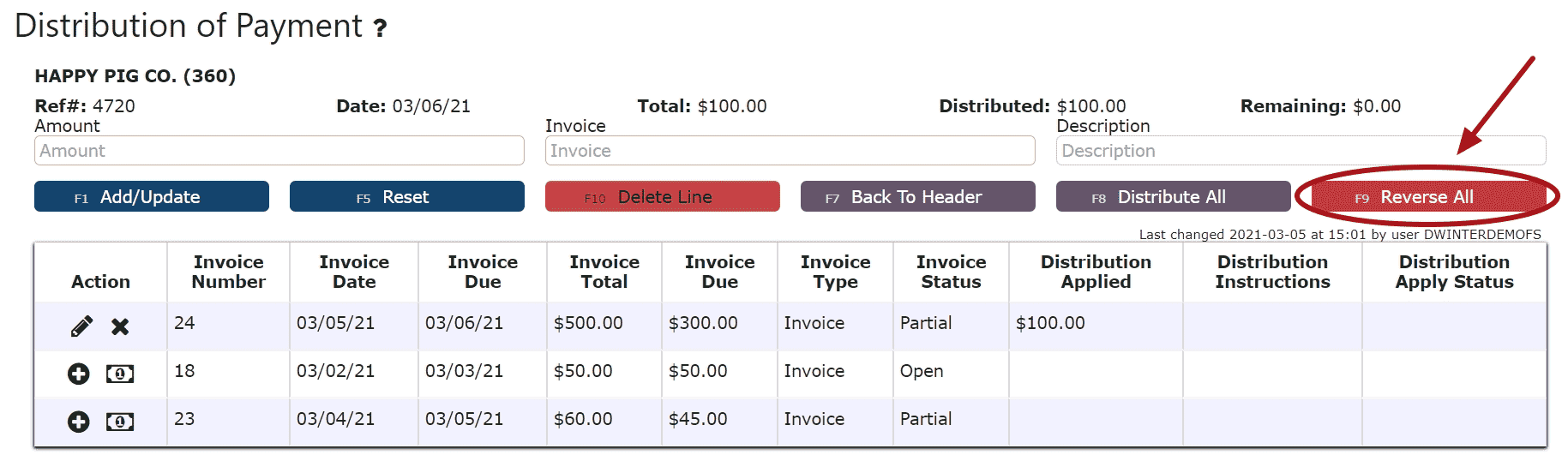
Editing a Line:
Step 1: Click on the Edit Line Icon (Pencil)
Step 2: Make Any necessary changes to the amount and/or description for that line
Step 3: Click on the Add/Update Button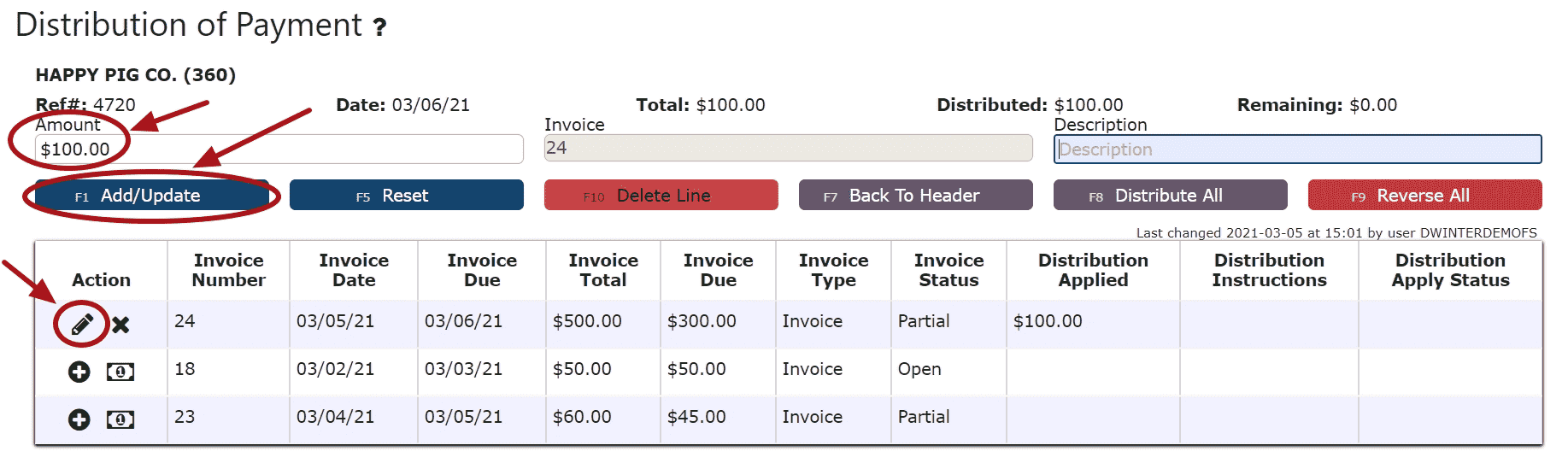
5. Click on the Back to Header Button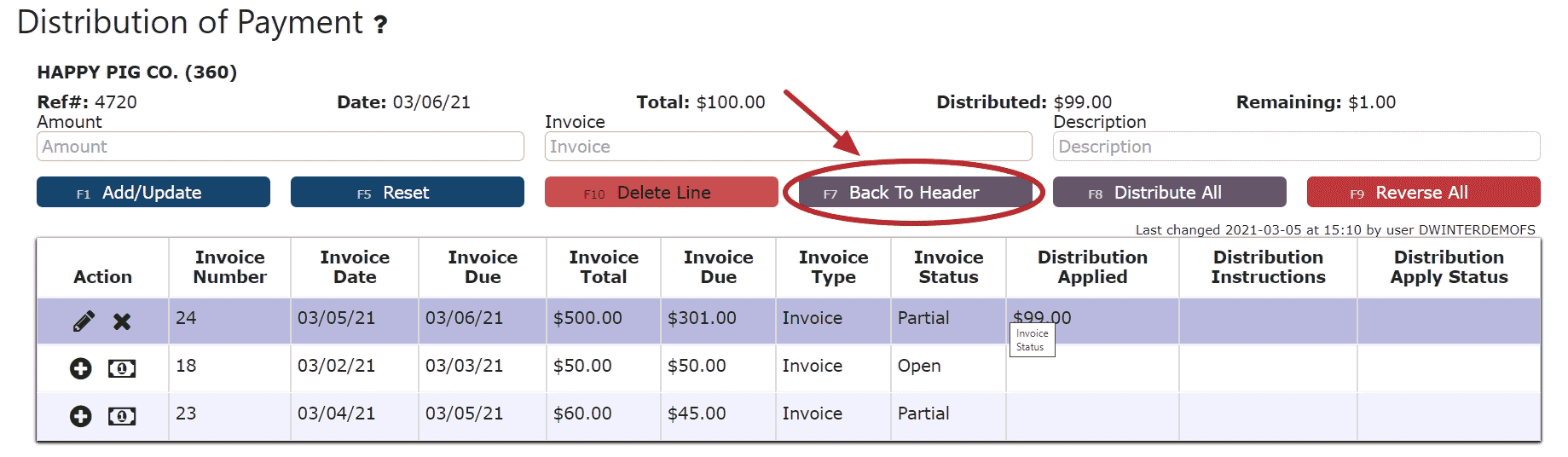 6. Make any necessary changes to the Header, click the Distribute $ Button to save any Total Payment changes, then go back to the header and click on the Close Button if ready to close and post the AR Cash Receipt
 7. Click on the Post Button to post the AR Cash ReceiptNote: AR Cash Receipts will only post successfully if their date matches the end of day cutoff dateAny AR Cash Receipts left open/in progress will prevent the end of day process from automatically moving forward during the night
 If Open:2. Adjust any of the header information as necessary.
 3. Click on the Distribute $ Button to make changes to the details of the AR Cash Receipt
 4. Make any necessary changes to the details of the AR Cash Receipt
Reversing a Line (Reverses the distribution made to that particular invoice/credit):
Step 1: Click on the Reverse Line Icon (X) next to the invoice/credit to reverse payment on
Deleting a Line: (Deletes the distribution made to that particular invoice/credit):
Step1: Click on the Edit Line Icon (Pencil)
Step 2: Click on the Delete Line Button
Reversing All Distributions (Deletes/Reverses all distributions made across all invoices/credits:
Step 1: Click on the Reverse All Button
Editing a Line:
Step 1: Click on the Edit Line Icon (Pencil)
Step 2: Make Any necessary changes to the amount and/or description for that line
Step 3: Click on the Add/Update Button
5. Click on the Back to Header Button6. Click on the Close Button if ready to close and post the AR Cash Receipt7. Click on the Post Button to post the entryNote:AR Cash Receipts will only post successfully if their date matches the end of day cutoff dateAny AR Cash Receipts left open/in progress will prevent the end of day process from automatically moving forward during the night
-
Deleting an AR Cash Receipt
1. Click on the Edit Payment Icon (Pencil) next to the AR Cash Receipt to be deletedIf Closed:2. Click on the Open Button to re-open the AR Cash Receipt

3. Click on the Back to Header Button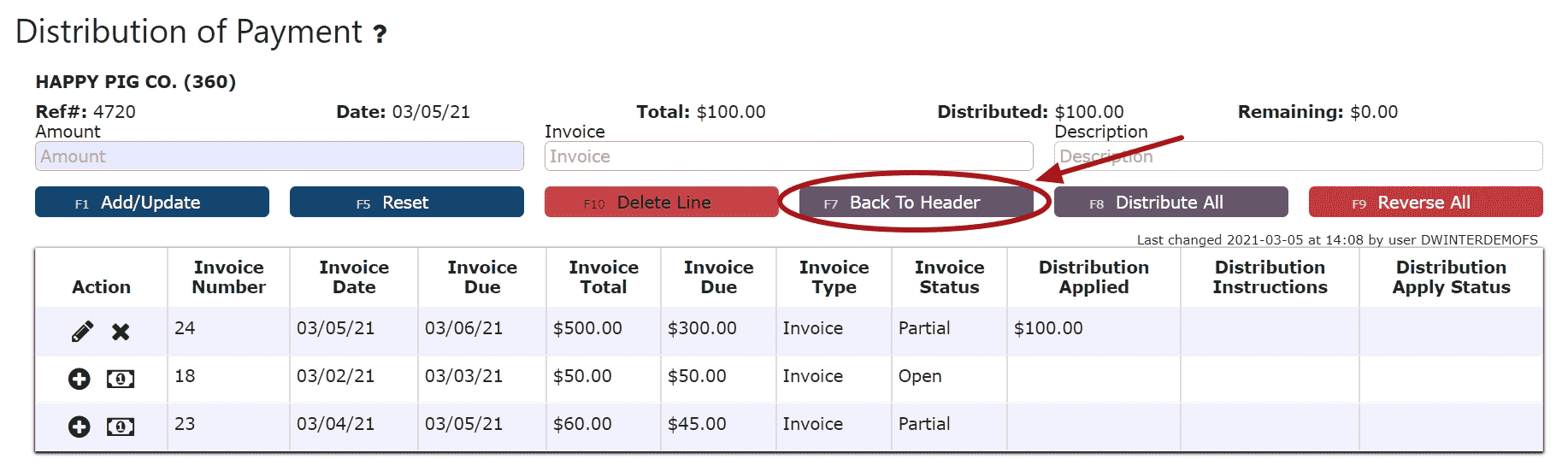 4. Click on the Delete Payment Button, then click Ok on the pop up promptNote:Once deleted, an AR Cash Receipt is permanently removed and can no longer be retrieved
 If Open:2. Click on the Delete Payment Button, then click Ok on the pop up promptNote: Once deleted, an AR Cash Receipt is permanently removed and can no longer be retrieved
-
Troubleshooting Batch Errors
1. Click on the Batches Button
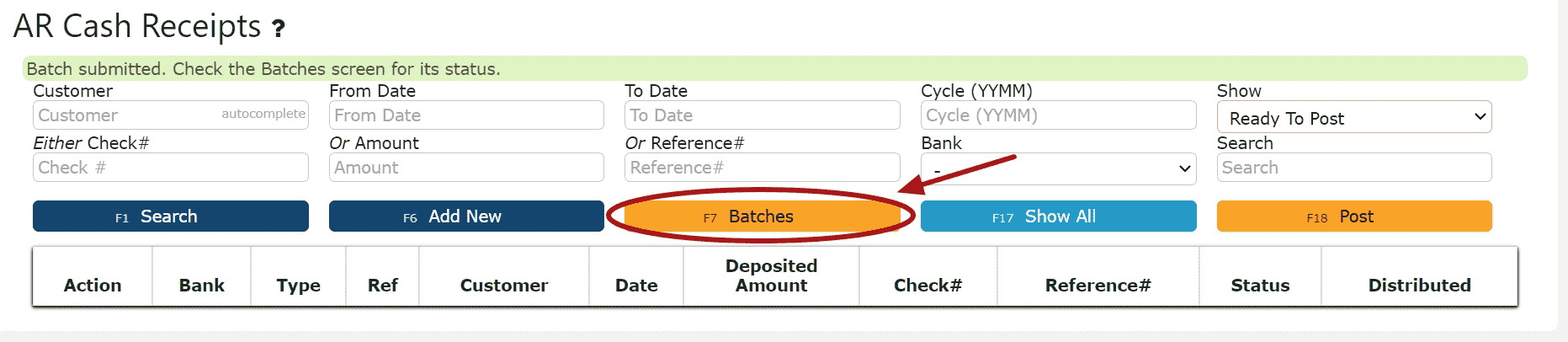 2. Remove the date
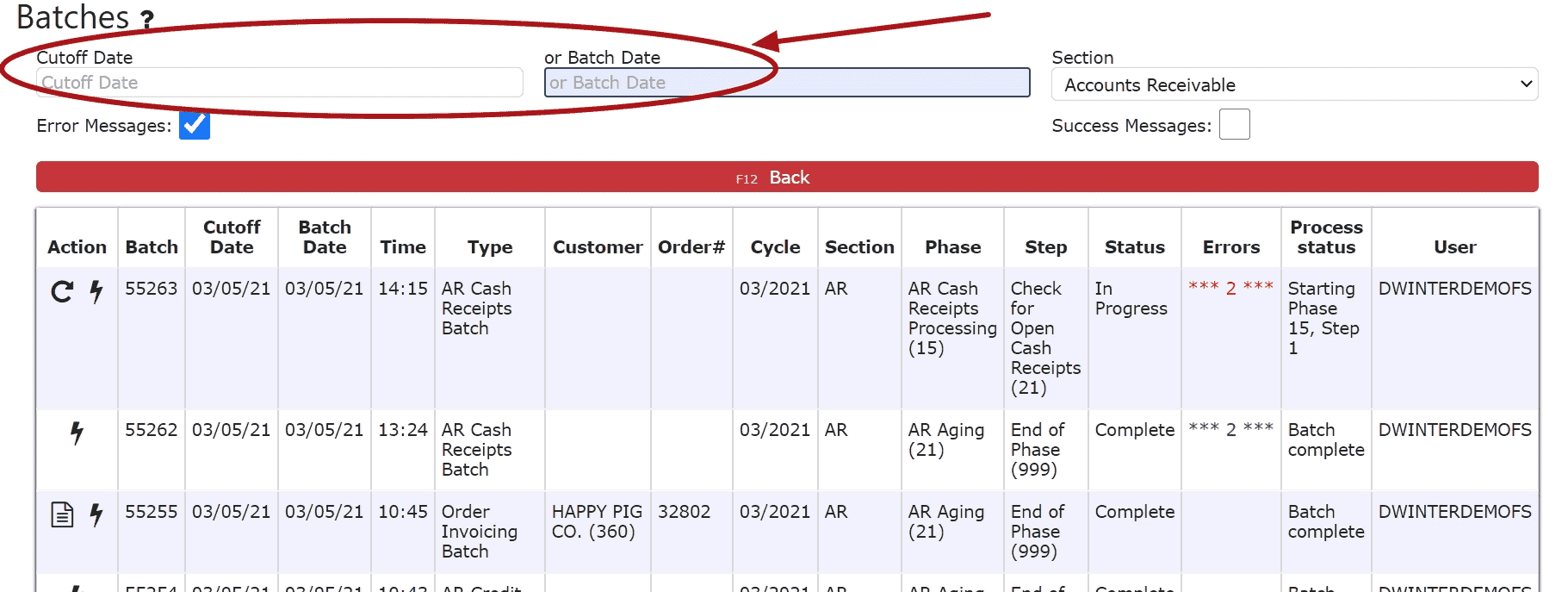 3. Locate the error batch that contains errors in red and a Re-Start This Batch Icon (Circle Arrow)Note: Any AR Batch Error that has not been resolved will prevent any transactions from posting successfully (including AR Cash Receipts)
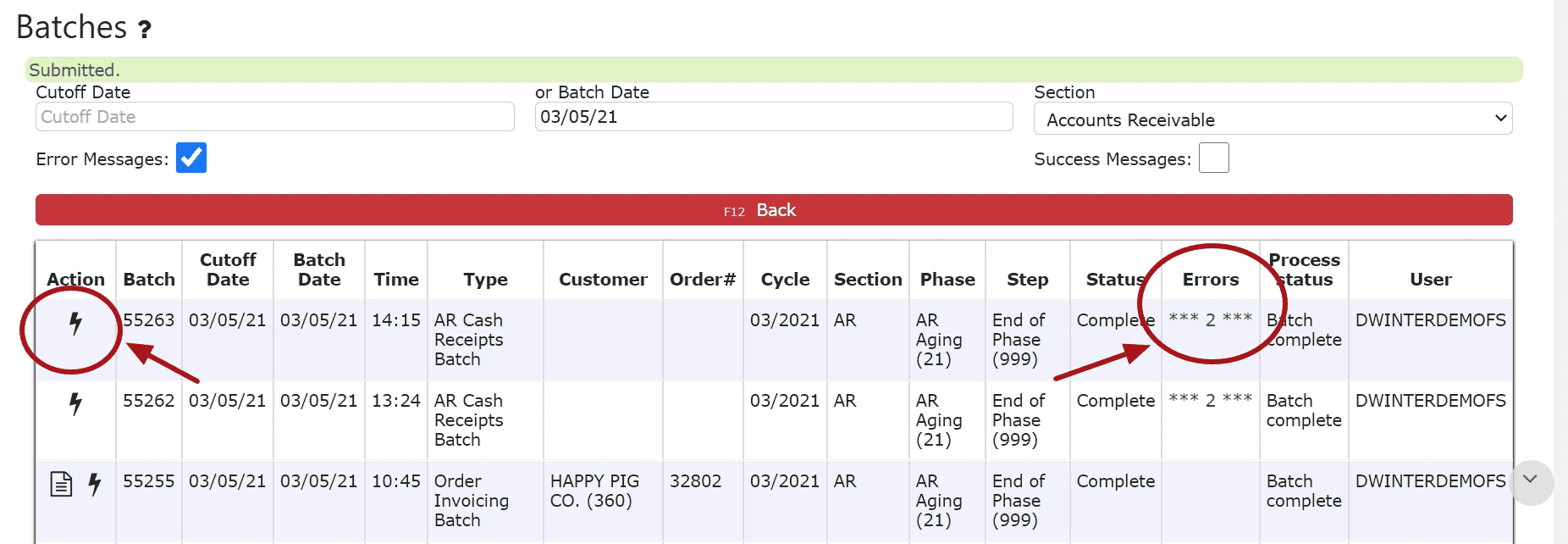
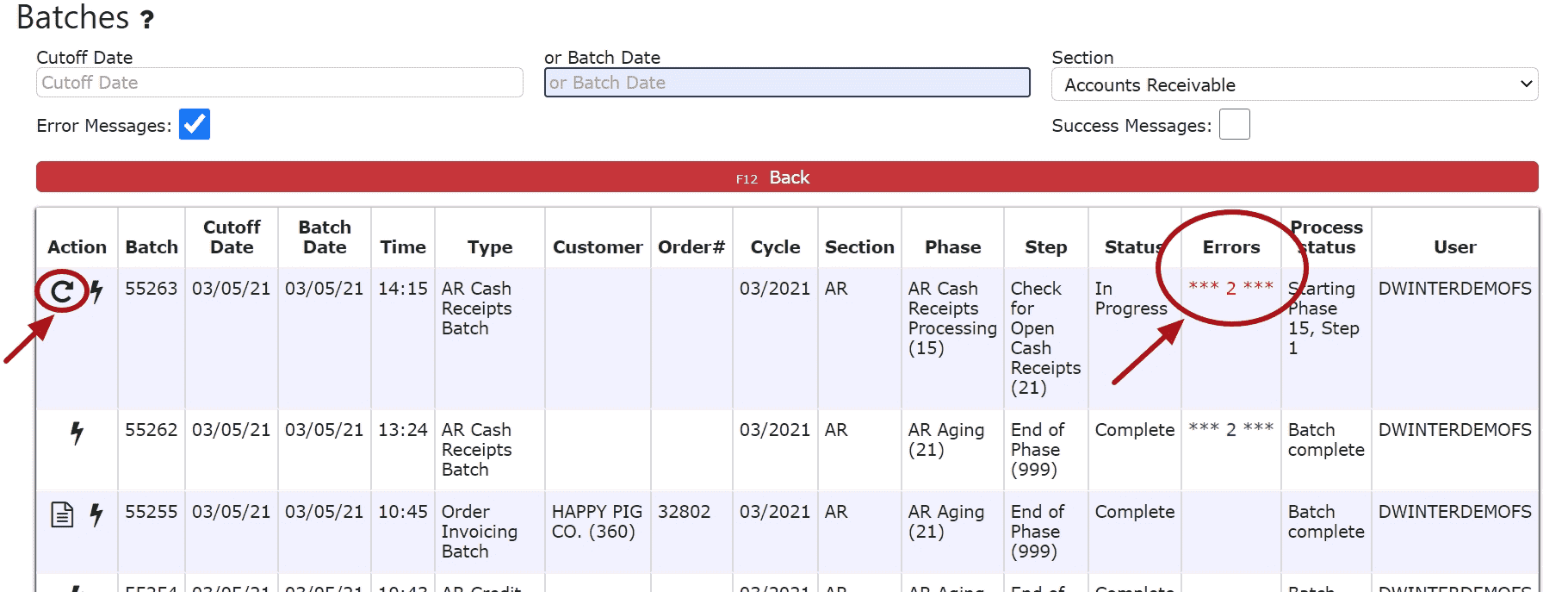 4. Click on the Batch Messages Icon (Lightning Bolt) next to the Error Batch in question
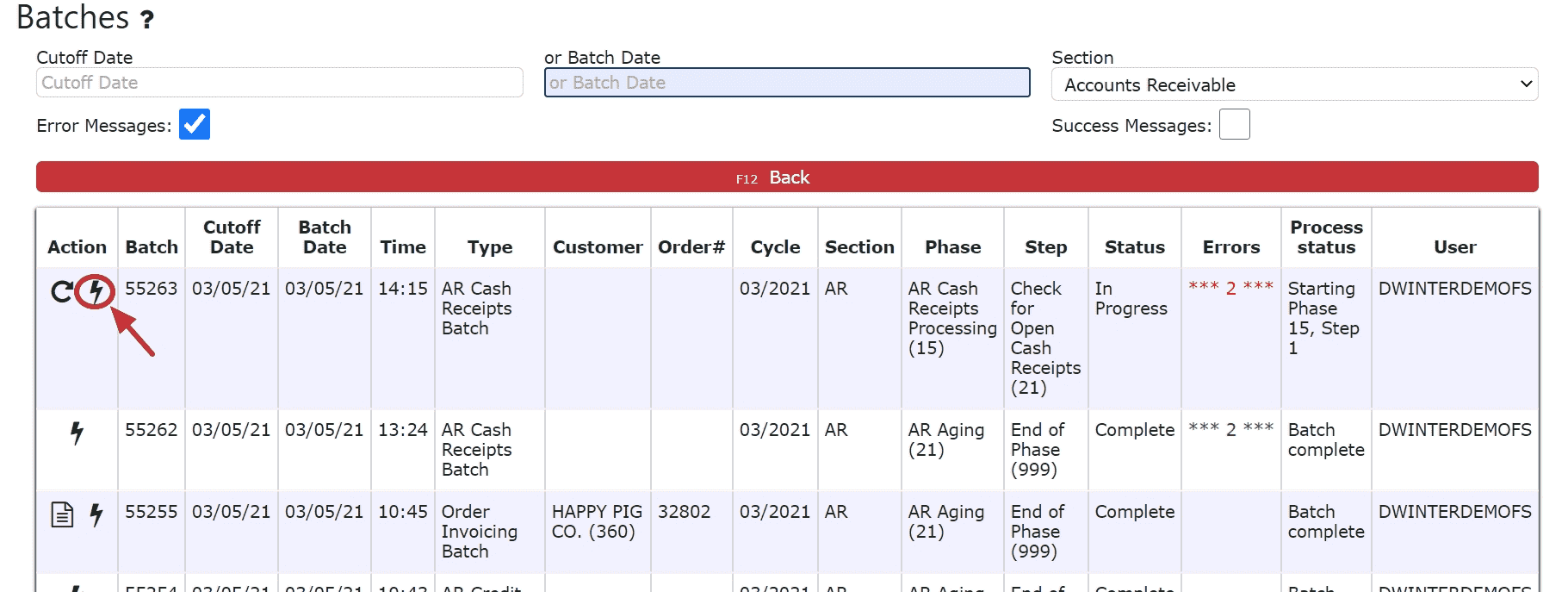 5. Review the errors preventing the AR Cash Receipt from posting
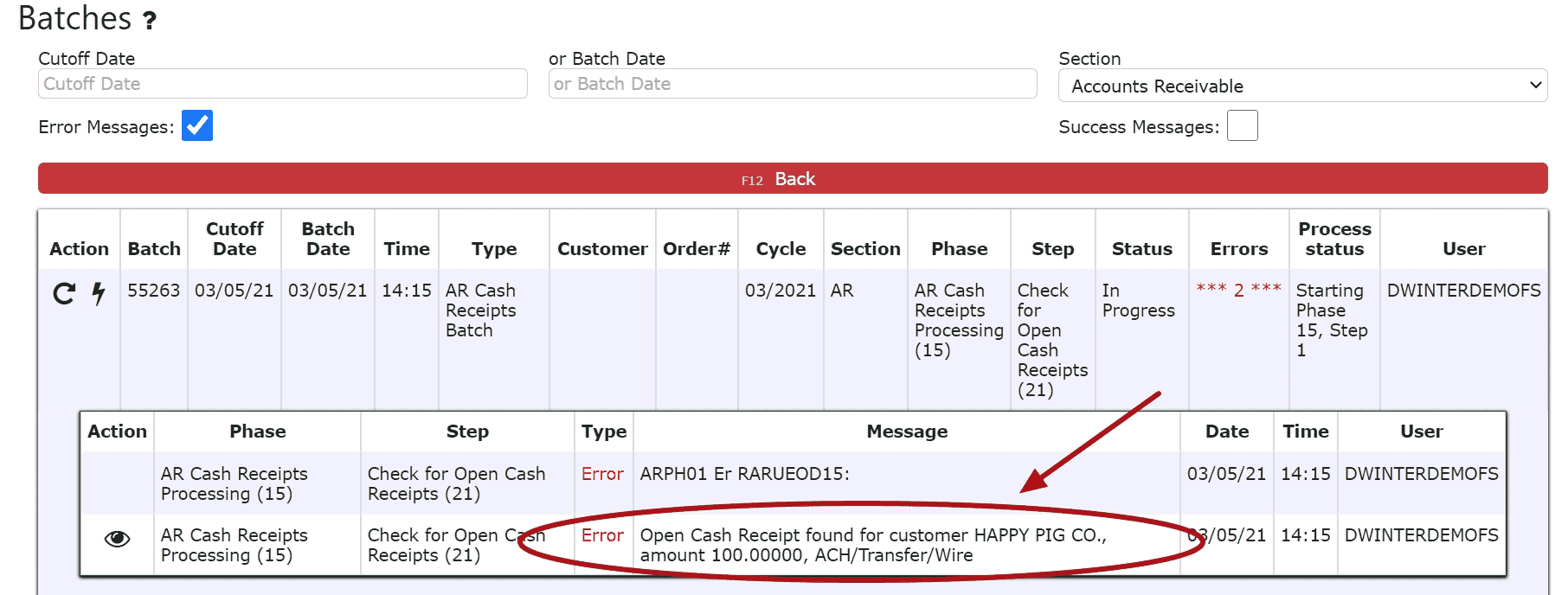 6. Resolve each error listed in the batch. Click on the eyeball next to each error to be automatically redirected to the order/transaction in question.
For Open Orders:Either invoice, cancel or forward date the order
For Open/In Progress Transactions (AR Credits, AR Misc. Cash Entries, AR Cash Receipts, AR Adjustments):Either close and post, cancel or forward date the transaction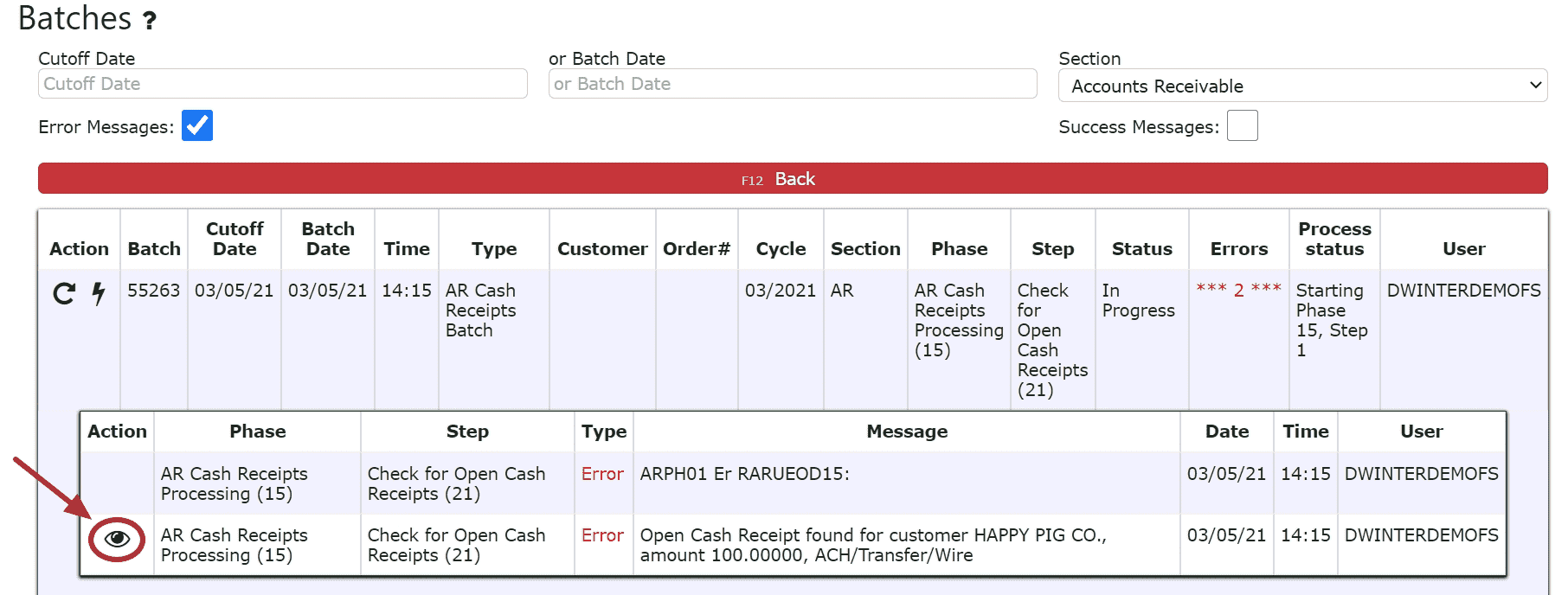 7. After all errors have been resolved, go back to AR Batches and click on the Re-Start This Batch Icon to re-start the error batch. The AR Cash Receipt will automatically post, the Re-Start this Batch icon will dissapear and the red errors will turn green, if the batch is successful.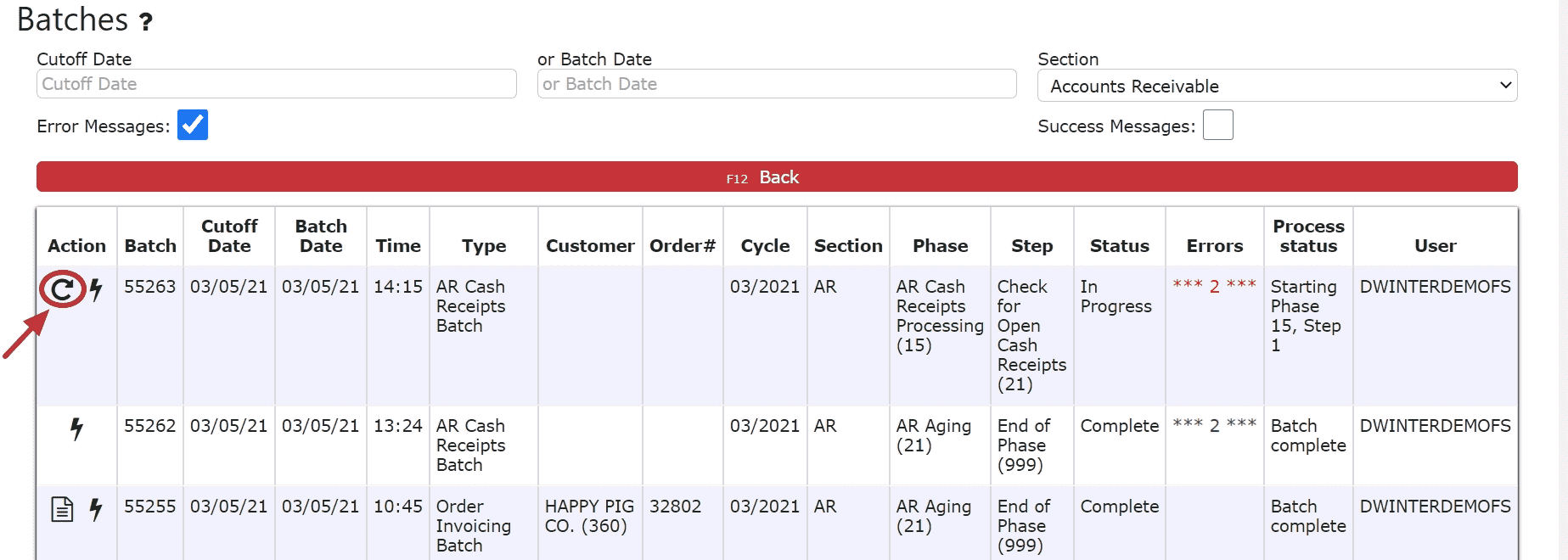
AR Credits
-
Key Information
Create and maintain on account credits and credits against invoices.Credit Statuses:In Progress -> the credit is open and is able to be editedPosted -> the credit has been posted and cannot be editedReady to Post -> the credit has been closed and is ready for posting, it cannot be edited when closed, but can be reopened if edits are necessary
Note: Posting will only successfully go through if the credit date equals the current cutoff date
-
Creating and Posting Against Invoice Credits
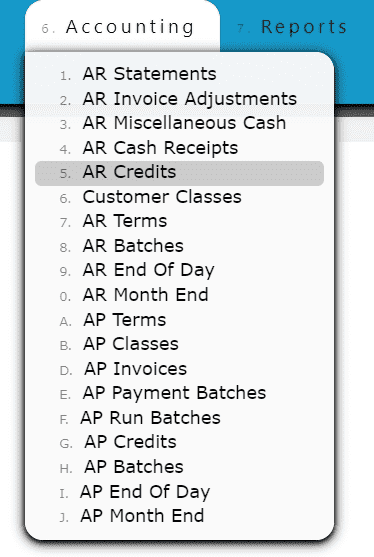
1. Go to the Accounting Menu and click on the AR Credits Sub-Menu
 2. Click on the Add New Button
 3. Enter the customer, the credit date, select Against Invoice as the credit type, fill in the credit amount, the invoice #, and select the reason for the credit (A reason code here at the header is required if choosing to use the auto credit/credit all options when distributing). Fill in any additional notes if applicable.
 4. Click on the Distribute Credit Button
 5. Distribute the amount of the credit towards any open invoice(s) listedEdit Line (crediting a partial amount of the invoice):Step 1: Click on the Edit Line Icon next to the invoice to be creditedStep 2: Enter the Invoice Quantity to Credit and select a reason for the creditNote: Credits against invoices must be done per quantity, otherwise On Account Credits must be used
Step 3: Click on the Add/Update Button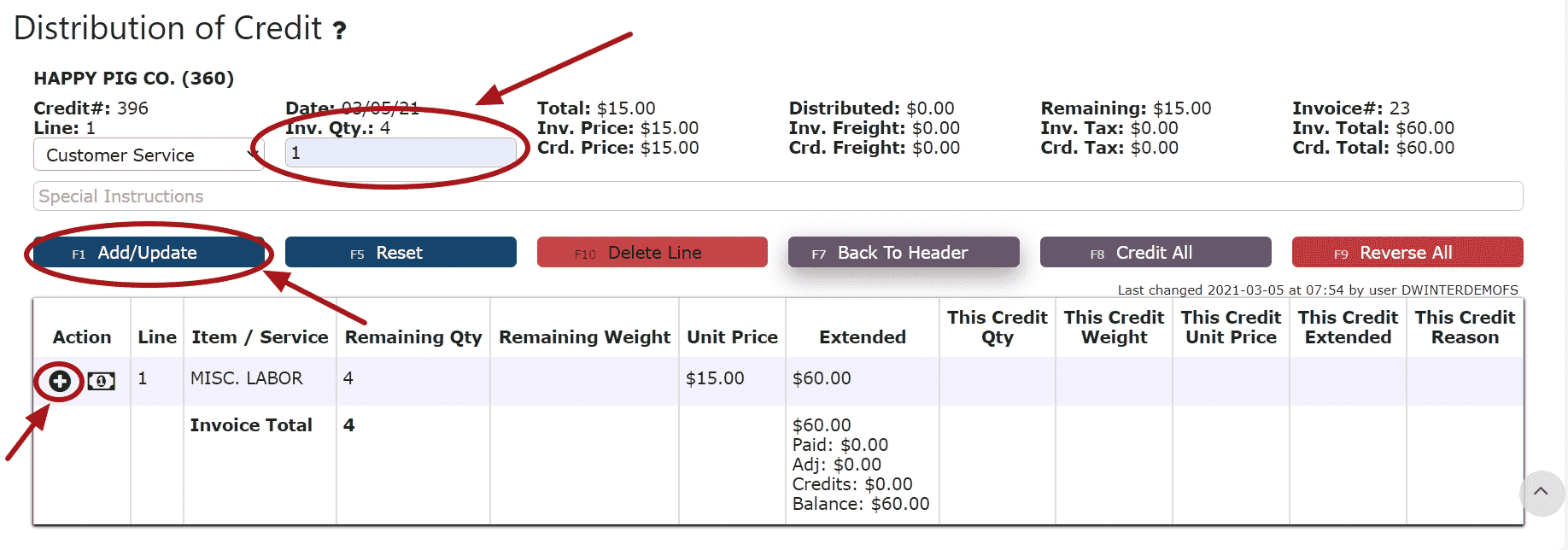 Auto Credit Remaining Balance (crediting the entire amount of the invoice):Note: A reason at the header is required if choosing to use the auto credit/credit all options when distributingStep 1: Click on the Auto Credit Remaining Balance Icon
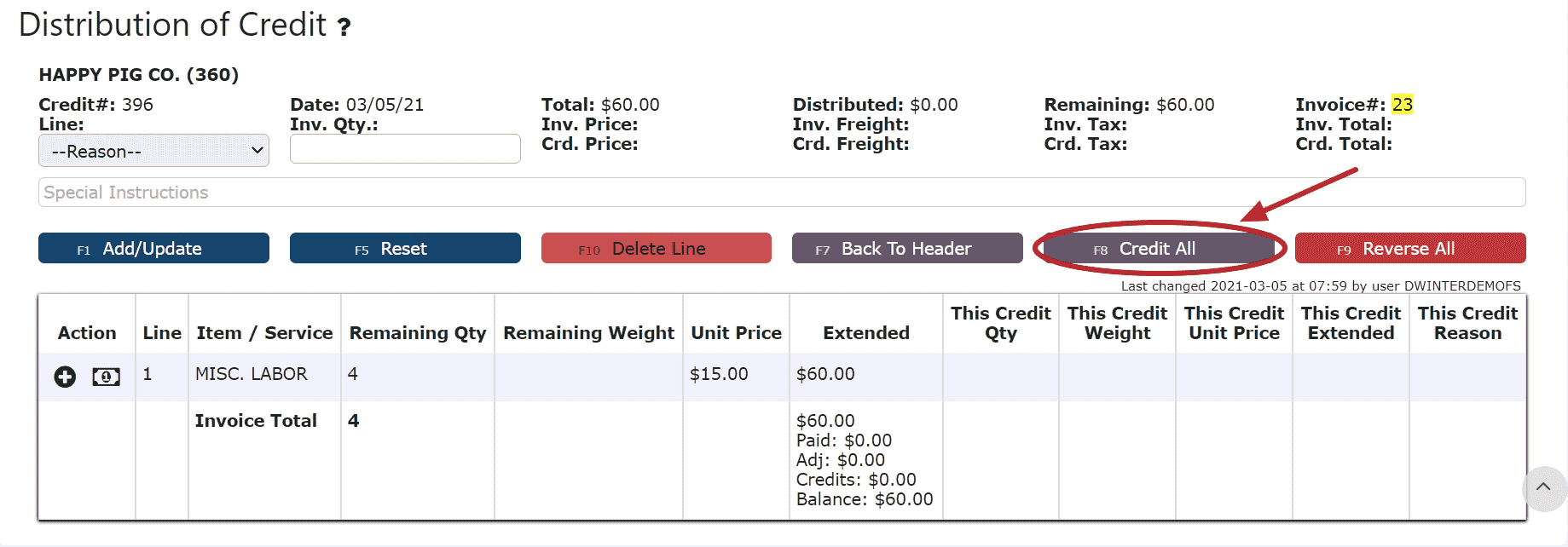
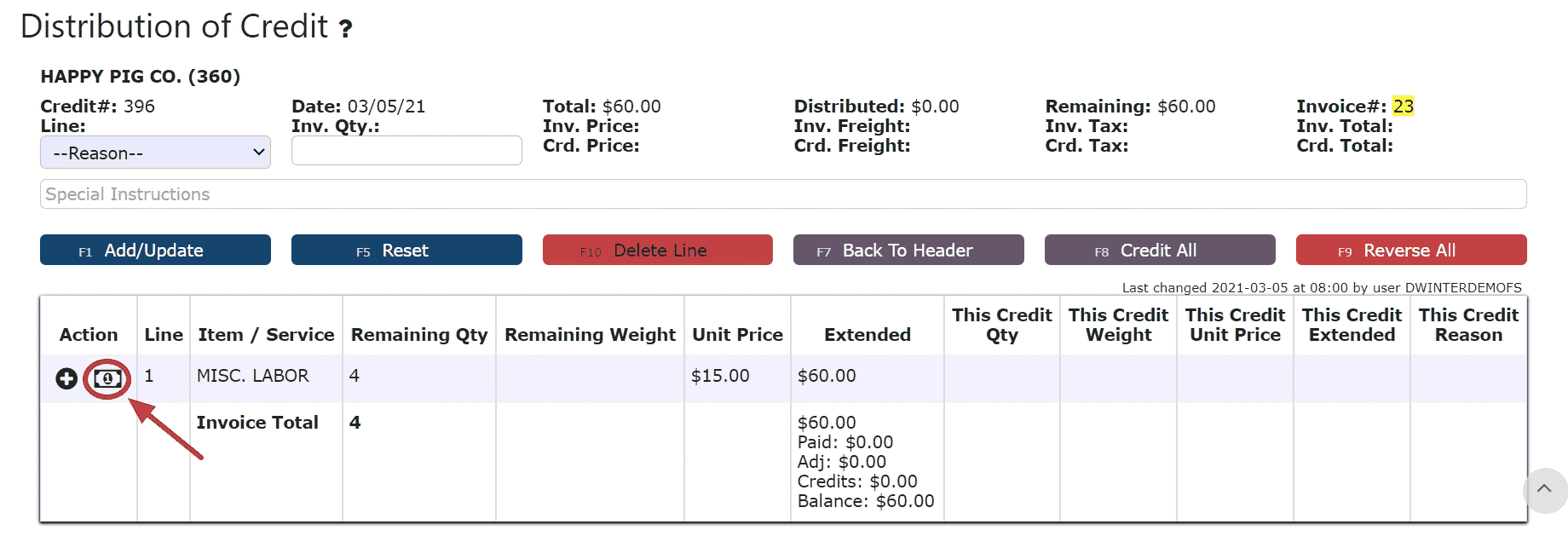 Credit All (distributes credits to all the invoices for the full remaining amounts):Step 1: Click on the Credit All Button
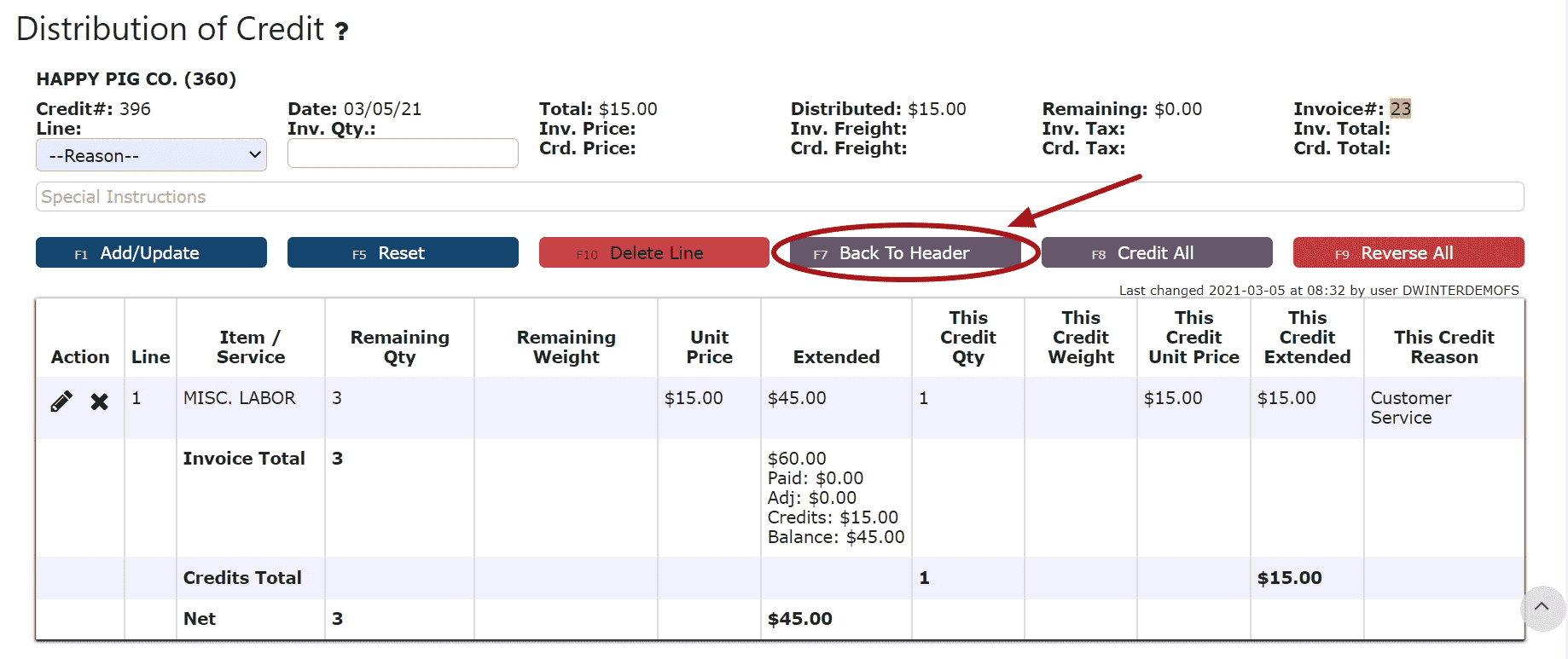
 6. Click on the Back to Header Button
 7. Click on the Close Credit ButtonNote: Once closed, the credit is ready to post
 8. Review the Credit that is ready to post
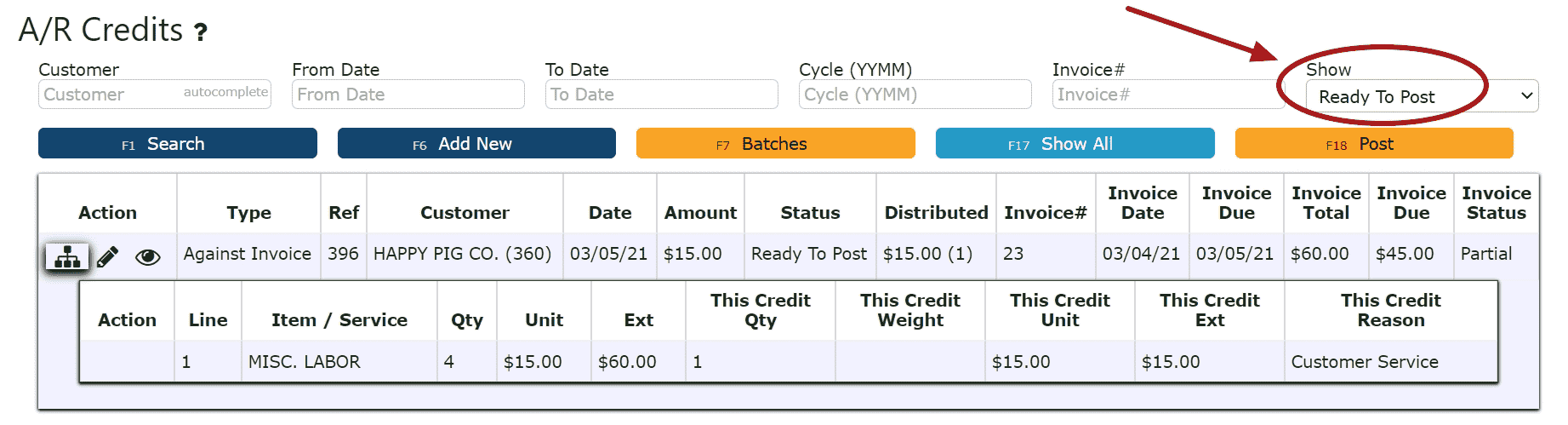 9. Click the Post ButtonNote:Credits will only post successfully if their date matches the end of day cutoff dateAny Credits left open/in progress will prevent the end of day process from automatically moving forward during the night
-
Creating and Posting On Account Credits
1. Go to the Accounting Menu and click on the AR Credits Sub-Menu
2. Click on the Add New Button
3. Enter the customer, the credit date, select On Account Credit as the credit type, fill in the credit amount, and select the reason for the credit. Fill in any additional notes if applicable.
4. Click on the Save & Exit Button
5. The On Account Credit has been automatically closed and is now Ready to Post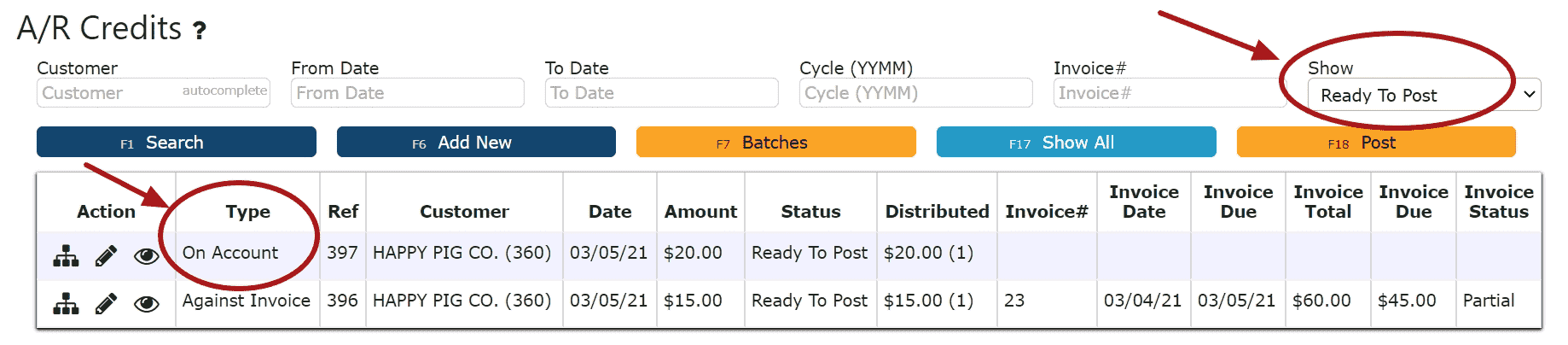
6. Review the On Account Credit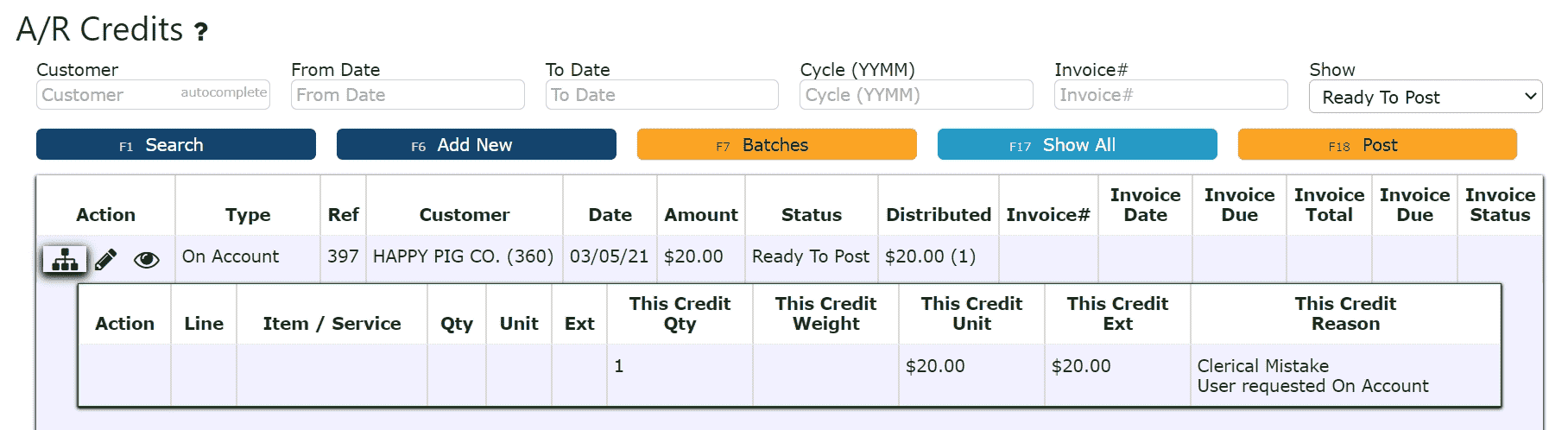
7. Click on the Post ButtonNote:Credits will only post successfully if their date matches the end of day cutoff dateAny Credits left open/in progress will prevent the end of day process from automatically moving forward during the night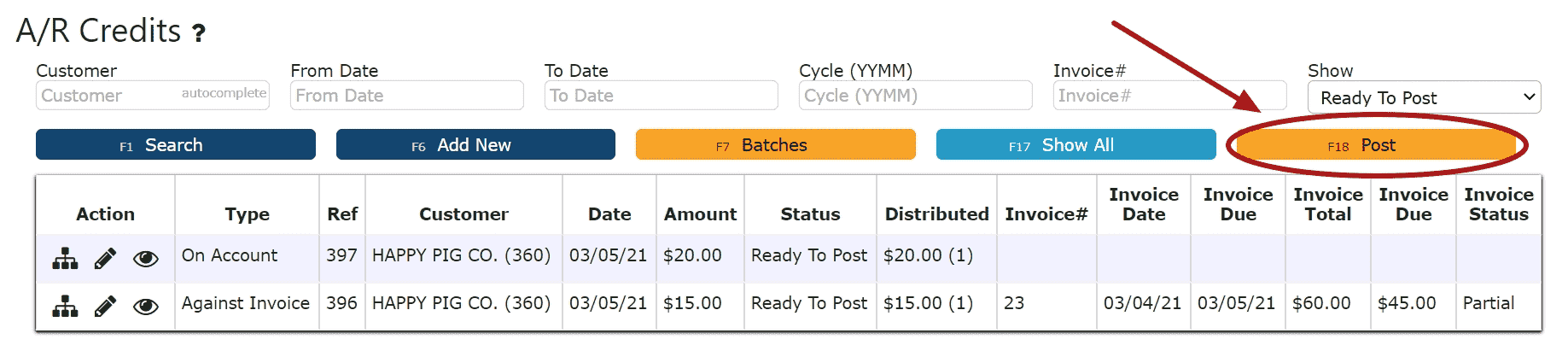
8. The On Account Credit is now ready to be applied to any open invoice through a cash receipt. Proceed to follow the steps for Applying an On Account Credit through an AR Cash Receipt.
-
Editing AR Credits
1. Click on the Edit Credit Icon (Pencil) next to the AR Credit to be edited
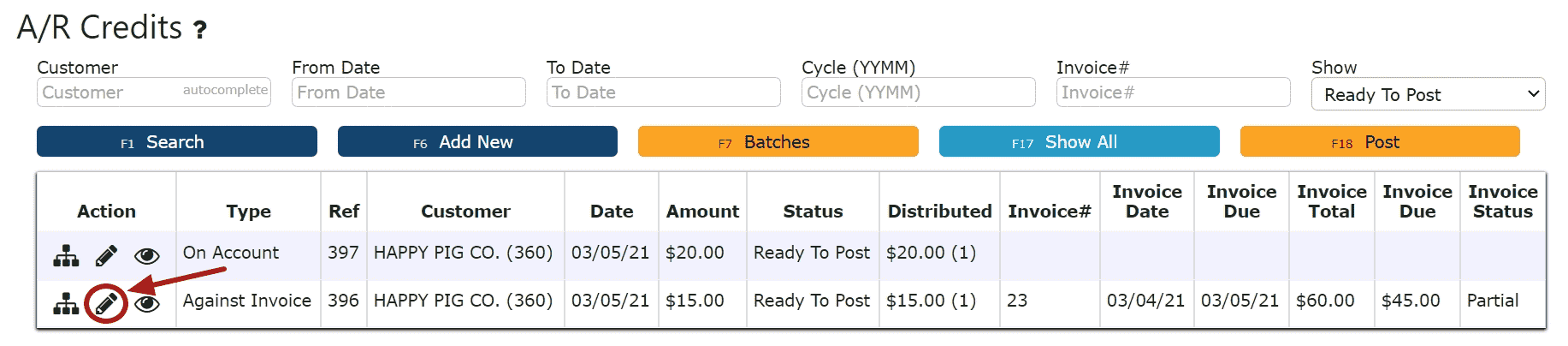 If Closed:2. Click on the Open Credit Button to re-open the AR Credit.
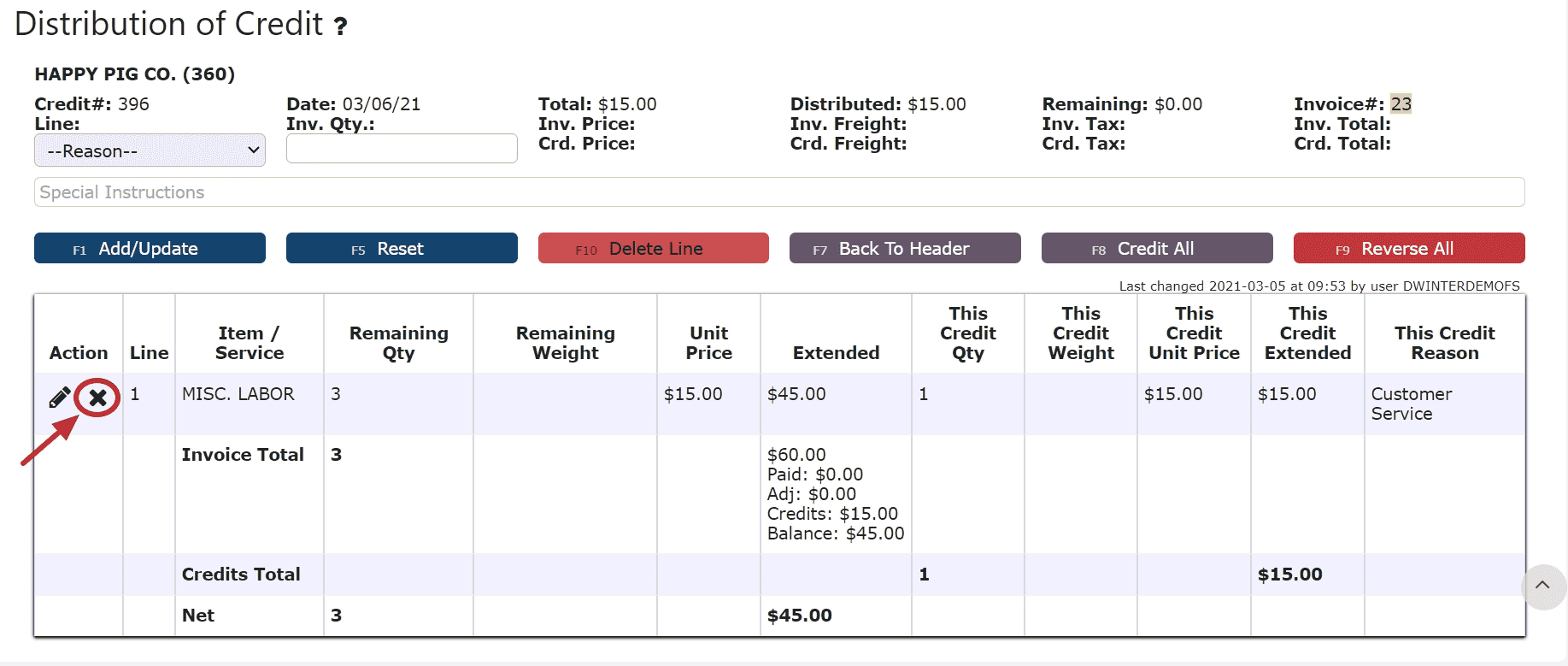
 4. Make any necessary changes to the details of the AR Credit (Against Invoice Credits Only)Reversing a Line (Reverses the distribution made to that particular invoice):Step 1: Click on the Reverse Line Icon (X) next to the invoice to reverse the credit applied to that invoice
 Deleting a Line: (Deletes the distribution made to that particular invoice):Step1: Click on the Edit Line Icon (Pencil)Step 2: Click on the Delete Line Button
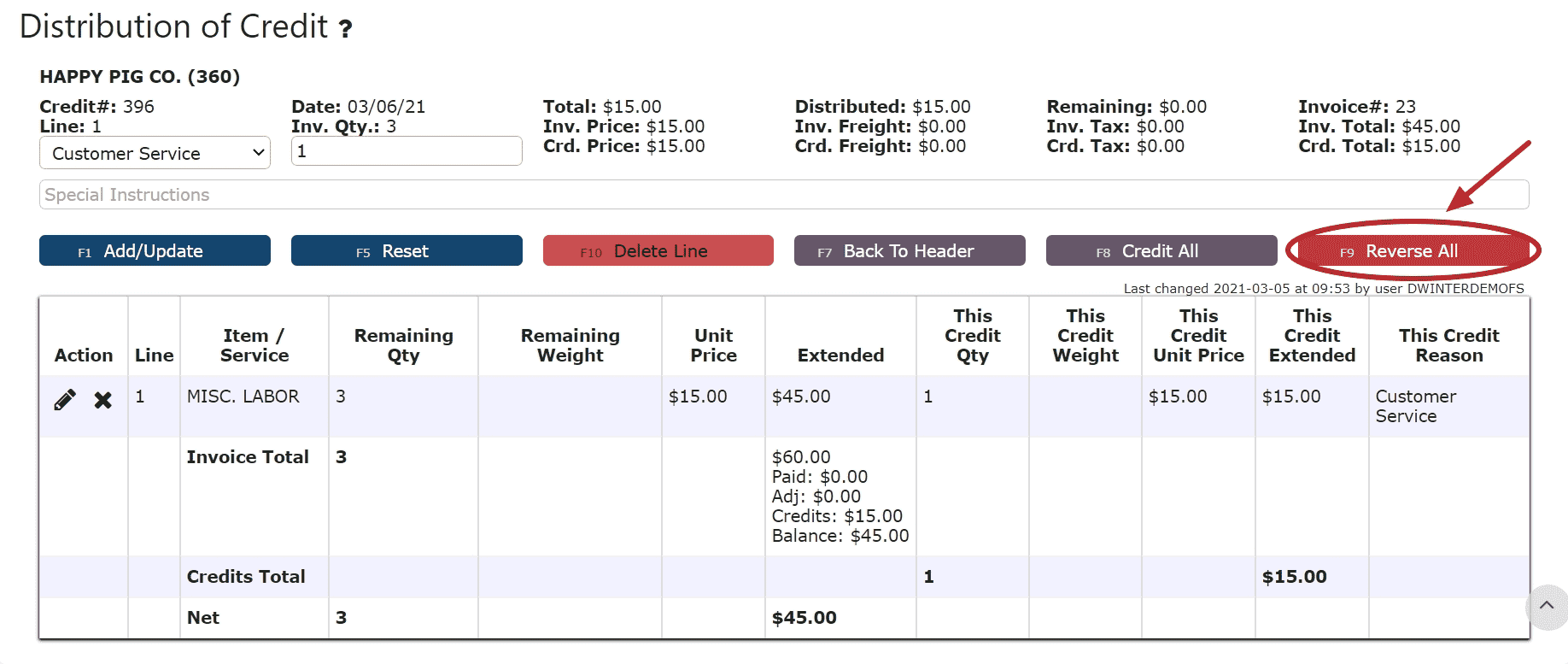
Step 3: Click OK on the pop prompt to confirm the submission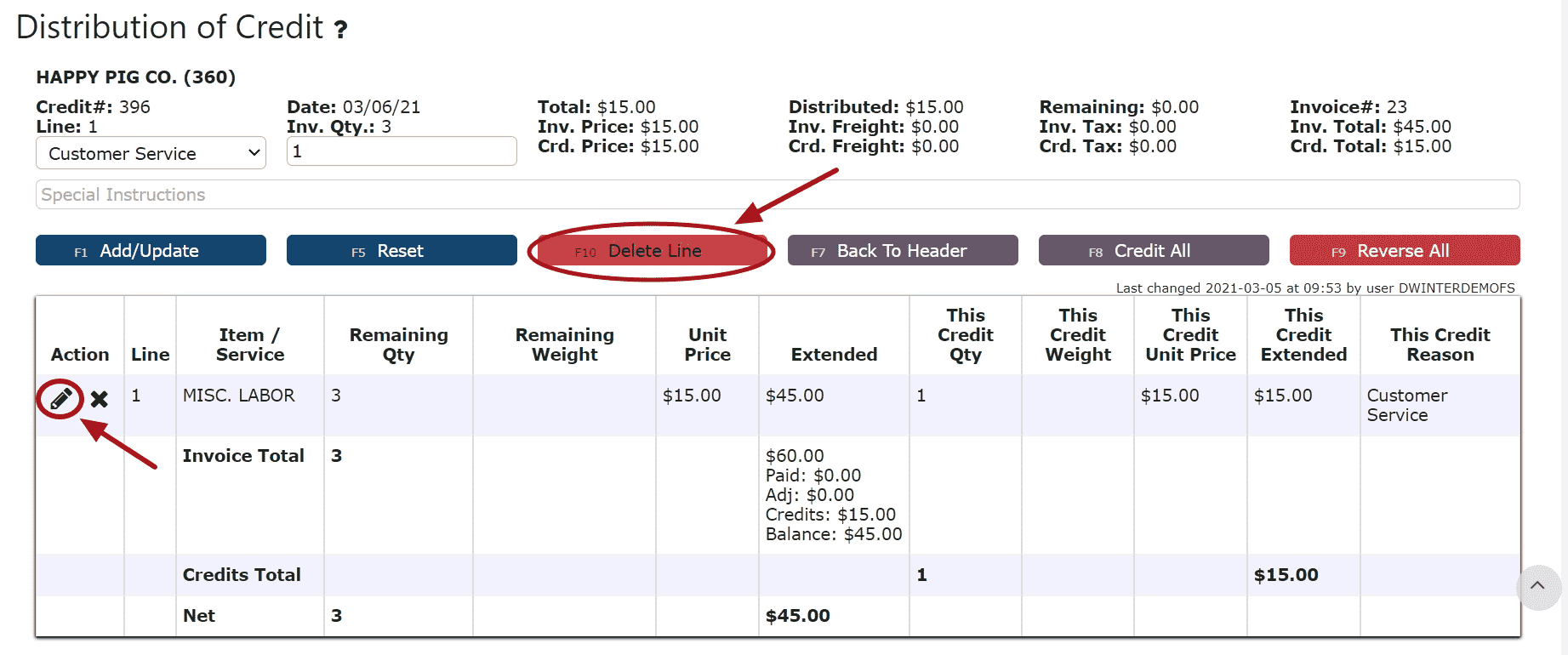 Reversing All Distributions (Deletes/Reverses all distributions made across all invoices:Step 1: Click on the Reverse All Button
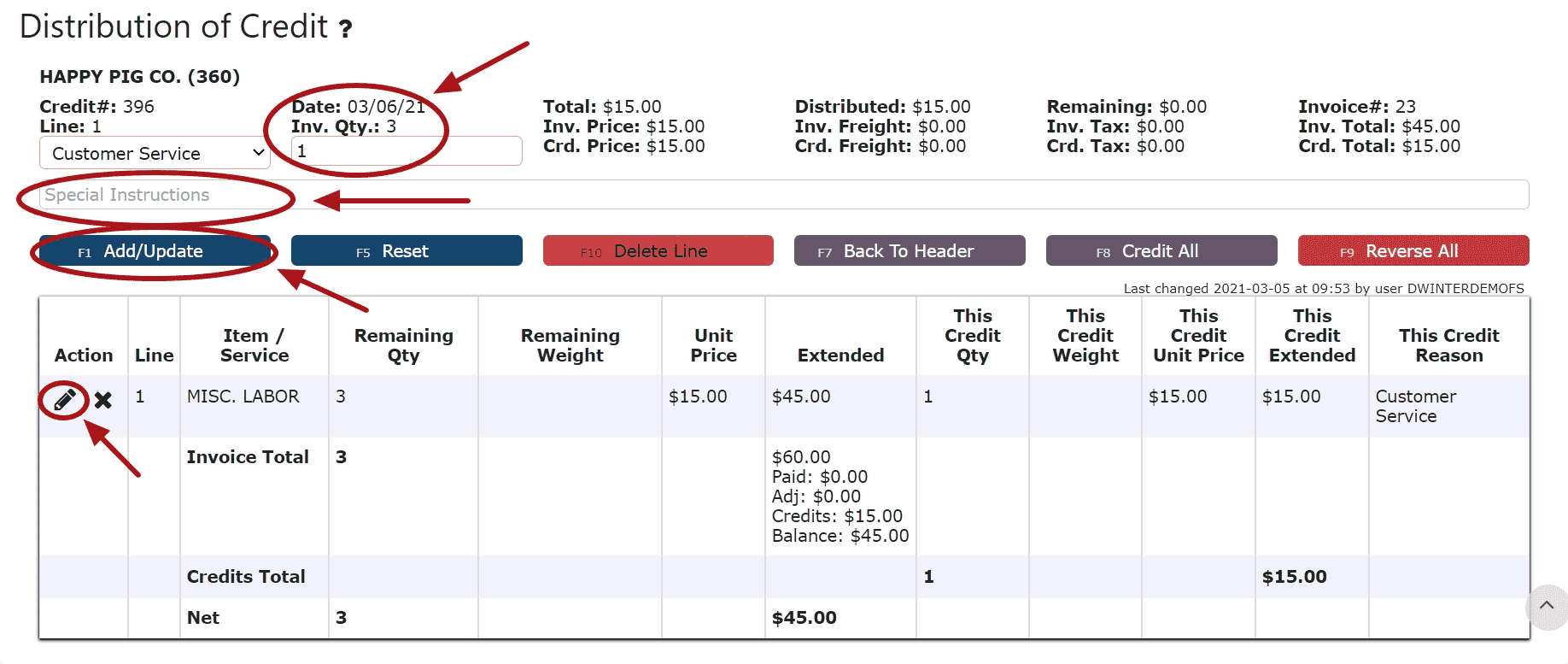
 Editing a Line:Step 1: Click on the Edit Line Icon (Pencil)Step 2: Make Any necessary changes to the amount and/or description for that lineStep 3: Click on the Add/Update Button
 5. Click on the Back to Header Button
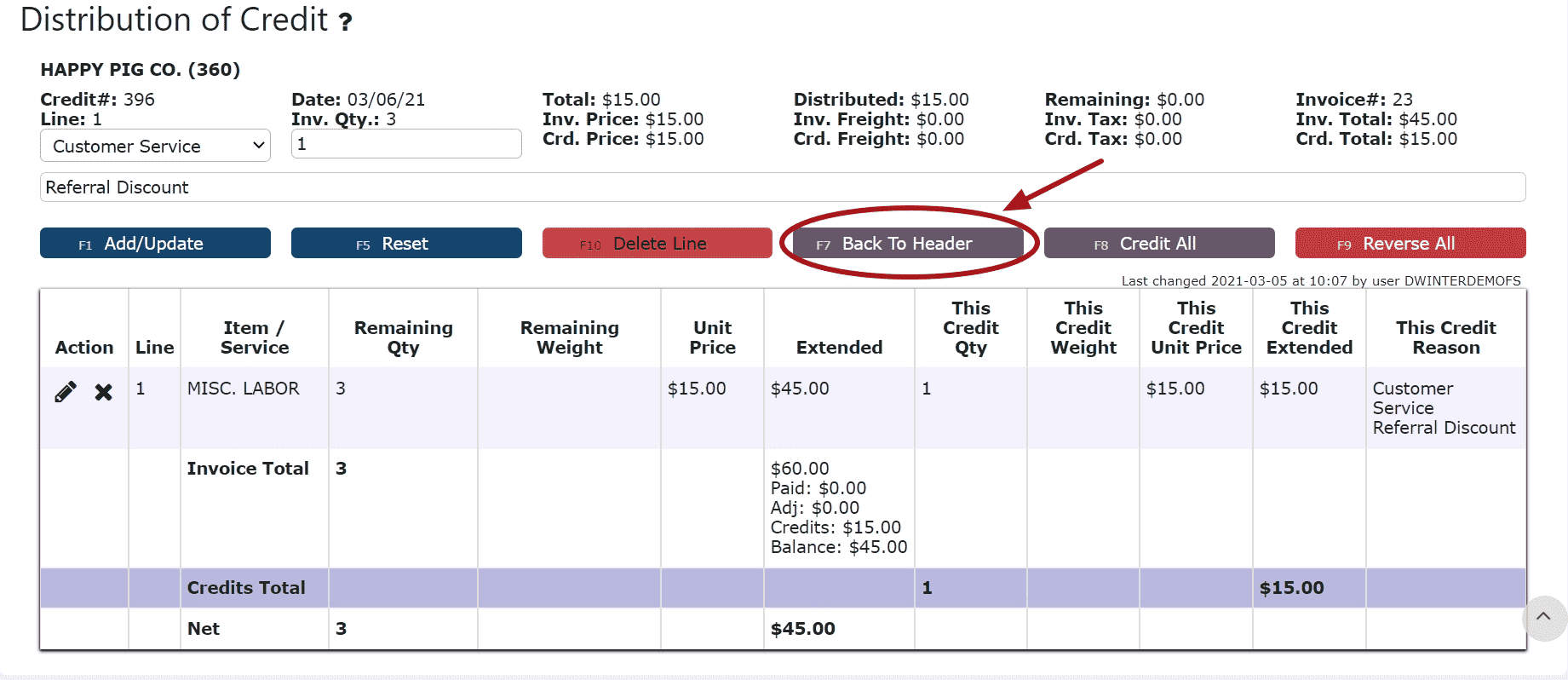 6. Make any necessary changes to the header, then click on the Close Credit Button if ready to close and post the AR Credit
 7. Click on the Post Button to post the AR CreditNote:AR Credits will only post successfully if their date matches the end of day cutoff dateAny AR Credits left open/in progress will prevent the end of day process from automatically moving forward during the night
 If Open:2. Adjust any of the header information as necessary.
 3. Click on the Distribute Credit Button to make changes to the details of the AR Credit (Against Invoice Credits Only)
 4. Make any necessary changes to the details of the AR CreditReversing a Line (Reverses the distribution made to that particular invoice):Step 1: Click on the Reverse Line Icon (X) next to the invoice/credit to reverse payment onDeleting a Line: (Deletes the distribution made to that particular invoice):Step 1: Click on the Edit Line Icon (Pencil)Step 2: Click on the Delete Line ButtonReversing All Distributions (Deletes/Reverses all distributions made across all invoices):Step 1: Click on the Reverse All ButtonEditing a Line:Step 1: Click on the Edit Line Icon (Pencil)Step 2: Make Any necessary changes to the amount and/or description for that lineStep 3: Click on the Add/Update Button5. Click on the Back to Header Button6. Click on the Close Credit Button if ready to close and post the AR Credit7. Click on the Post Button to post the entryNote:AR Credits will only post successfully if their date matches the end of day cutoff dateAny AR Credits left open/in progress will prevent the end of day process from automatically moving forward during the night
-
Deleting an AR Credit
1. Click on the Edit Credit Icon (Pencil) next to the AR Credit to be deletedIf Closed:2. Click on the Open Credit Button to re-open the AR Credit
For Against Invoice Credits:Note:Once deleted, an AR Credit is permanently removed and can no longer be retrieved3. Click on the Back to Header Button
4. Click on the Delete Credit Button, then click Ok on the pop up prompt
For On Account Credits:3. Click on the Delete Credit Button, then click Ok on the pop up promptNote:Once deleted, an AR Credit is permanently removed and can no longer be retrieved If Open:2. Click on the Delete Credit Button, then click Ok on the pop up promptNote:Once deleted, an AR Credit is permanently removed and can no longer be retrieved
-
Applying an On Account Credit through an AR Cash Receipt
1. Go to the Accounting Menu and click on the AR Cash Receipts Sub-Menu2. Click on the Add New Button
3. Enter the customer, select a payment date, payment type and enter a total payment amount
For On Account Credits Only:
Select Apply Credit as the payment type
Enter $0 for the total payment amount
For On Account Credits + Additional Payments:
Select the payment type for the additional payment(s) to be applied
Enter the amount for the total amount of the additional payments (not including the on account credits to be applied)4. Click on the Distribute $ Button5. Select the credit(s) and the amount(s) to apply towards the open invoice(s)Add to Line (Selecting a partial amount of the credit):Step 1: Click on the Add to Line Icon next to the credit to applyStep 2: Enter the amount of the credit to use (must be a negative value)Step 3: Click on the Add/Update ButtonTake Full Credit Balance (applying the full amount of the credit):Step 1: Click on the Take Full Credit Balance Icon6. Distribute the amount of the credit(s) towards any open invoice(s) listed
Add to Line (paying a partial amount of the invoice):Step 1: Click on the Add to Line Icon next to the invoice to be paidStep 2: Enter the amount of the invoice to payStep 3: Click on the Add/Update ButtonAuto Pay Remaining Balance (paying the entire amount of the invoice):Step 1: Click on the Auto Pay Remaining Balance Icon
For On Account Credits + Additional Payments Only:
7. Apply the total payment amount towards any remaining open invoices using the Add to Line Icon or Auto Pay Remaining Balance Icon next to the open invoice to pay
Note: The total amount of the payment must equal the total amount distributed to open invoices in order to close the payment. The remaining amount to apply will indicate how much of the total payment is still left to distribute and will indicate $0 when all has successfully been applied.8. Click on the Back to Header Button9. Click on the Close Payment ButtonNote: Once closed, the cash receipt is ready to post10. Review the Cash Receipt that is ready to post11. Click the Post ButtonNote:Cash Receipts will only post successfully if their date matches the end of day cutoff dateAny Cash Receipts left open/in progress will prevent the end of day process from automatically moving forward during the night
-
Troubleshooting Batch Errors
1. Click on the Batches Button
 2. Remove the date
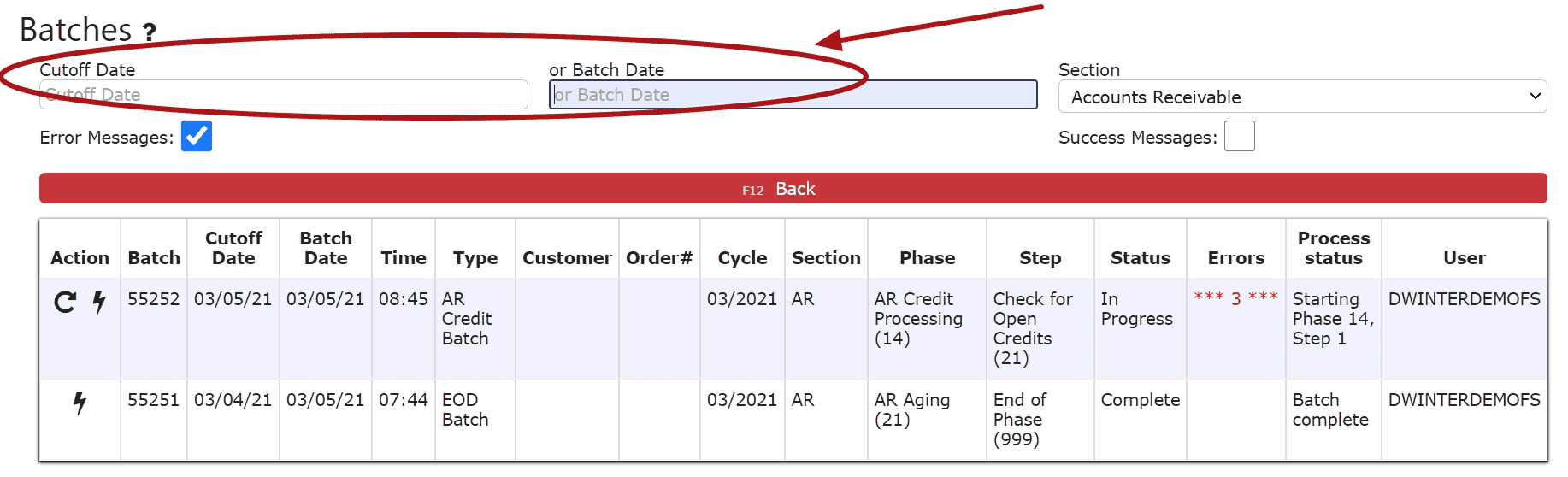 3. Locate the error batch that contains errors in red and a Re-Start This Batch Icon (Circle Arrow)Note: Any AR Batch Error that has not been resolved will prevent any transactions from posting successfully (including AR Credits)
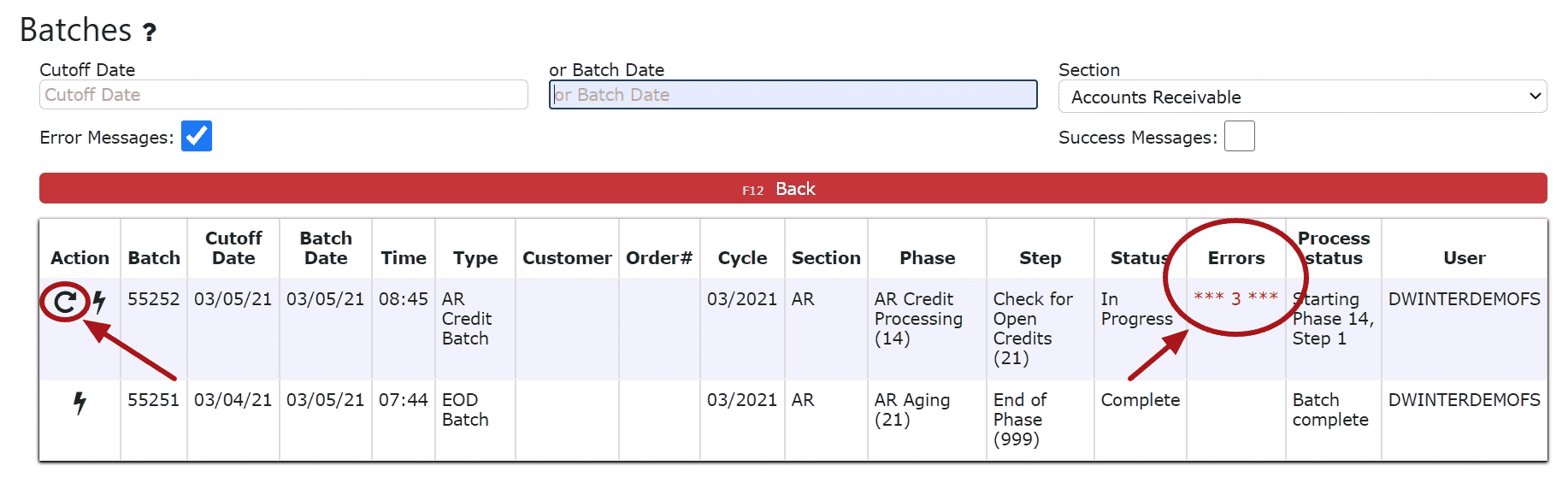 4. Click on the Batch Messages Icon (Lightning Bolt) next to the Error Batch in question
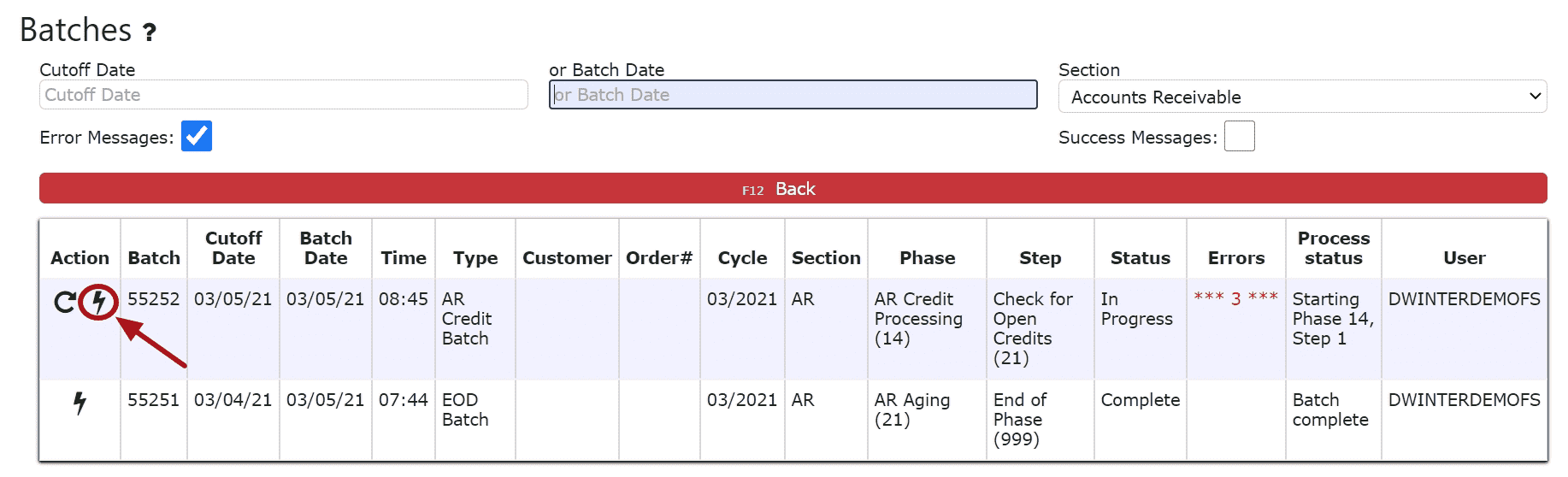 5. Review the errors preventing the AR Credit(s) from posting
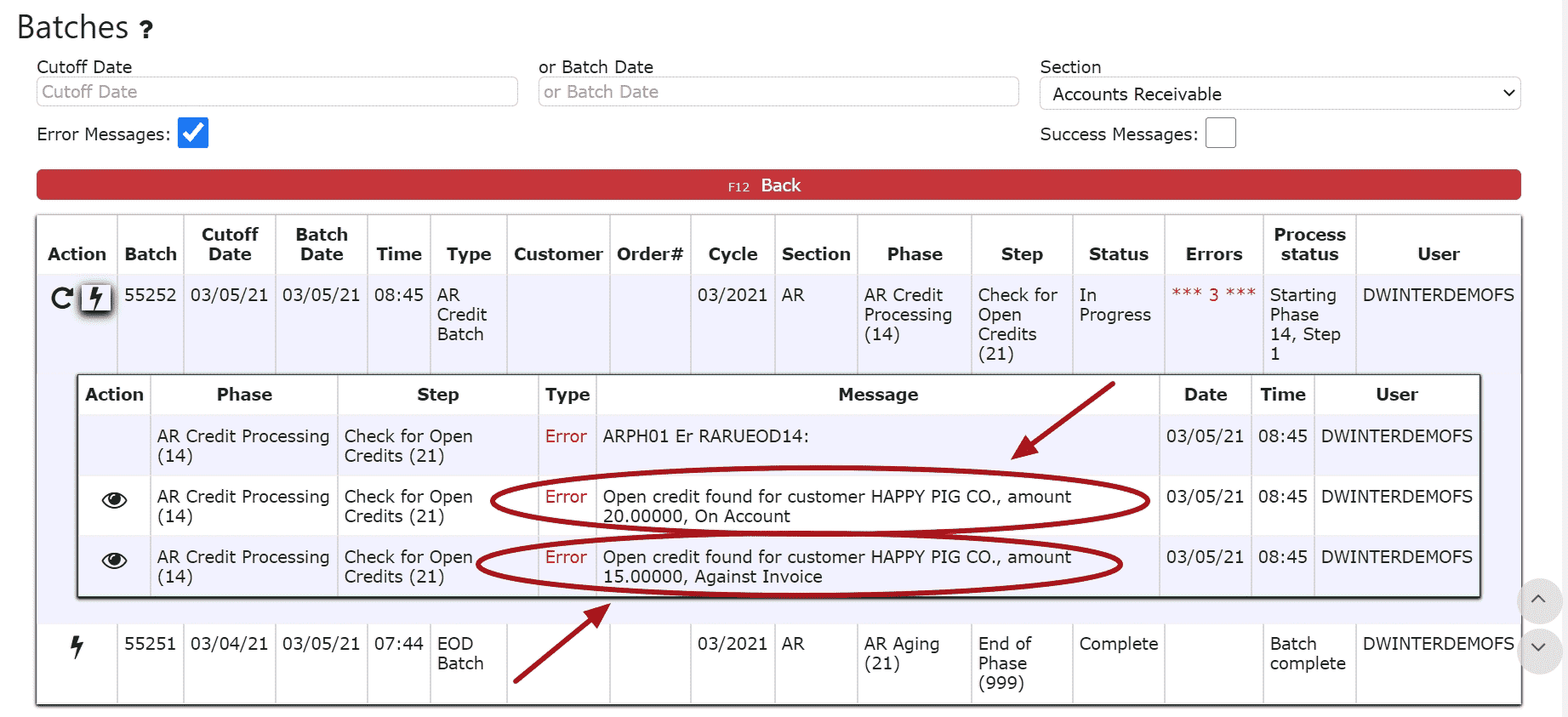 6. Resolve each error listed in the batch. Click on the eyeball next to each error to be automatically redirected to the order/transaction in question.
For Open Orders:Either invoice, cancel or forward date the order
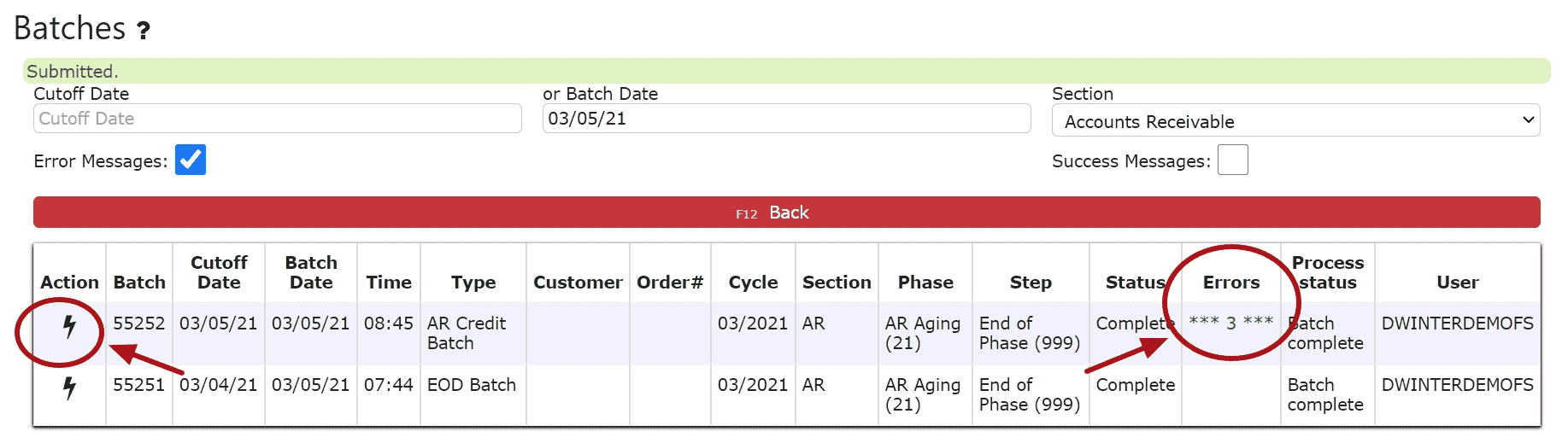
For Open/In Progress Transactions (AR Credits, AR Misc. Cash Entries, AR Cash Receipts, AR Adjustments):Either close and post, cancel or forward date the transaction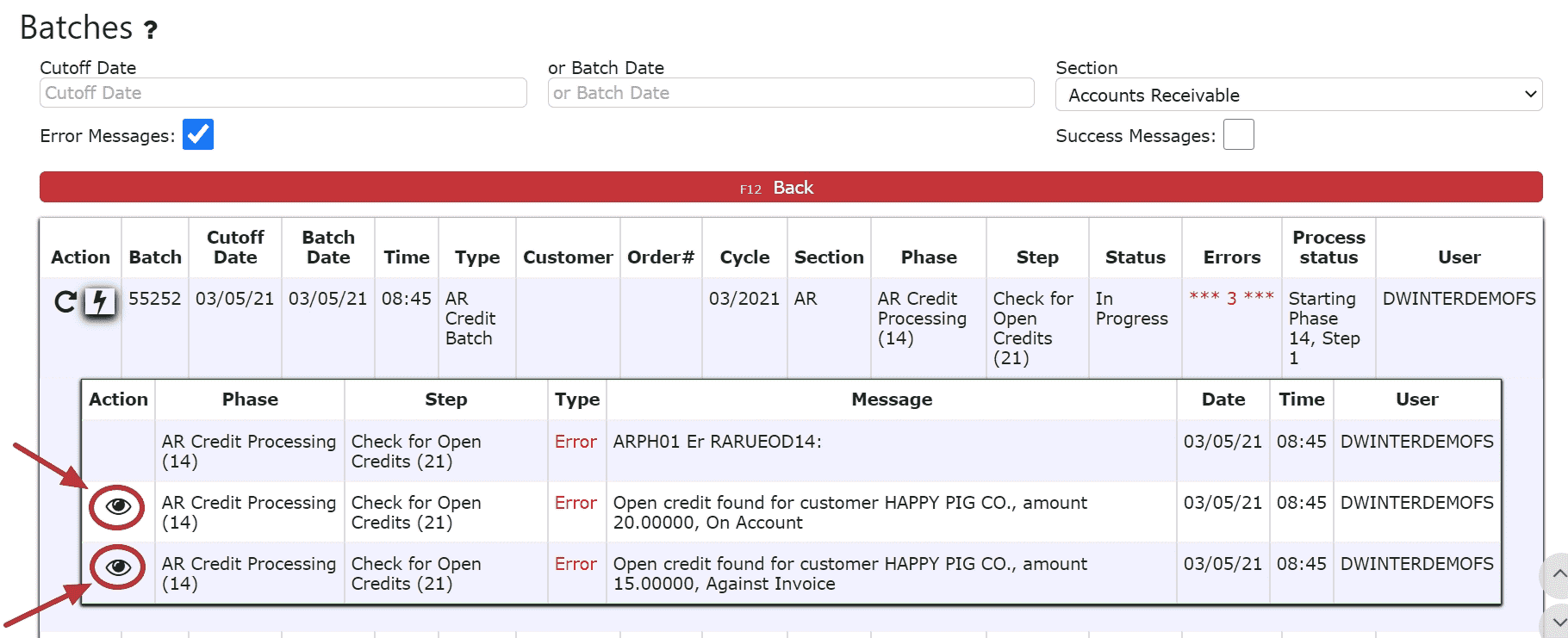 7. After all errors have been resolved, go back to AR Batches and click on the Re-Start This Batch Icon to re-start the error batch. The AR Credit(s) will automatically post, the Re-Start this Batch icon will dissapear and the red errors will turn green, if the batch is successful.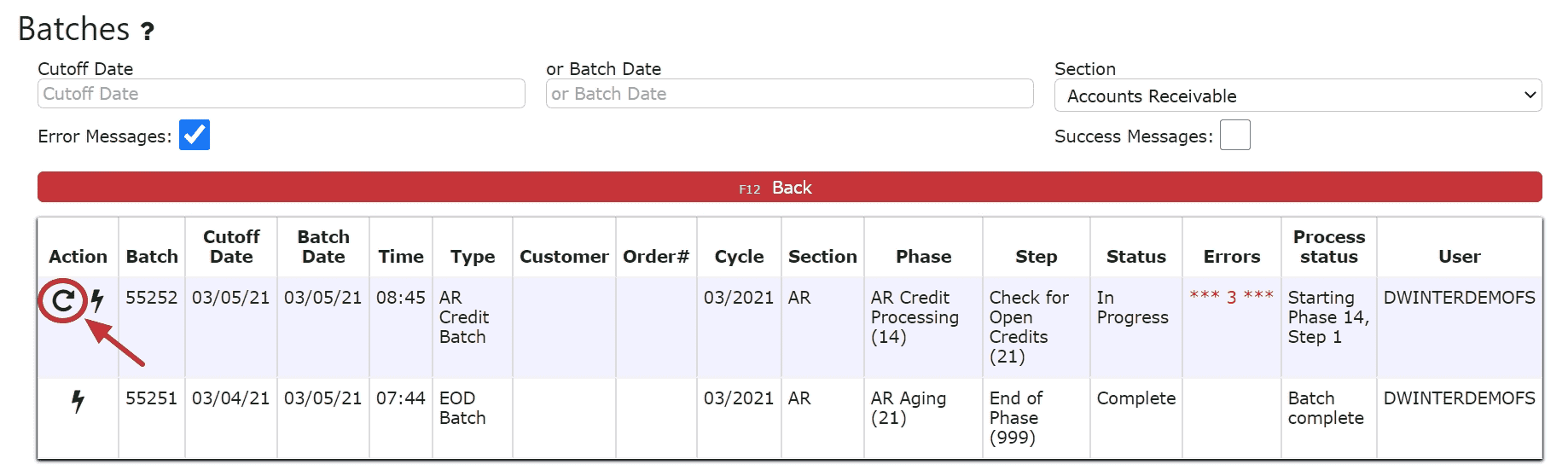
-
Miscellaneous Invoice Allowances
Miscellaneous Invoice Allowance Credit Overview
A Miscellaneous Invoice Allowance in the Inspired system allows users to apply a credit directly to an invoice without affecting inventory or specific item quantities. This is commonly used for adjustments such as pricing discrepancies, service credits, or customer accommodations.
Unlike line-level credits, this method applies a monetary adjustment to invoice totals (e.g., merchandise or services) while leaving the original items and inventory unchanged. This feature is available within Accounts Receivable (AR Credits) and can be used independently or in combination with other credit types such as line-level credits, rebills, or returns (combination use - FM only).
What is a Misc. Invoice Allowance?
• A non-inventory credit applied directly to an invoice
• Does not impact quantities or stock levels
• Applies to:
—> Merchandise totals
—> Service totals
• Commonly used for:
—> Pricing adjustments
—> Customer satisfaction credits
—> Billing corrections not tied to specific items
How to Apply a Misc. Invoice Allowance
1. Navigate to Accounting → Accounts Receivable → AR Credits.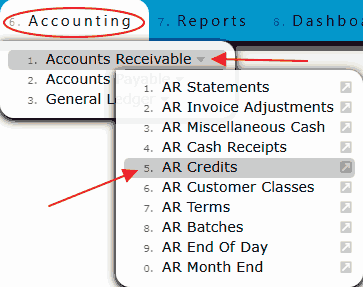
2. Click the Add New button near the top of the page.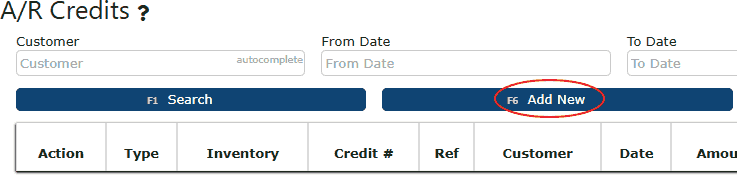
3. In the Credit Type dropdown:
—> Select Misc. Invoice AllowanceNote: The default credit type is typically Against Invoice Lines
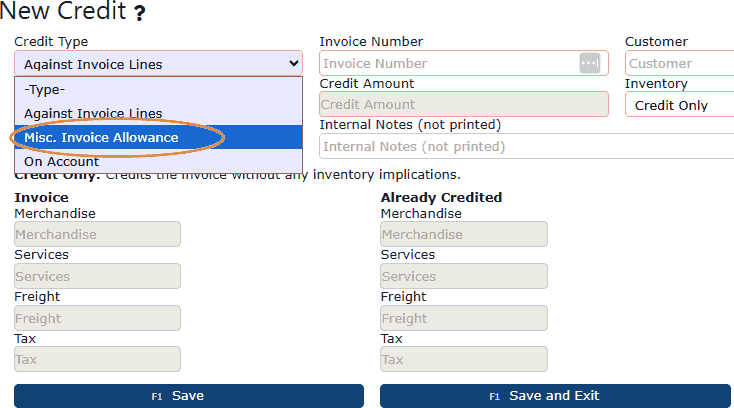
Once Misc. Invoice Allowance is selected:
• The system will display invoice totals directly on the credit screen
• There is no “Distribute $” button when using Misc. Invoice Allowance as the Credit Type
At the bottom of the screen, you will see fields such as:
• Merchandise
• Services
• Freight
• Tax
Important Behavior:
• Fields will only be editable if applicable to the invoice
—> If the invoice contains services, the Services field becomes editable
—> If the invoice contains merchandise, the Merchandise field becomes editable
• Enter the credit amount directly in the Credit Amount field
• The credit is applied at the invoice summary level only
• No line-level distribution is available when using this credit type alone
4. Enter the Invoice Number. Once entered, the Customer field will automatically populate.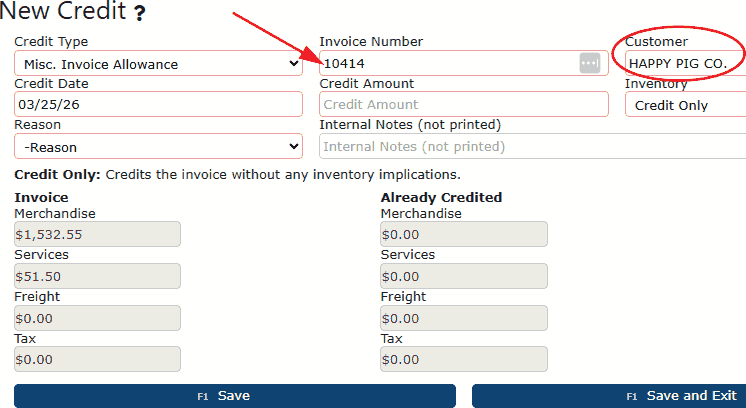
5. In the Credit Amount textbox, simply enter the total credit value being applied against the invoice.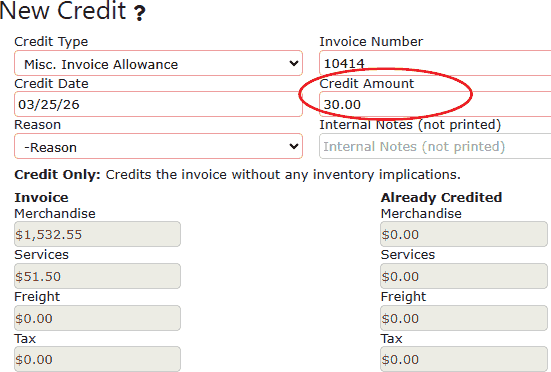
6. Choose a credit reason from the Reason dropdown box.
7. Review the This Credit section. Merchandise, services, freight, and tax textbox fields will open up depending on what is actually on the invoice. Enter the desired credit amount(s) here. For example, entering $10 in Merchandise applies a $10 credit toward item charges. Entering $20 in Services applies a $20 credit toward service charges.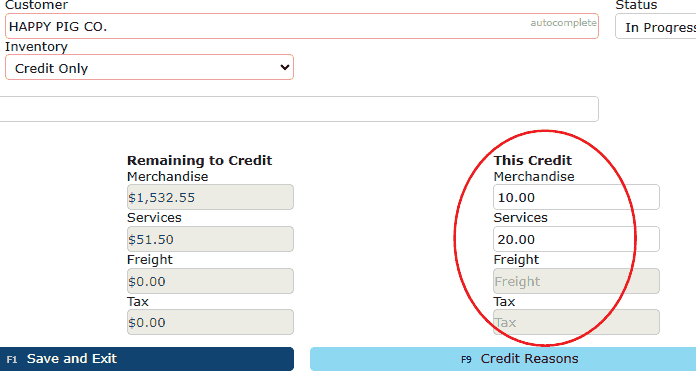
8. Now click either the Save & Exit button, or the Save + Back buttons. You will now see the credit in Ready to Post status; simply click the orange Post button to finalize this credit.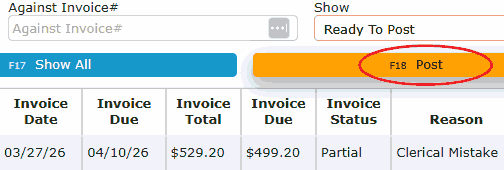
This miscellaneous invoice allowance, just like against invoice credits, will show up as a negative in the sales reports.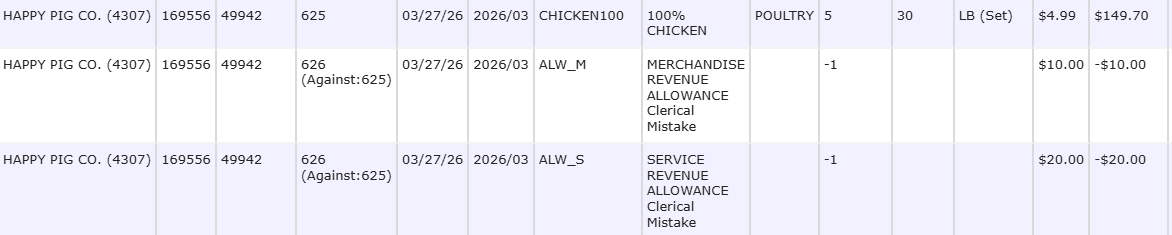
Combining Rebill/Return with Misc Allowance (FM Only)
In Factory Mode (FM), users can perform a Rebill or Return and apply a Miscellaneous Invoice Allowance within the same credit transaction. This is useful when both item-level corrections and additional financial adjustments are required.
How to Create a Rebill or Return + Misc Allowance (FM Only)
1. Navigate to Accounting → Accounts Receivable → AR Credits.
2. Click the Add New button near the top of the page.
3. In the Inventory dropdown, select credit rebill or credit return, depending on which one is being done.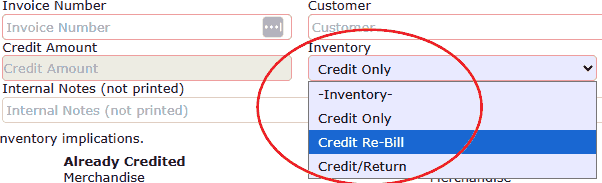
4. Enter the Invoice Number and the Customer field will auto-populate once done.
5. Select a reason from the reason dropdown box.
6. Type in the total credit amount being applied to this invoice, including for both the rebill/return and misc. invoice allowance.
7. Now that everything is properly filled out, click on the Distribute $ button.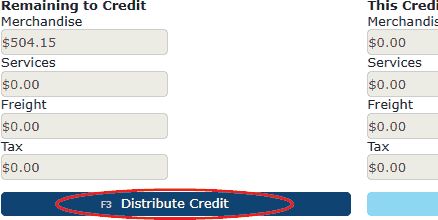
8. On the Distribution of Credit screen,
• If crediting a full line, click the dollar sign icon next to the line to apply the credit rebill/credit return to that line, and/or: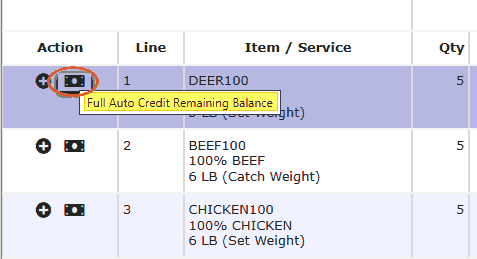
• Click the plus icon next to a line to rebill some of this item. Enter Inv. Qty, & Inv. Weight (if applicable; for catch weight items, this determines the dollar amount)
• Repeat for each line being rebilled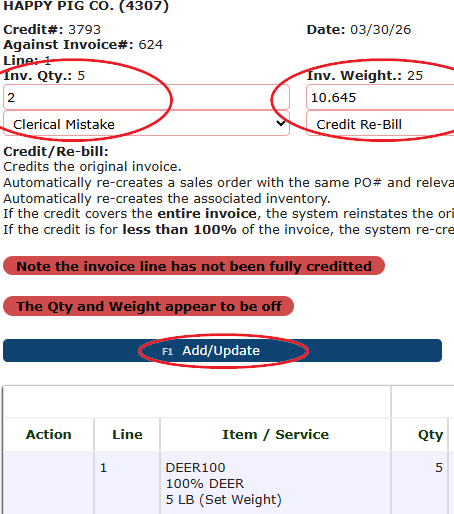
Adding a Misc. Invoice Allowance
Once line-level rebills/returns are entered:
1. Click the Merch. Allowance button.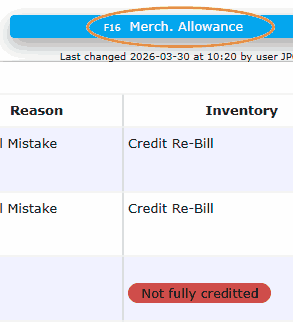
2. A screen similar to the credit header will appear, displaying fields for Merchandise, Services, Freight, and Tax. These fields will become editable based on the components present on the invoice.
3. Enter the desired miscellaneous credit amounts in the “This Credit” section for the applicable fields.
4. Click the Add/Update button to apply this miscellaneous credit. The system will add a new line labeled Credit Allowance.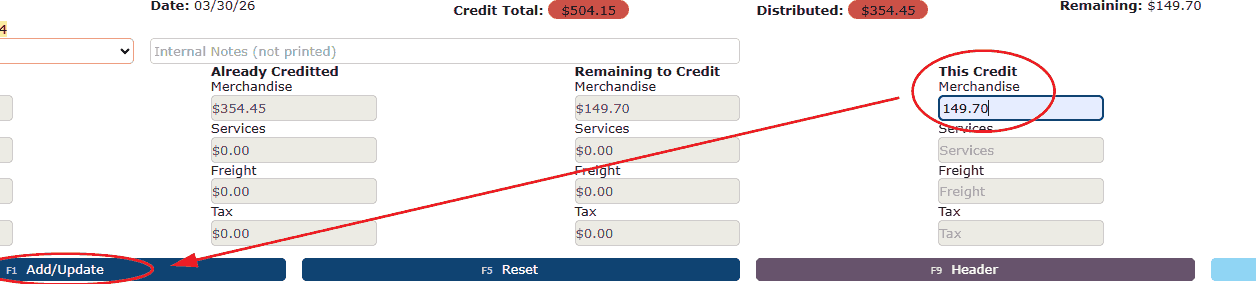
5. Simply click the purple Header button to go back to the main credit page and click the light blue Close Credit button to close out the credit. Make sure the credit is now in Ready to Post status.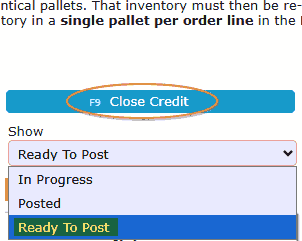
6. Click the orange Post button to finalize your credit.Partial Credit Requirement
When combining:
• Rebill or return
• AND a Misc. Invoice Allowance,
→ The system will always treat the rebill/return as partial
• Even if attempting to fully credit the invoice:
• Using Credit All or $ (sometimes) icon will not behave as expected
• The presence of a misc allowance forces partial distribution
Partial Rebill & Return + Misc Behaviors
When processing partial rebills or returns, the system will handle inventory and order status differently:
• Partial Rebill:
→ A new version of the order is automatically created with the rebilled items
→ The order remains in Open status since it is not a full rebill
→ Inventory is re-created and must be processed again through the outbound workflow
• Partial Return:
→ Returned inventory is placed into the Restock Queue
→ Accessible via RF → Restock
→ No new order is created
• Rebills and Returns (General):
→ Any inventory being returned—whether from a rebill or return—will appear in the Restock Queue
→ Items must be restocked before they can be picked and shipped againFor full details on rebill and return workflows, refer to the dedicated for Credit Rebills & Credit Returns articles.
Best Practices for Combined Credits
• Only use the dollar sign icon when you know the whole line needs to be credited.
• When adding a misc. invoice allowance to the same invoice, avoid the credit all button.
• Ensure all values are properly distributed.
• Ensure credit total matches the full intended amount.
Customer Portal Bill Pay
-
Portal Bill Pay
Portal Bill Pay - Customer Portal Guide
Customers can view and pay invoices, manage saved payment methods, and review payment activity directly within their secure Customer Portal. The Portal Bill Pay feature provides a streamlined way to review open balances, submit online payments, apply available credits, and track billing history without needing assistance from your accounting team. This self-service functionality improves transparency, speeds up payment processing, and gives customers full visibility into their accounts receivable activity.
Portal Bill Pay:Manage Payment Methods
Pay Invoices
View Payments
View Open/Paid Invoices
Use CreditsManage Payment Methods:
1. Navigate to the Billing menu and select the Payment Methods sub-menu. Alternatively, click the Payment Methods button from either the Open Invoices listing or the Payment Confirmation screen during checkout.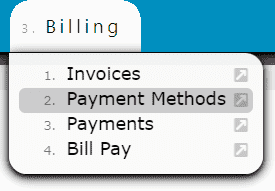
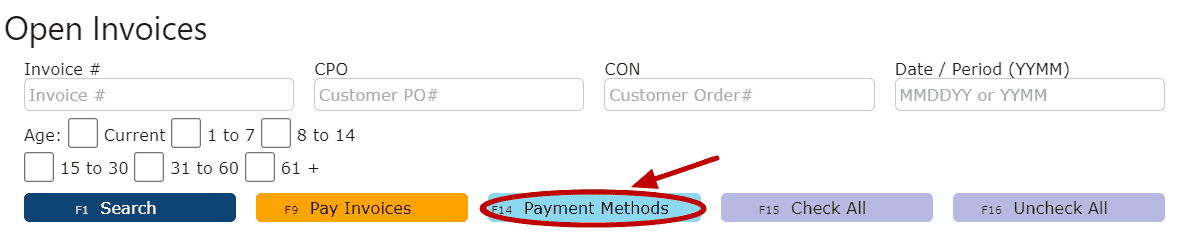
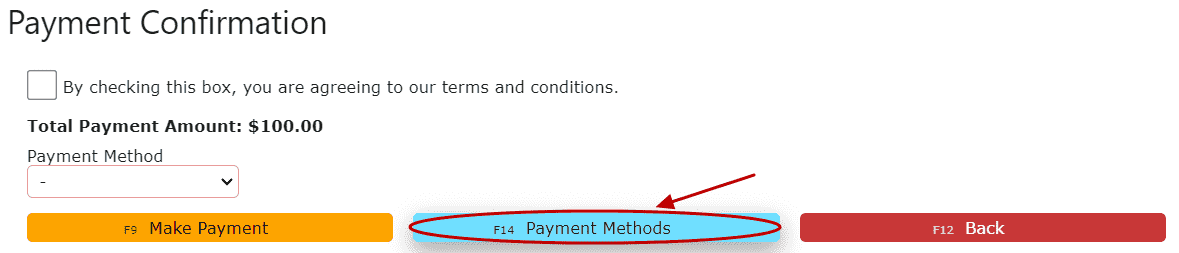
2. You will be taken to the Payment Methods Listing, which displays all saved payment methods currently available for use on your account.Add a New Payment Method: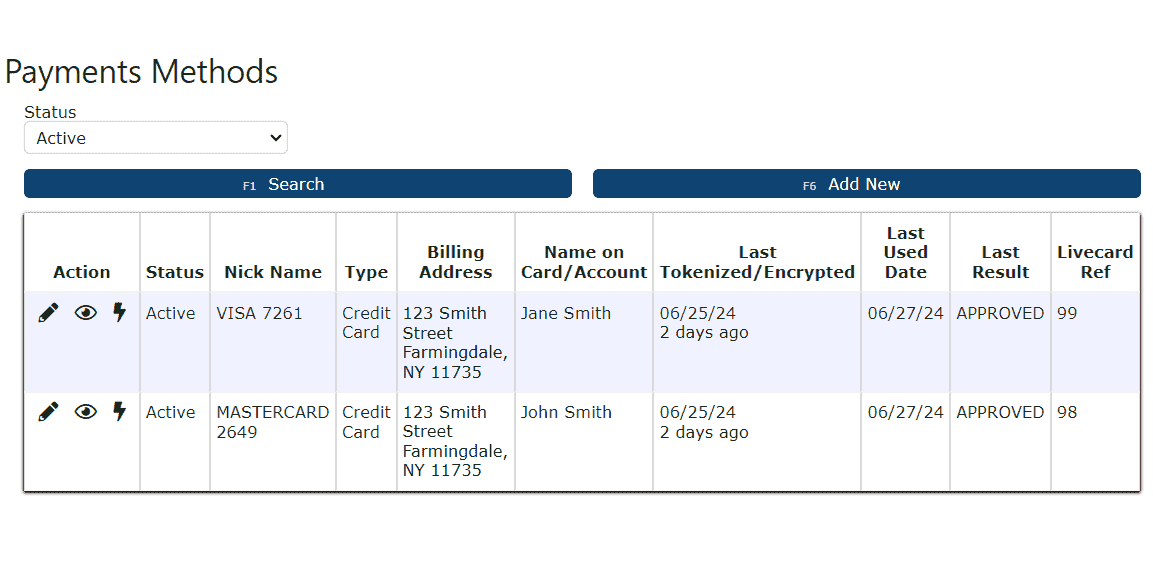
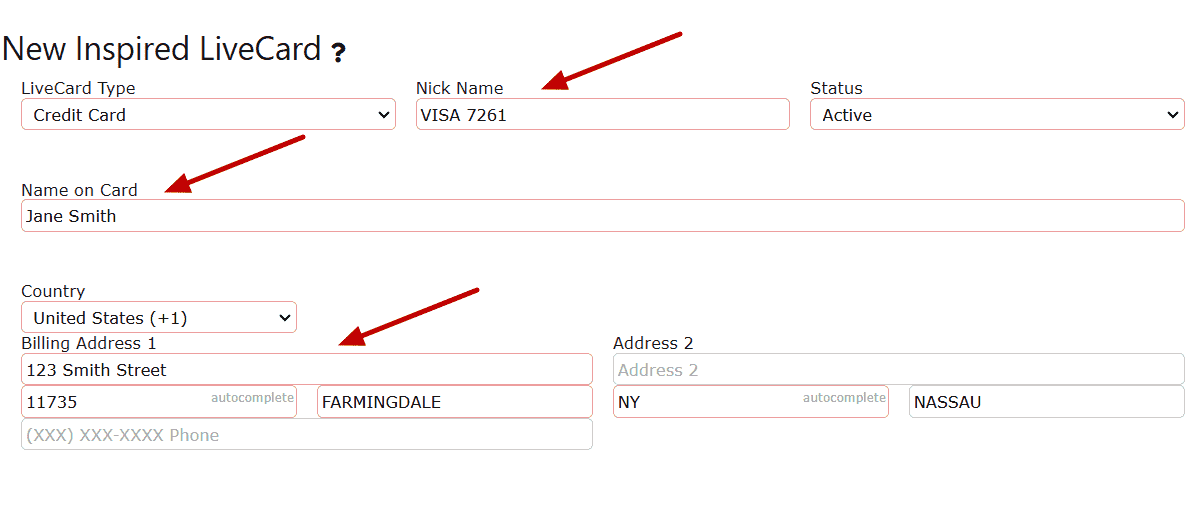
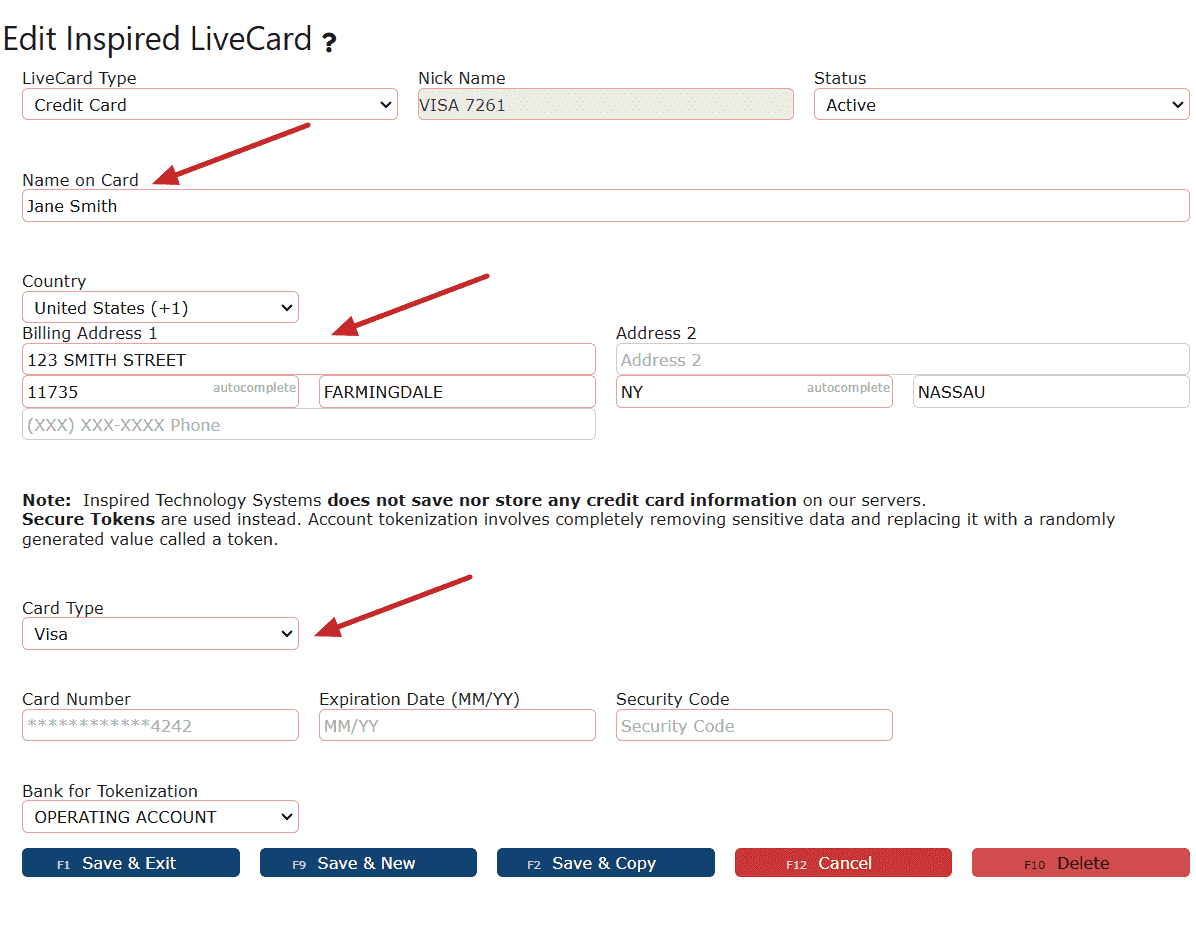
1. Click the Add New button to begin entering a new payment method.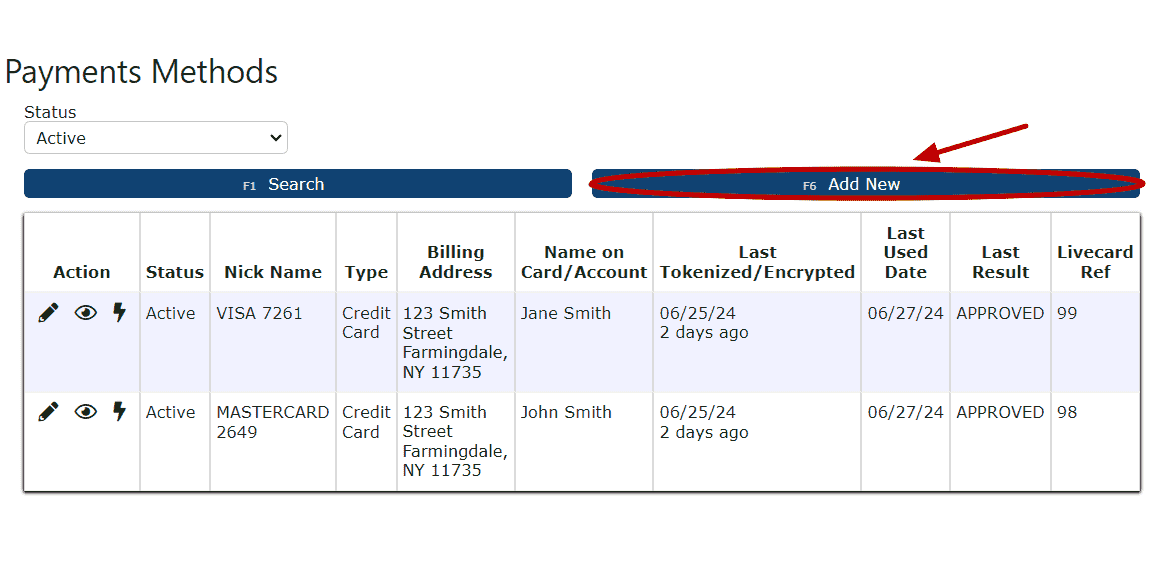 2. Open the LiveCard Type dropdown and select Credit Card as the payment type.
3. Enter the Nick Name, Name on Card, and Billing Address associated with the card. These details help identify the card for future payments.
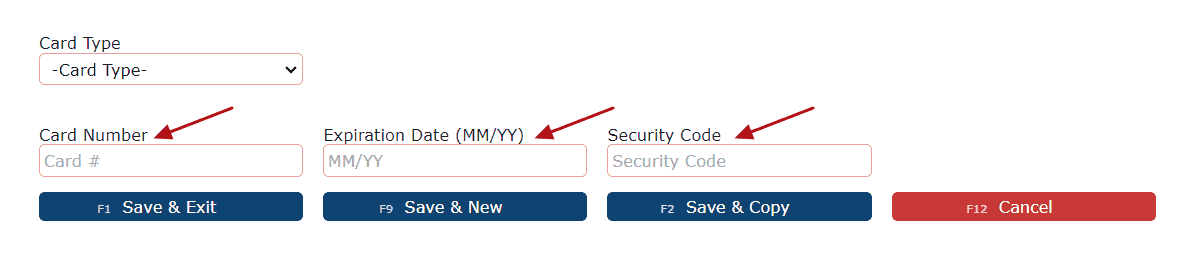
 4. Use the Card Type dropdown to select the appropriate card brand (American Express, Discover, Mastercard, or Visa).
5. Enter the Card Number, Expiration Date, and Security Code exactly as they appear on the card.
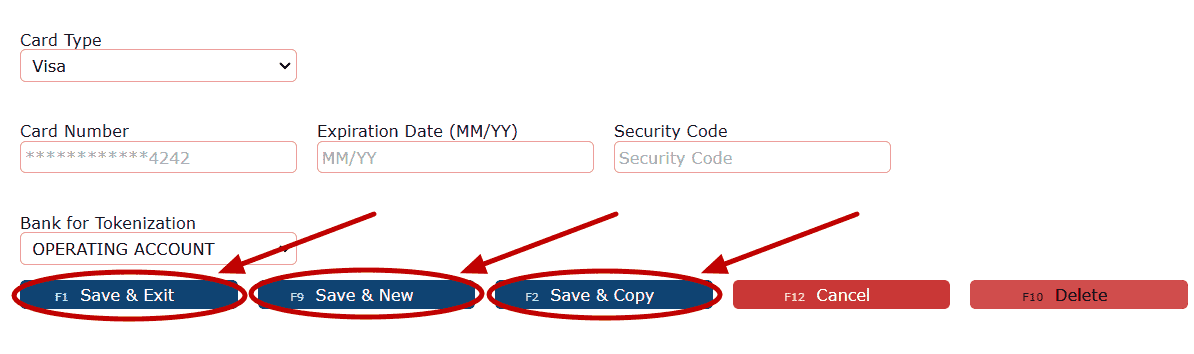
 6. Click Save & Exit, Save & New, or Save & Copy to securely store the payment method.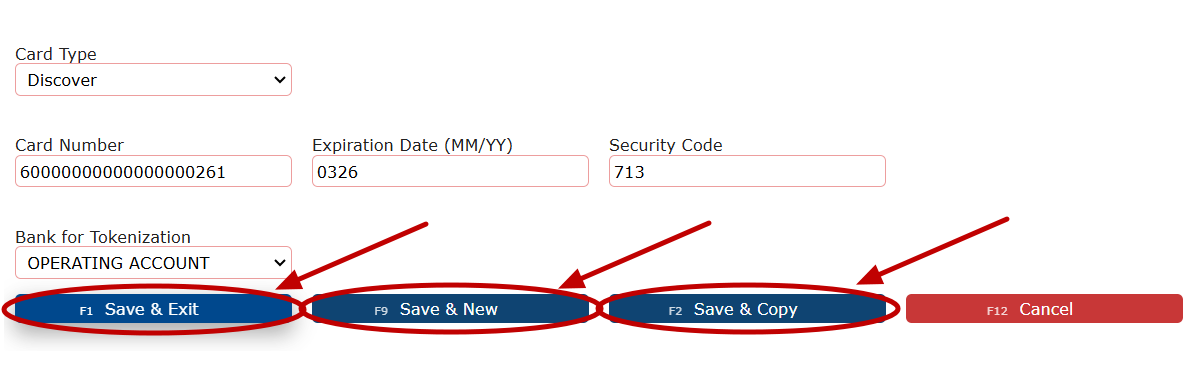
Note:Inspired Technology Systems does not store credit card numbers on its servers. All card information is securely tokenized using industry-standard encryption. Tokenization replaces sensitive card data with a secure token, ensuring compliance and protecting customer information.
Edit an Existing Payment Method:
1. Click the Carrot (arrow) icon next to an existing payment method, then select the Manage (pencil) icon.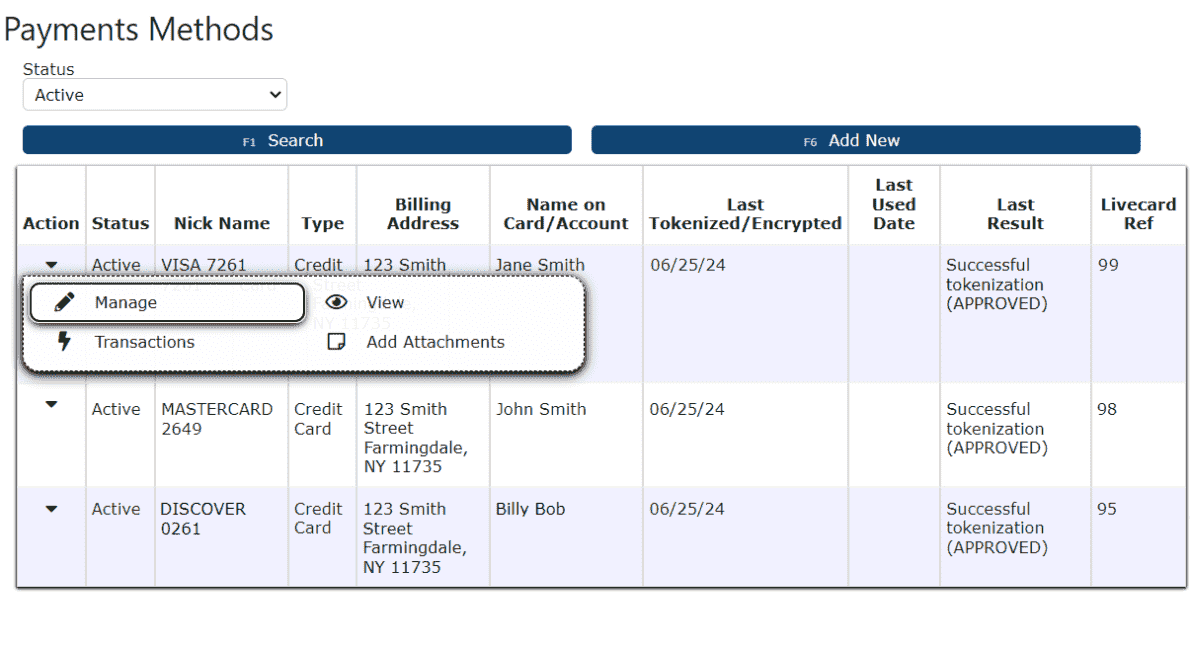 2. Update the payment method details as needed.
  3. Click Save & Exit, Save & New, or Save & Copy to apply the changes.
 Note:If a payment method is currently Disabled and needs to be reactivated, the Card Number, Expiration Date, and Security Code must be re-entered before saving.
Pay Invoices:
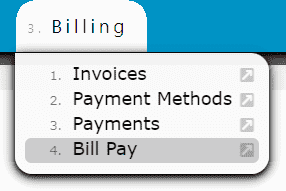
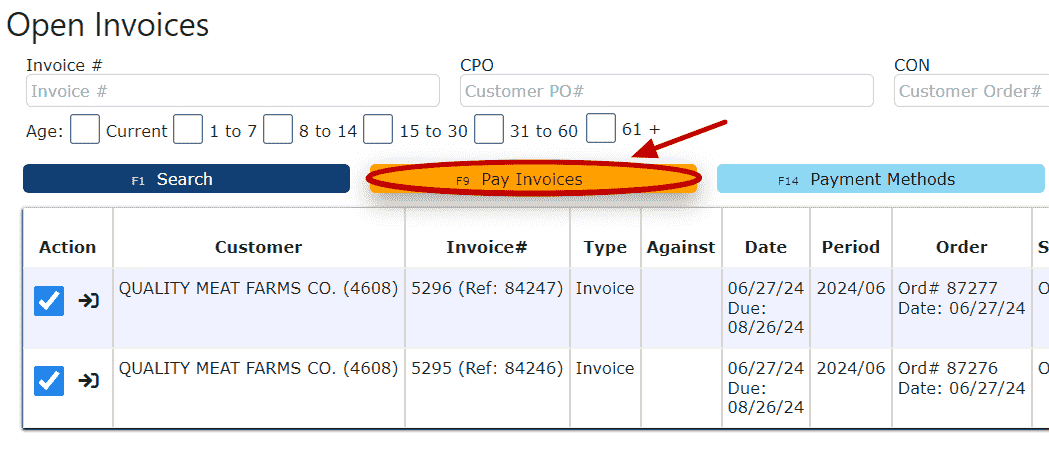
1. Navigate to Billing → Bill Pay to view all Open Invoices that are currently pending payment.
 2. Select the checkbox next to each invoice you wish to pay. Multiple invoices may be selected at the same time.
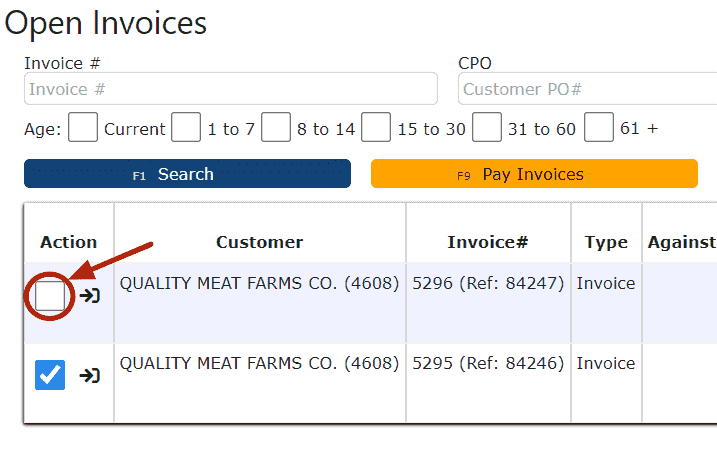 3. Click the Pay Invoices button to continue to the payment confirmation step.
 4. On the Payment Confirmation screen, review the selected invoices and check the acknowledgment box to confirm acceptance of the terms and conditions.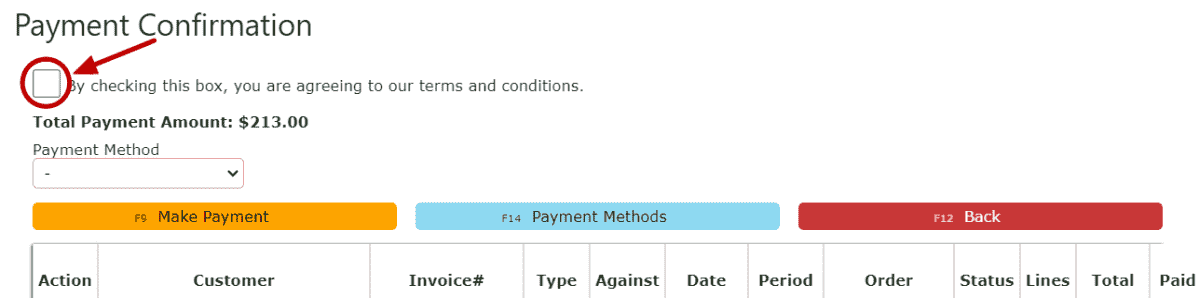
5. Use the Payment Method dropdown to select an eligible saved card.
6. Click the Make Payment button to securely submit the payment.
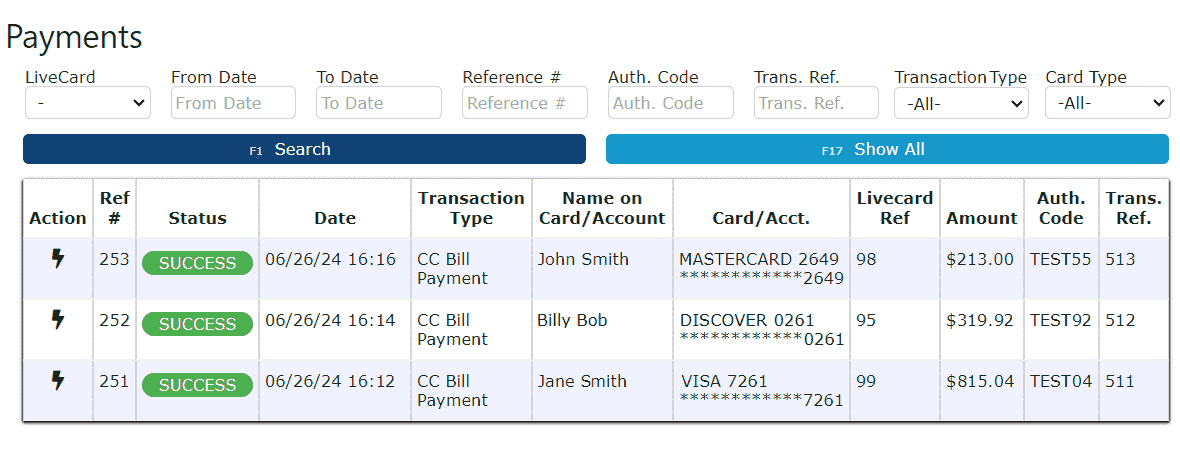
1. Navigate to Billing → Payments to review previously submitted payments. This page displays transaction details such as payment status, date, amount, authorization codes, and reference numbers for historical tracking and reconciliation.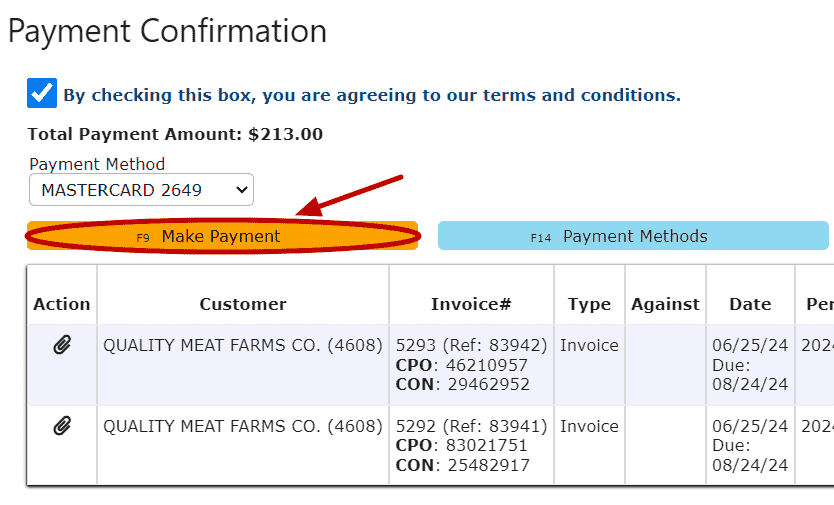 View Payments: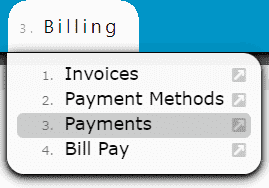
 View Open/Paid Invoices:
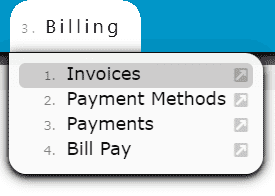
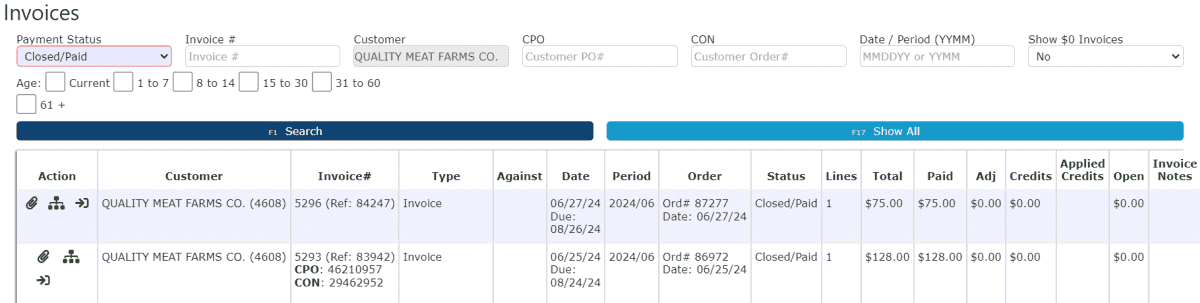
1. Navigate to Billing → Invoices to access your full invoice history.
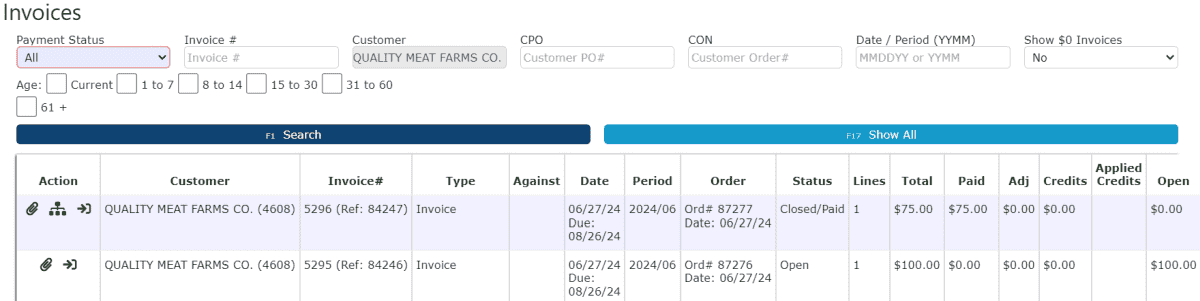
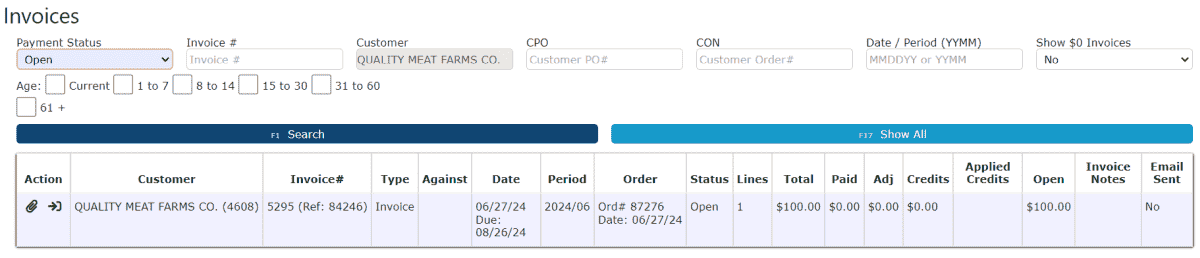
 2. Use the Payment Status dropdown to filter invoices by All, Open, or Closed (Paid) status. This allows customers to quickly distinguish outstanding balances from fully paid invoices and supports easy recordkeeping.
Applying Credits to an Invoice(s)
Customers can apply available credits directly toward open invoices during the Bill Pay process. Credits may originate from overpayments, returns, adjustments, or credit memos and can be used to reduce the total amount due before submitting payment.
1. Navigate to Billing → Bill Pay to view all Open Invoices and any Unused Credits available on your account.
2. Review the list of unpaid invoices along with the any available credit balances displayed on the page.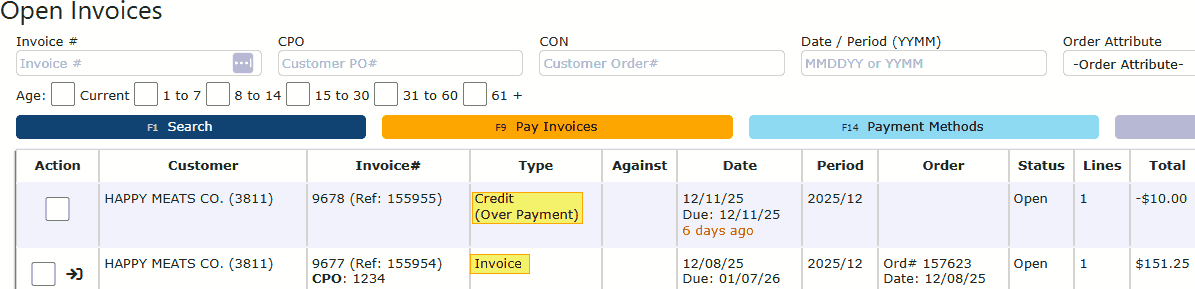
3. Select the checkbox next to the Invoice(s) you wish to pay.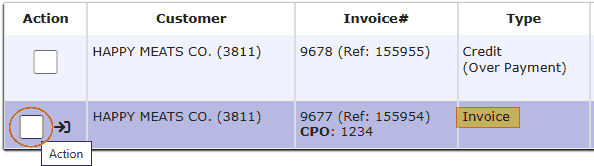
4. Select the checkbox next to one or more Credits you want to apply. The system will automatically apply the selected credit amount toward the chosen invoice(s).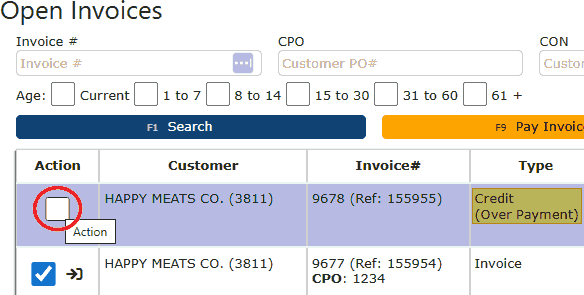
5. Click on the orange "Pay Invoices" button after you have finished choosing the invoices and credits you wish to use. The payment summary will recalculate in real time, showing:
• Original invoice amount
• Applied credit amount
• Remaining balance due
• Any applicable surcharge or processing fee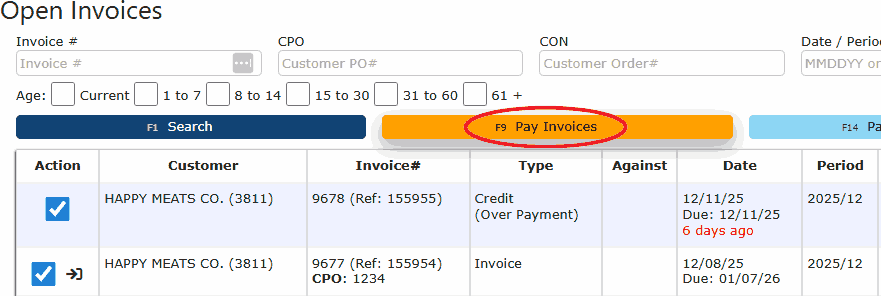
6. Select a payment method from the dropdown menu for any remaining balance.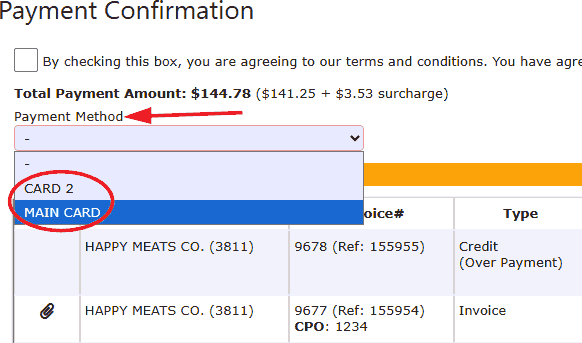
7. Acknowledge the additional 2.5% surcharge as well as our terms and conditions. Once you understand, check the box at the top of the screen.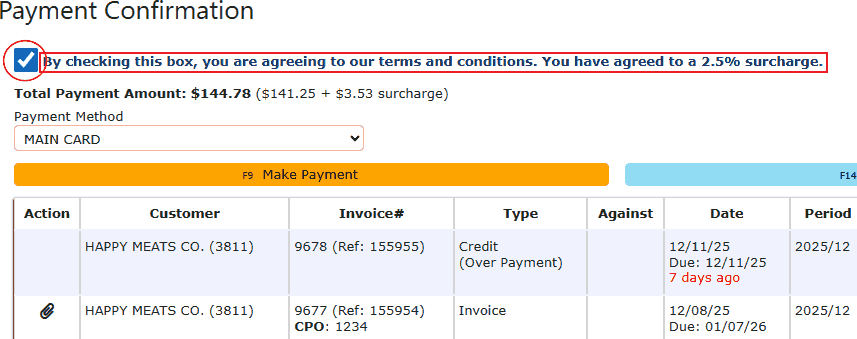
8. Review the final payment total, then click Make Payment to complete the transaction.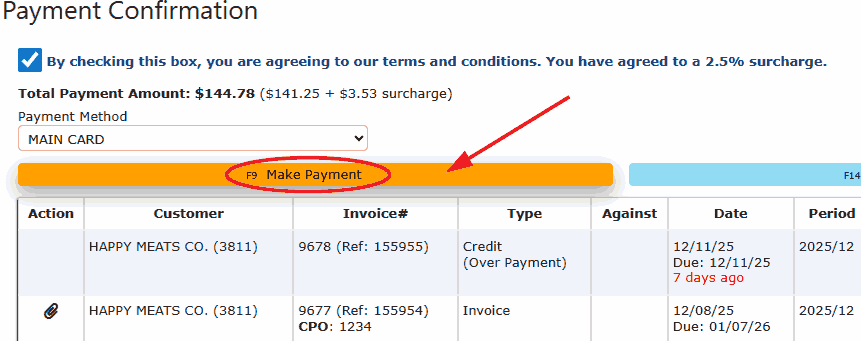
Important Notes:
• Credits are applied before the payment method is charged.
• If the selected credit fully covers the invoice amount, only applicable fees (if any) will remain due.
• If the credit amount exceeds the invoice balance, the remaining credit will stay available for future use.
• Applied credits and payment details are recorded for full visibility in both Payments and Invoice History.
Applying credits through Portal Bill Pay allows customers to quickly reconcile balances, reduce outstanding invoices, and ensure accurate account totals—all within a single, streamlined workflow.